The HTTP Request block is used to call a URL with an HTTP or HTTPS request and optionally use the response data. This block allows integration with external APIs, services, or internal systems by sending and receiving data.
Typical use cases include retrieving test data, sending data to REST or SOAP APIs, or triggering remote actions such as schedules or webhooks.
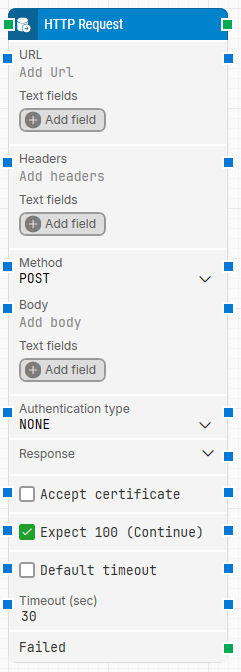
Fully expanded, the HTTP Request block looks like this:
Note: The screenshot on this page uses the Elegance Design, introduced in 2025.3. If you are using an earlier version, your layout may look different.
Quick-start
Drag HTTP Request onto the canvas.
Enter the URL of the target endpoint.
Choose the Method (GET, POST, PUT, DELETE, PATCH).
Optionally add Headers, Body, or Authentication.
Connect the green input and output connectors.
Run the flow when it’s ready.
Building block parameters
Parameters
Block header: The green input connector triggers the block to start executing. The green output connector triggers when the HTTP(s) request is completed (successfully, with an error, or after a timeout). The block title (“HTTP Request”) can be renamed by double-clicking it and typing a new title.
URL: Target endpoint to send the request (e.g., https://api.example.com/data). Supports tokens.
Text fields: Stores key–value pairs that can be inserted as dynamic tokens into URL via Insert token.
Headers: A semicolon-delimited list of request headers. You can right-click and select Insert token to insert values from Text fields.
Text fields (Headers): Add dynamic fields for use in headers.
Method: HTTP method to use.
GET: Retrieves data from the specified resource without modifying it.
POST: Sends data to the server to create or update a resource.
PUT: Updates or replaces an existing resource with new data.
DELETE: Removes a specified resource.
PATCH: Partially updates an existing resource, modifying only specific fields without affecting the entire entity.
Body: Content to send with POST or PUT requests. Supports JSON, XML, form data, and token insertion.
Authentication type:
None: No authentication.
Client Certificate: Uses a client-side SSL certificate for mutual authentication with the server.
Certificate File: Upload a client SSL certificate if required.
Password Protected (Certificate): Enable if the certificate requires a password.
Private Key: Upload a separate key file if needed.
Response: Full response data including code, headers, body, and timing.
Response Code: HTTP status code returned.
Response Headers: Headers returned in the response.
Response Body: Content returned by the server (JSON, HTML, XML, etc.).
Response Time: The time in milliseconds from the request is sent until the last byte of the response is received.
Accept certificate: When selected, any certificate exposed by the destination URL as part of the SSL handshake is accepted.
Expect 100 (Continue): When enabled, the client sends an Expect: 100-continue header before transmitting the body, which can improve performance for large payloads or authenticated endpoints.
Default timeout: Controls whether the block uses the flow’s default timeout or a fixed timeout. If the checkbox is not selected, the timeout is 30 seconds (using Timeout (sec)). If the checkbox is selected, the Default timeout value from the flow settings applies.
Timeout (sec): The maximum time spent waiting for the HTTP(s) request to complete before giving up and completing the block. The default is 30 seconds when Default timeout is not selected.
Failed: Triggers when the request fails in a way where no HTTP response code is received (for example the server is unavailable, the agent has no network connection, the timeout is exceeded before a response arrives, or an mTLS connection cannot be established with the provided certificate/key).