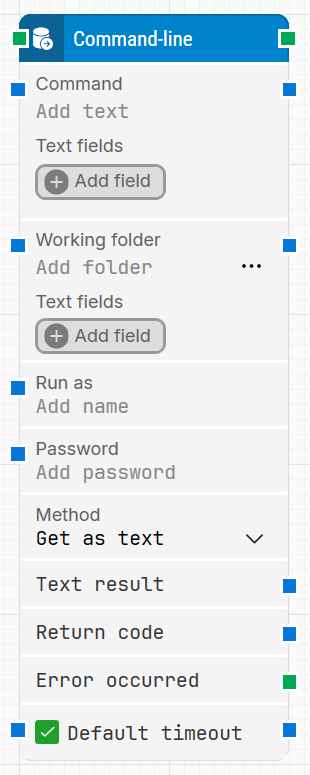
The Command-line block is used to execute system commands as part of a flow. It can run scripts (for example PowerShell or batch files), return dynamic data to be used elsewhere in the case, and integrate with external tools or systems via the command line.
See the Command-line tutorial to see examples of how to use the command-line block in test cases.
Fully expanded, the Command-line block looks like this:
Note: The screenshot on this page uses the Elegance Design, introduced in 2025.3. If you are using an earlier version, your layout may look different.
Quick-start
Drag Command-line onto the canvas.
Enter the basic settings you need for this step, such as Command, optionally Working folder, and choose the Method (Get as text or Iterate). Add credentials in Run as / Password if the command must run under a specific user.
Run the flow when it’s ready; use Text result or the iterative outputs, plus Return code, in downstream blocks.
Building block parameters
Parameters
Block header: Shows the current name of the Command-line block. You can rename it by double-clicking the header and typing a new title. The green input connector starts the command when the flow reaches this block, and the green output connector triggers when execution has finished and results are available.
Command: The command to execute. Leapwork can run any command that you can run from the system’s command prompt or shell (for example, powershell.exe, .bat files, or CLI utilities).
Text fields (Command): Lets you add fields that hold dynamic values for the Command string.
Click Add field to define a field.
In Command, right-click and select Insert token to insert that field so its value is substituted at runtime.
Working folder: Sets the working directory for the command. File paths used inside Command can be relative to this folder instead of fully qualified.
Text fields (Working folder): Provides dynamic fields that can be used as tokens in Working folder, in the same way as for Command.
Run as: The user account under which the command should run. Use this when the command requires different permissions from the Agent’s default user.
Password: The password for the Run as user. This allows the block to authenticate and execute the command under that account.
Method: Defines how the command output is exposed to the flow:
Get as text: returns a single combined text result.
Iterate: returns each output line as an individual string, triggering the top output connector once per line.
Text result: Contains the complete text output from the command when Method is set to Get as text. You can pass this text to other blocks for parsing, validation, or logging.
Return code: Holds the command’s exit code. By convention, 0 indicates success and 1 (or any non-zero value) indicates an error or abnormal termination.
Error occurred: Green output connector that triggers if the command returns an error during execution (for example, non-zero return code or execution failure). Use this to branch the flow for error handling, retries, or explicit failures.
Current line: When Method is set to Iterate, this property holds the current output line being processed on each iteration.
Current index: The index of the line currently being iterated (for example, 1 for the first line, 2 for the second, and so on).
Completed: Green output connector that triggers once all output lines have been iterated when Method is Iterate, allowing the flow to continue after processing all lines.
Default timeout: Controls how the timeout is determined:
When the checkbox is not selected, the block uses the explicit Timeout (sec) value, which defaults to 10 seconds.
When the checkbox is selected, the block uses the Default timeout value defined in the flow settings.
Timeout (sec): Sets the maximum time to wait for the command to complete before giving up and triggering the green output path.
This timeout applies only to this block. Every case also has a separate global timeout configured in the Settings panel; if the case runs longer than that global timeout, it is cancelled regardless of this block’s timeout.