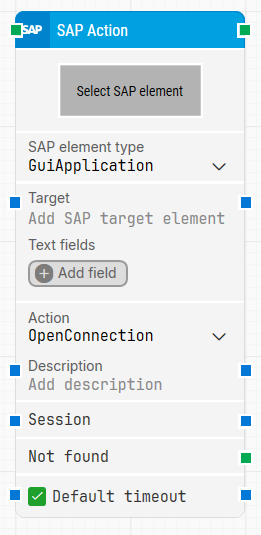
The SAP Action block is used to perform a variety of actions on elements within an SAP application. It supports both static and dynamic configurations using wildcards and tokens, and adapts to different SAP element types by exposing specific properties and parameters required by each action.
Fully expanded, the SAP Action block shows the following properties:
Note: The screenshot on this page uses the Elegance Design, introduced in 2025.3. If you are using an earlier version, your layout may look different.
Quick-start
Drag SAP Action onto the canvas.
Select an SAP element using Select SAP element. This will auto-populate SAP element type and Target.
Choose the appropriate Action (e.g., OpenConnection, SetAttribute). Additional fields will appear based on the action.
Optionally use Text fields for dynamic values or adjust timeout settings.
Run the flow when it’s ready.
Building block parameters
Parameters
Block header: The green input connector triggers the block to start executing. The green output connector triggers when the element has been found and the specified action has been performed successfully. You can rename the block title (“SAP Action”) by double-clicking it and typing in a new title.
Select SAP Element: Contains the locator for the SAP element to be found. You can capture it by right-clicking and selecting Capture new element. When you capture a new element, SAP element type and Target are auto-populated.
SAP element type: Shows the SAP element type that was captured from Select SAP Element.
Target: The captured SAP target value from Select SAP Element. This field is editable and can be made dynamic. It supports wildcards and tokens via Insert token (for example [5,"Lo(wildcard)"] to fetch the fifth element that starts with Lo).
Text fields: Stores key–value pairs that can be inserted as dynamic tokens into Target via Insert token. Fields can be renamed by double-clicking them, and inserted tokens update their visual appearance accordingly.
Add field: Adds a field that can be inserted as a token into Target.
Action: Selects the action to perform on the SAP element. The list of actions varies by SAP element type, and selecting an action can reveal additional fields (for example Attribute, Value, Vkey, etc.).
Description: Provides a description value used by the selected action when applicable.
Session: Specifies the SAP session used for the action when applicable.
Attribute: Lists available attributes for the SAP element, depending on SAP element type and Action.
Value: The value used by the selected action (for example, the value to set for an attribute), when applicable.
Not found: Triggers if the SAP element is not found before the timeout, so you can branch the flow or explicitly fail a case by linking it to a Fail block.
Default timeout: Controls whether the block uses a fixed, local timeout or the flow’s default timeout. If the checkbox is unchecked, the timeout is 10 seconds. If the checkbox is checked, the flow’s Default timeout applies.
Timeout (sec): The maximum time spent trying to find the SAP element and perform the action before giving up and triggering Not found. This value is used when Default timeout is unchecked (default is 10 seconds unless changed manually).