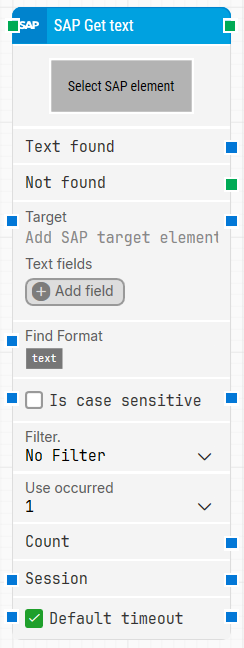
The SAP Get Text building block is used to find and retrieve text in an SAP GUI.
Fully expanded, the SAP Get Text block shows the following properties:
Note: The screenshot on this page uses the Elegance Design, introduced in 2025.3. If you are using an earlier version, your layout may look different.
Quick-start
Drag SAP Get Text onto the canvas.
Connect the block in the flow and capture/configure the required parameters such as Select SAP Element and Target, optionally adjusting Find Format, Filter, Use occurred, and timeout-related settings.
Run the flow when it’s ready.
Building block parameters
Parameters
Block header: Shows the current title of the SAP Get Text block. You can rename it by double-clicking the header and typing a new title. The green input connector triggers the block when the flow reaches it, and the green output connector triggers when the text has been successfully found.
Select SAP Element: Defines which SAP element this block will work on. Capture an SAP element by right-clicking the property and selecting Capture new element.
Text found: Outputs the text that was found.
Not found: Triggers if suitable text is not found before the timeout behavior completes. This is typically used to branch the flow or explicitly fail a case by linking it to a Fail block.
Target: Contains the SAP target value to search for. This value is set as soon as the element has been captured.
Wildcards can be used in Target to make the automation more flexible. To insert a wildcard, use Insert token and select wildcard.
Example: [5,"Lo(wildcard)"] fetches the fifth element that starts with Lo.
Text fields: Stores key–value pairs that let you insert dynamic tokens into Target via Insert token. Fields can be renamed by double-clicking them, and the corresponding tokens update automatically.
Find Format: Defines a format the text must match in order to be retrieved. For example, with Status: [TEXT] today, if the screen shows Status: Green Mode today, the block retrieves Green Mode.
Is case sensitive: Controls whether Find Format matching is case sensitive. By default, it is case insensitive.
Filter: Adds an additional rule the text must meet to be retrieved, such as Starts with, Ends with, or Contains.
Filter Value: The value used by the selected Filter.
Use occurred: Selects which occurrence of the found text to use if more than one match is found. Select All to iterate through all occurrences.
Count: Outputs the total number of occurrences of the found text.
Session: Used to support SAP multi-session functionality.
Default timeout: Controls whether the block uses the default timeout from the flow settings or a custom timeout value.
Timeout (sec): When Default timeout is not selected, this field lets you type the timeout you need for the block.