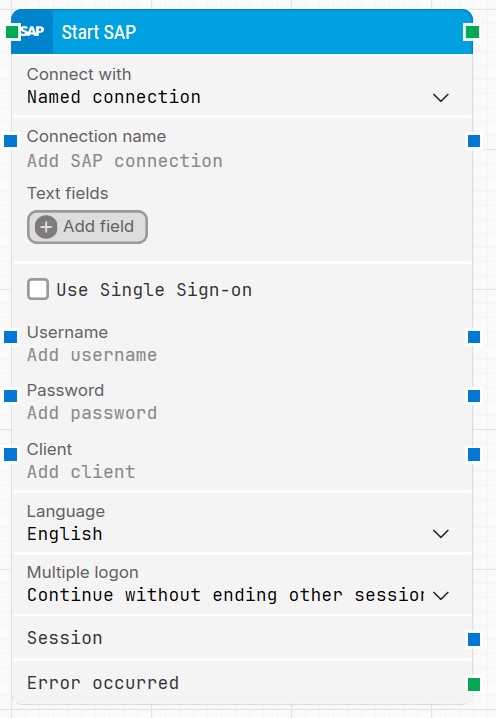
The Start SAP building block starts the SAP GUI application and connects to it for SAP GUI automation. It supports connecting via a named connection or a connection string, and it can authenticate using either credentials or Single Sign-on (SSO).
Fully expanded, the Start SAP block shows the following properties:
Note: The screenshot on this page uses the Elegance Design, introduced in 2025.3. If you are using an earlier version, your layout may look different.
Quick-start
Drag Start SAP onto the canvas.
Connect the block in the flow and optionally specify the basic parameters required for this block to operate: Connect with, Connection name/Connection string, and either Use Single Sign-on or Username, Password, Client, Language.
Run the flow when it’s ready.
Building block parameters
Parameters
Block header: The green input connector triggers the block to begin executing. The green output connector triggers when the SAP application has been opened and connected successfully. You can rename the block by double-clicking the header text and typing a new title.
Connect with: Selects which connection type to use when starting SAP.
Named connection: Connects using a SAP connection name.
Connection string: Connects using a connection string.
Connection name / Connection string: Provides the connection value used for the SAP logon, depending on what you selected in Connect with.
Text fields: Stores key–value pairs that can be inserted as dynamic tokens into Connection name / Connection string via Insert token. Fields can be renamed by double-clicking them, and the corresponding tokens update automatically.
Use Single Sign-on: When enabled, credentials are not required. SSO must be configured on the machine to use this method. If SSO is not configured, a window for SSO credentials will appear.
Username: Specifies the username used to log on when SSO is not used.
Password: Specifies the password used to log on when SSO is not used.
Client: Specifies the SAP client used for the logon. For example, 000 is the standard delivery client and 100 is the trial & exploration client.
Language: Selects the logon language from the dropdown. The default language is English.
Multiple log-on: Controls what happens if there are already active SAP sessions.
Connect and end other sessions: Ends all current active sessions before connecting.
Connect without ending other sessions: Connects without ending any existing sessions.
Close this session: Does not log on if there is an active session.
Connection: Used to pass SAP connection details for an existing connection.
Session: Used to support multi-session functionality in SAP.
Error occurred: This output connector triggers if Start SAP returns an error during execution. Use it to branch the flow for error handling.