
This guide aims to walk you through the installation and activation of the Leapwork trial version, ensuring you can efficiently set up and use its components from the very first step.
To get an overview of the components of the Leapwork Automation Platform, see this article.
Installation Guide
To start the installation, follow the steps below:
-
Download the latest release from the Customer Portal.
-
Save and transfer the file to the local system.
-
Navigate to the MSI file location and double-click the .msi file to start installation.
-
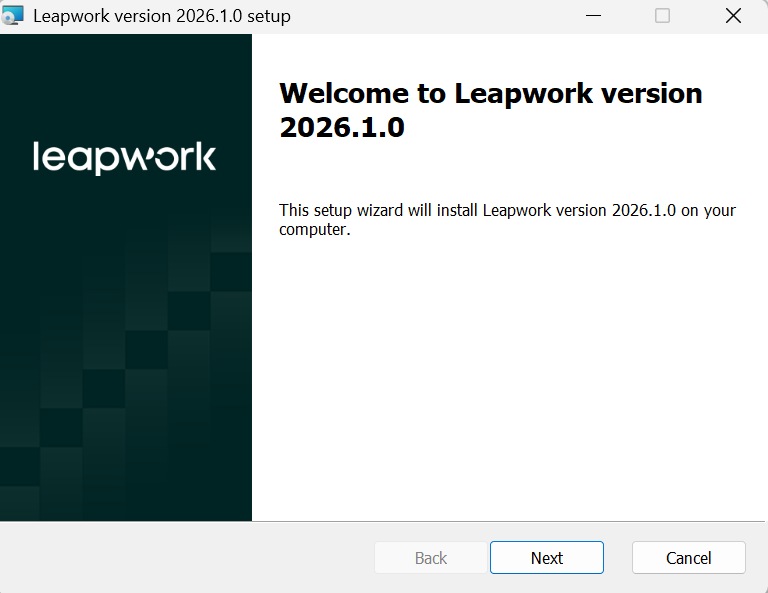
Click the Next button to start the installation.
-
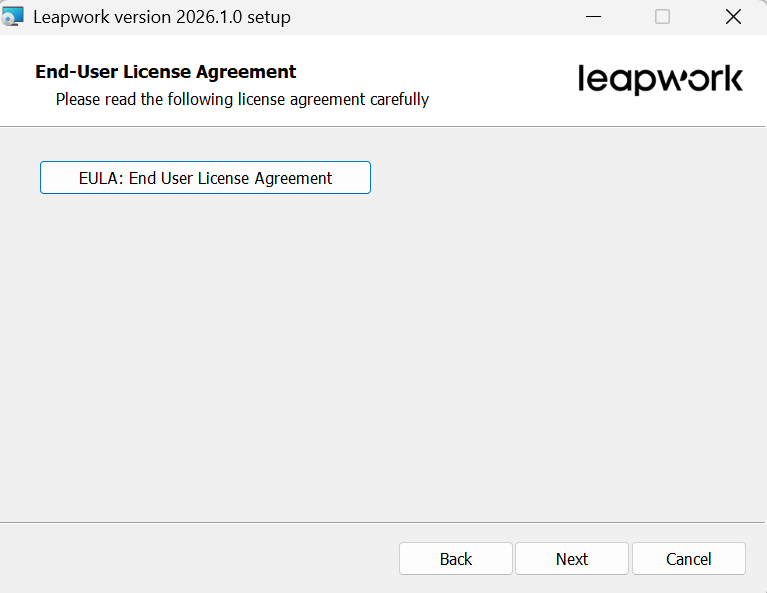
Read the end user agreement, select the I accept the terms in the license agreement checkbox, then click the Next button.
-
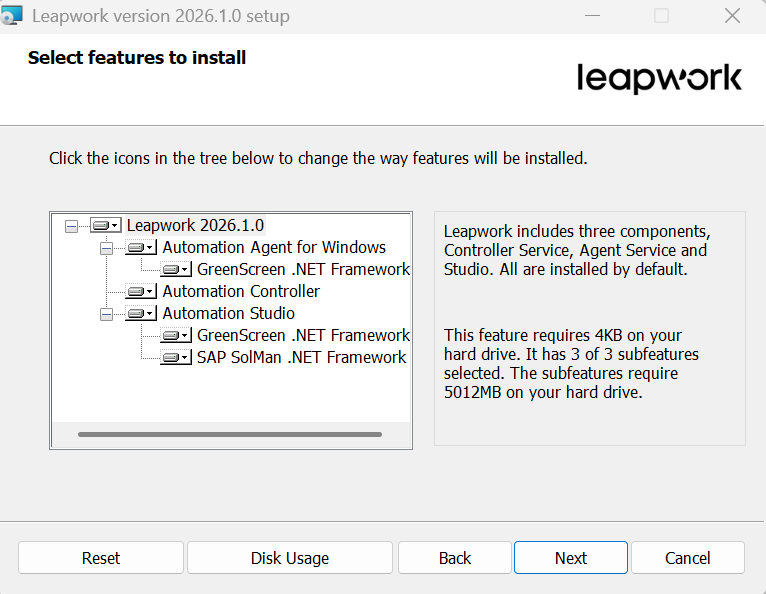
Click the dropdown menu to select components to install, then click the Next button. Refer to Working with Leapwork for details.
Note: For trial, keep the default selection of all three components.
The Configuration screen contains settings for multiple components. You can modify these later in the configuration files for each component: studio\studio.config, controller\controller.config, and agent\agent.config. These files are in the installation directory: C:\program files\LEAPWORK.
-
Enter the License Key and click the Next button.
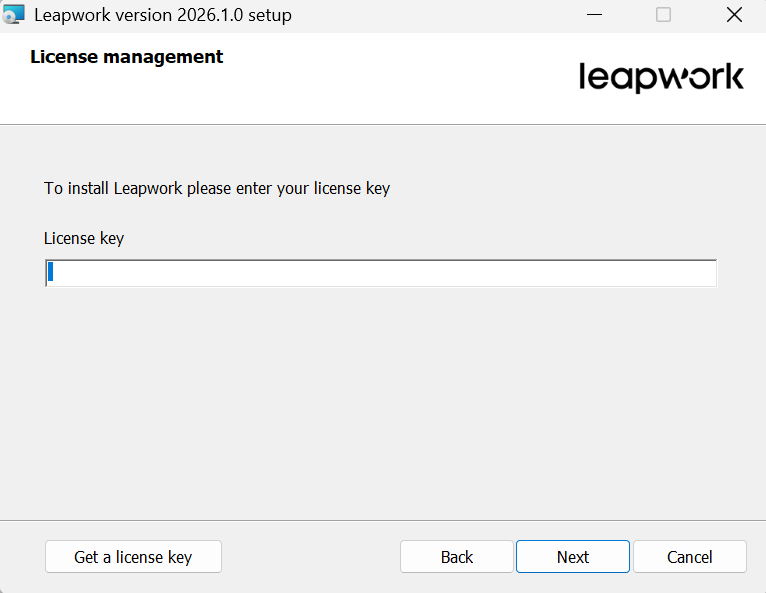
Note: You can obtain the license key from the Customer Portal.
-
Enter the port codes for the automation controller and the automation controller API.
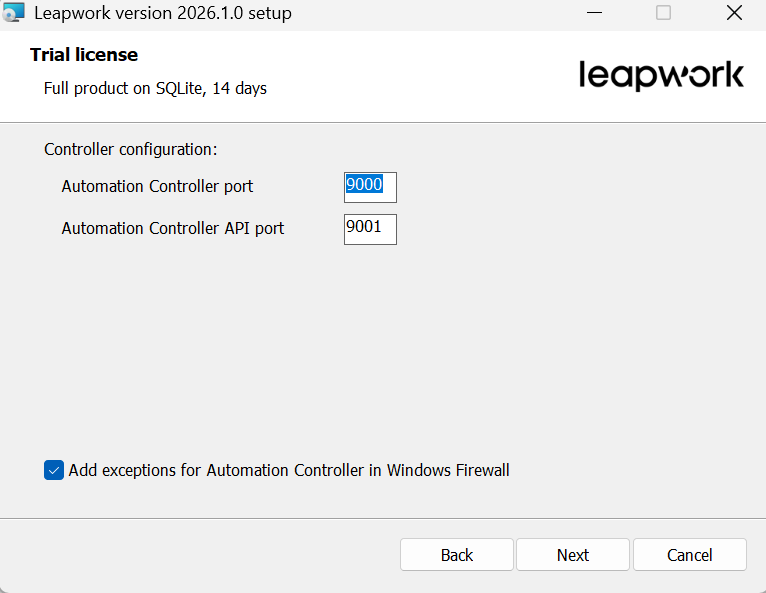
Controller Port: Flow and the Controller make API calls using a TCP port. The default is port 9000, you can change to any other port number that is not in use by other software on your computer.
Controller API Port: For integration, access Leapwork's open REST API using the port number set here. The default port is 9001. You can change to any other port number that is not in use by other software on your computer.
Note: We do not recommend changing the Controller, Controller API, or Agent port numbers.
Add Exceptions for the Controller in Windows Firewall: Select this option to add a rule to the Windows Firewall to permit all incoming connections to the Controller.
-
Click Next.
Note: The password is optional. The Leapwork Automation Platform is used in corporate and secured test networks.
-
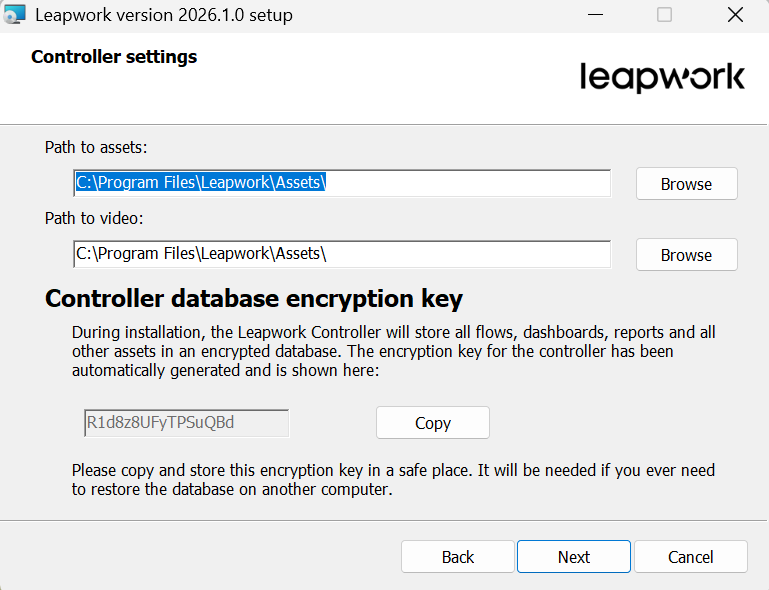
Specify the paths for both assets and video and click Next.
Path to Assets: This is the path to the file system folder which contains the encrypted SQLite database files holding all Leapwork assets, automation flows, schedules, and run results.
-
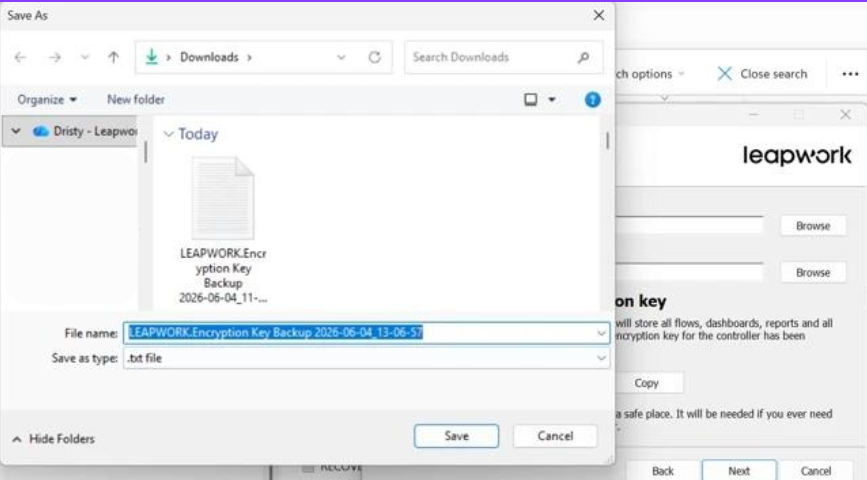
Save the Encryption Key Backup file in a secure location.
This file contains the encryption key used to protect your LEAPWORK data, including flows, schedules, and configuration settings. Keep a copy of this file in a safe place, as it may be required when restoring a backup, migrating the Controller to another machine, or recovering your LEAPWORK environment.
-
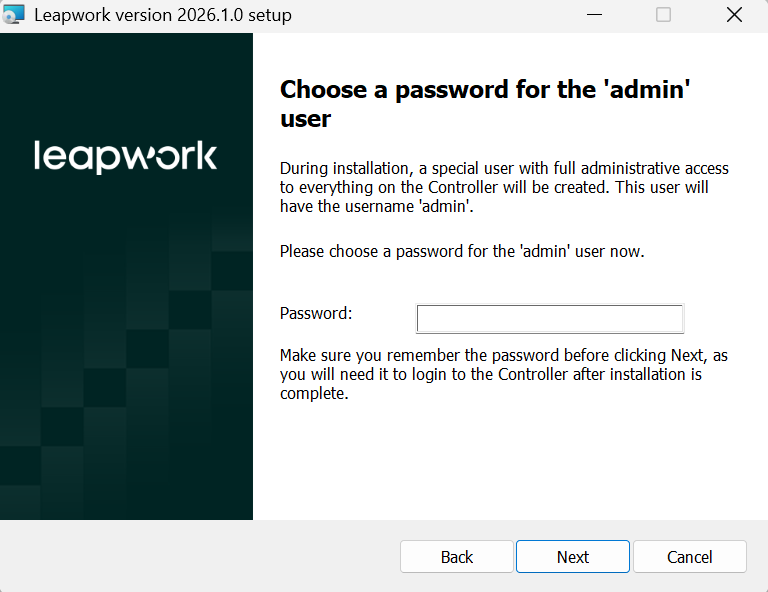
Enter the password you will use to log in to the Controller after installation.
-
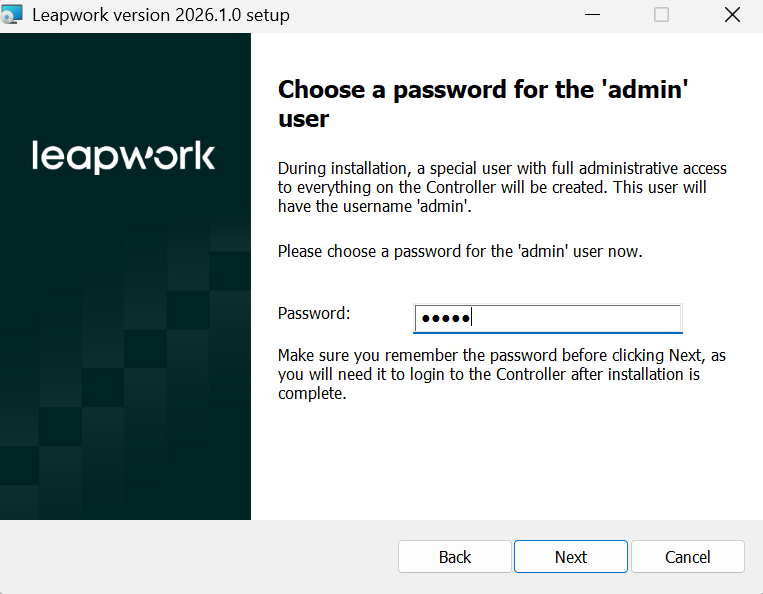
Enter the password and click Next.
Adjust settings on the configuration screen before installation. Leapwork Agents can log into Windows automatically, so users do not need to be logged in to run a flow. They also support testing Single Sign-on between Windows and other applications.
-
In the screen below, Agent Port: Automation flows run within the Agent, which communicates with Flow and the Controller through a closed remote-control protocol on a specified TCP port. The default port is 6777, but you can change it to any unused port.
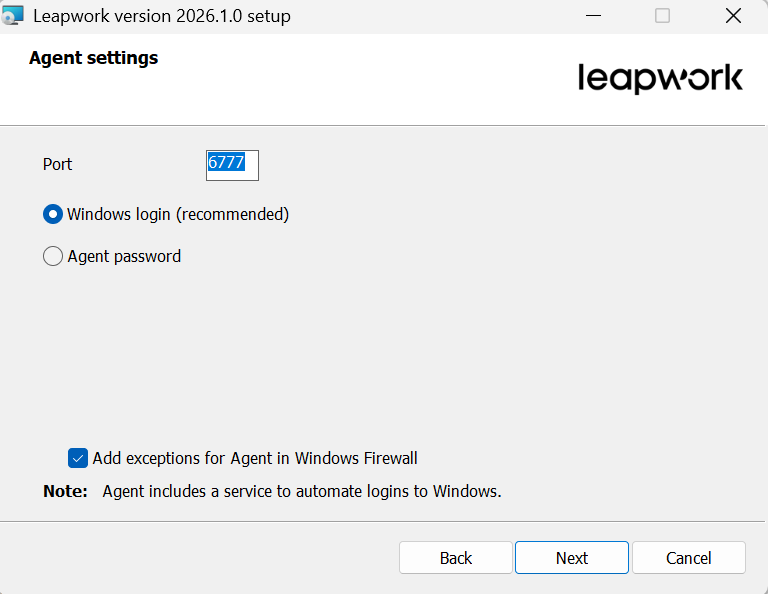
Agent Login Methods:
A. Windows login: Agents includes a strong security feature to automate logging in and out of Windows.
-
You don’t need to be logged into the machine to run a flow. Leapwork can log in on your behalf.
-
You can also test single sign-on between Windows and any other application that uses the same credentials.
To use your Windows credentials when configuring the Agent, you need to select Windows login.
B. Agent password: In case you do not want to use windows login feature, then you should use the Agent password to secure your agents. Because the Agent uses a remote-control protocol, we advise that you set up a password to prevent unauthorized parties from connecting to it.
-
Let’s select Windows login method and click on Next button.
-
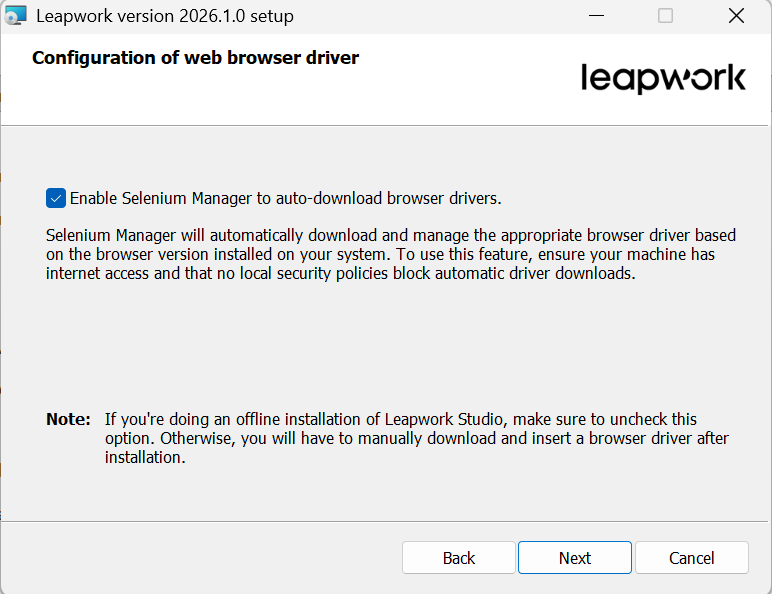
Check Enable Selenium Manager to auto-download browser drivers if you want Leapwork Flow to automatically download the matching browser drivers from the internet during runs. Otherwise, leave it unchecked to use the packaged drivers installed locally, then click the Next button.
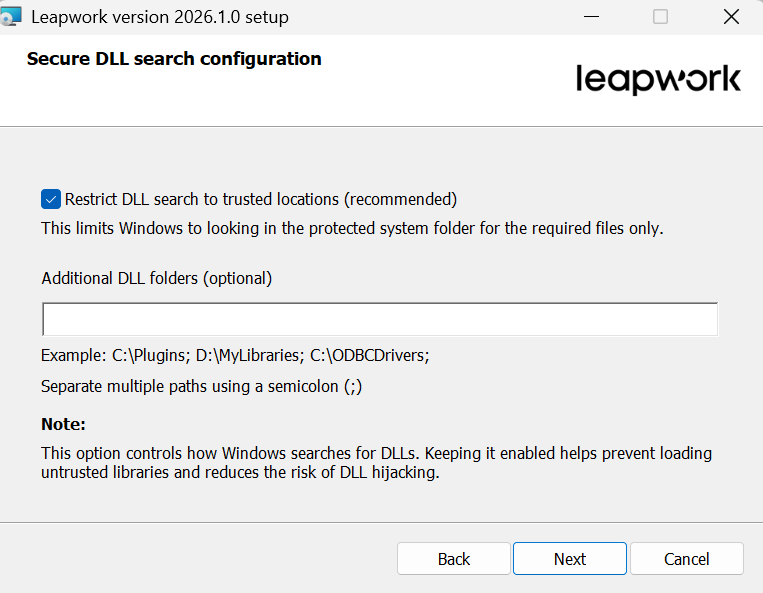
Clicking on the Next button will take you to the Step 15.
Do not change the controller, controller API, or agent port numbers unless necessary.
If you select Agent Password, you will see the screen below: Set a password to prevent unauthorized access since the Agent uses a remote-control protocol.
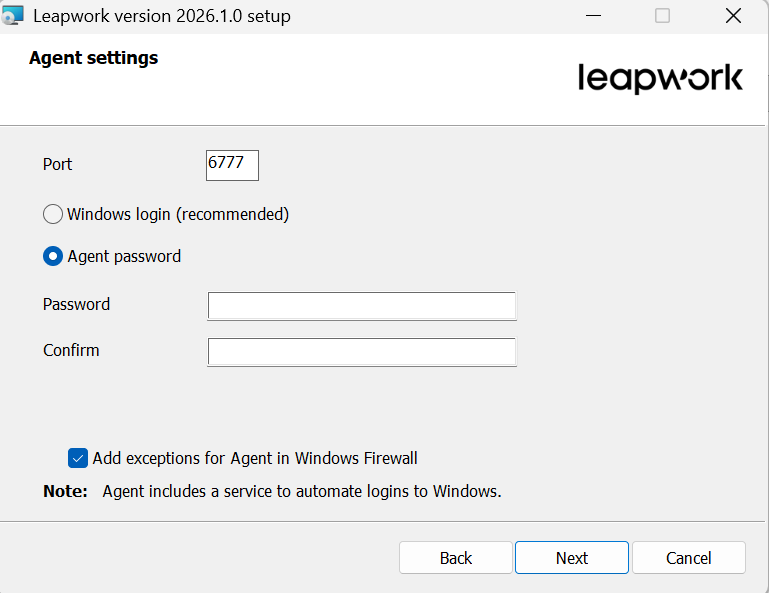
-
Click the Next button to continue.
-
Click on Install button.
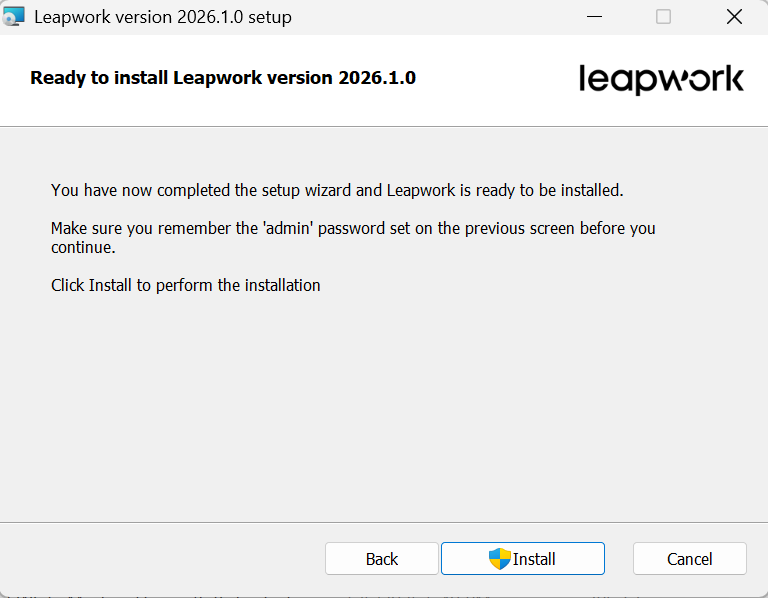
The installation is in progress.
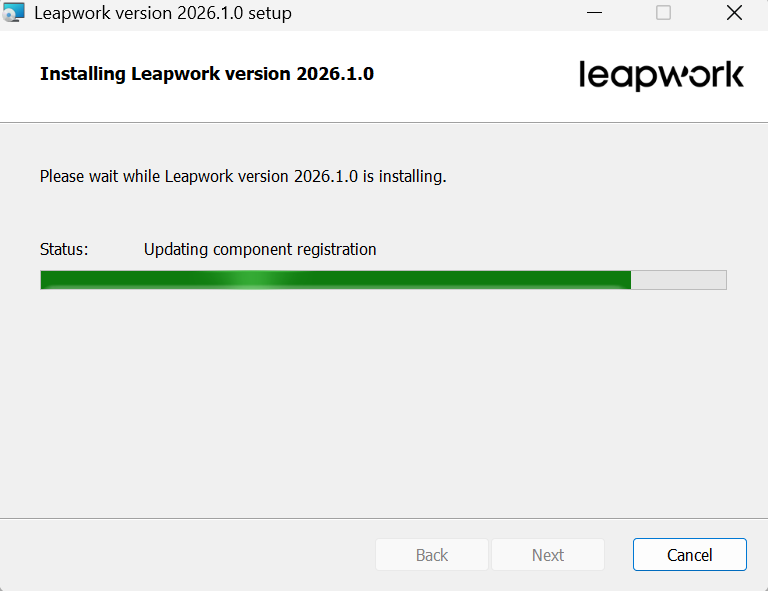
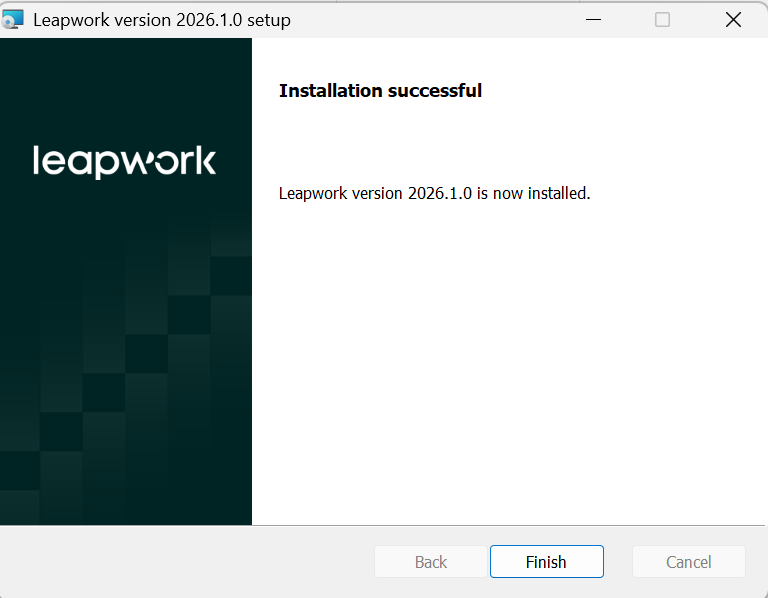
The installation is successfully done.
Activation Guide
If you have the software installed but need to activate it, follow these steps:
-
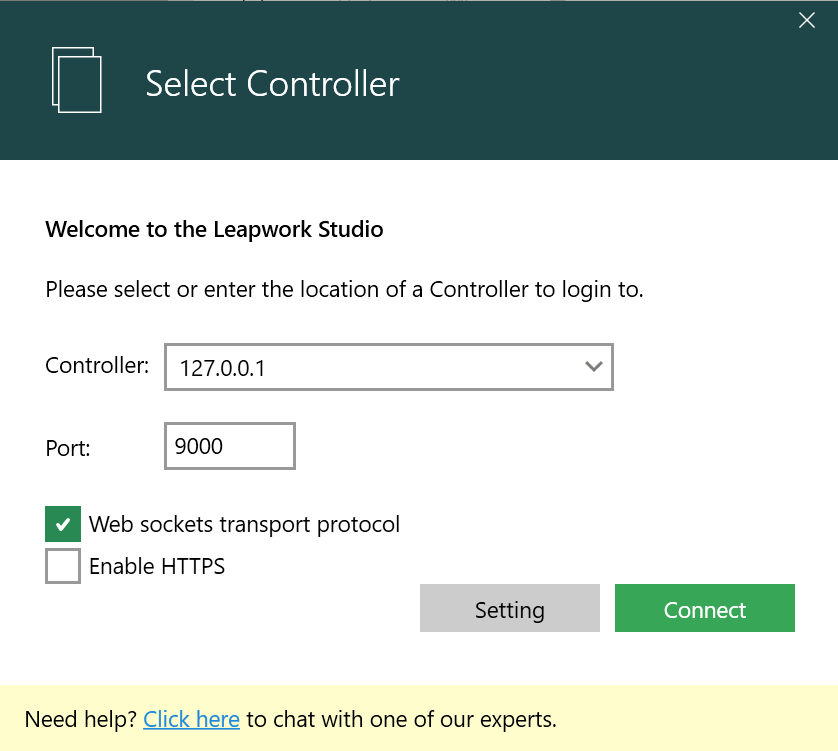
After installing all Leapwork components, start Leapwork Flow. The Controller broadcasts its IP address, so Flow usually detects it on first start.
-
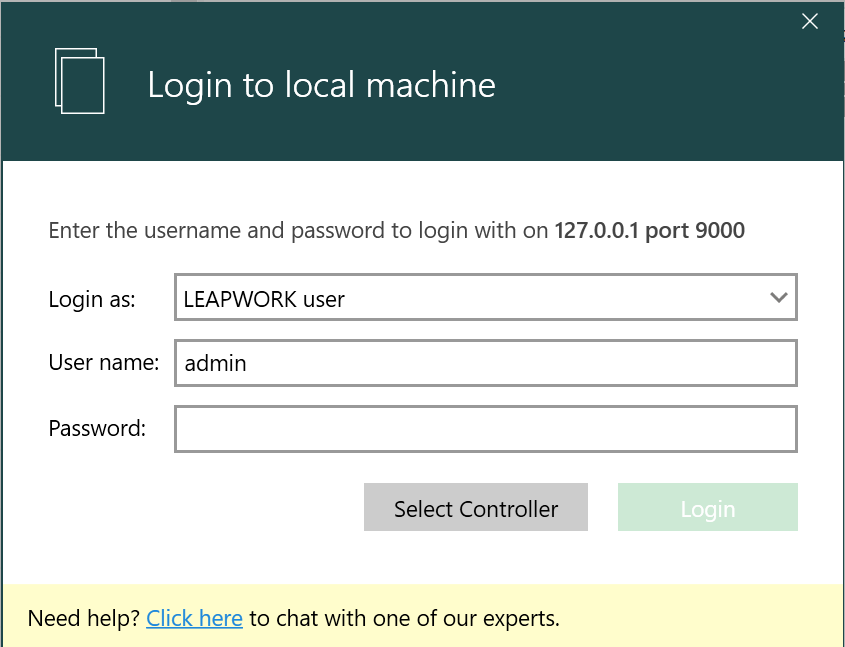
Log in as admin. Flow prompts you to enter the license key.
-
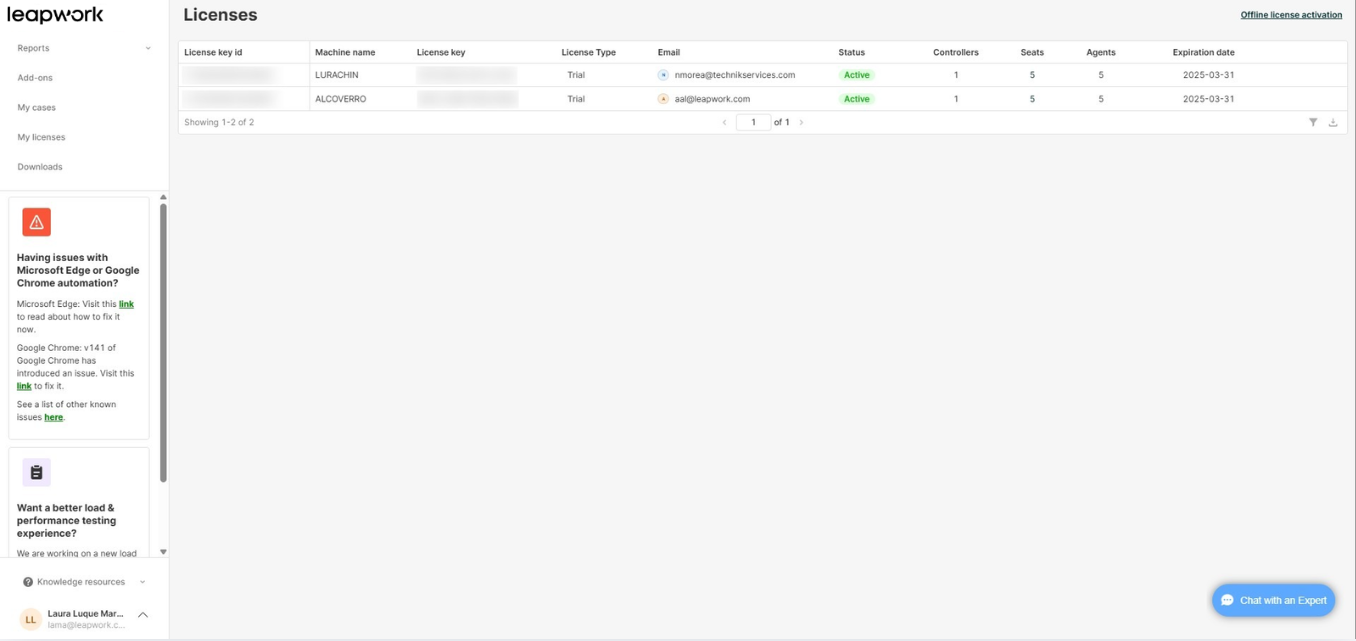
To get License key, click the Customer Portal link.
-
Copy the License Key.
-
Paste the License Key in the provided field and click Validate button.
-
After a successful activation, click the Continue button.
Note: If you encounter any problems with the login, please contact Leapwork Customer Support.