
The Disconnect from Session building block disconnects from a terminal session by disconnecting from the API. It does not close the terminal session itself. When you reconnect later, you are taken back to the last green screen page, so it is often best to disconnect from the terminal application’s “home screen” to reduce the risk of the flow failing on reconnect. To automate closing a terminal session, use desktop (rather than green screen) building blocks.
Fully expanded, the Disconnect from Session block shows the following properties:
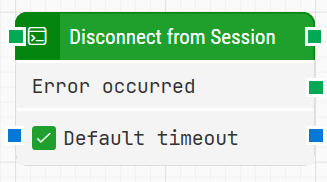
Note: The screenshot on this page uses the Elegance Design, introduced in 2025.3. If you are using an earlier version, your layout may look different.
Quick-start
-
Drag Disconnect from Session onto the canvas.
-
Connect the block in the flow. Optionally, adjust other parameters if needed.
-
Run the flow when it’s ready.
Building block parameters
Resources
|
Topic |
Description |
|---|---|
|
Common questions about creating, running, and managing flows in Leapwork. |
|
|
Guidelines and solutions for identifying and fixing issues that occur when building or running flows in Leapwork. |