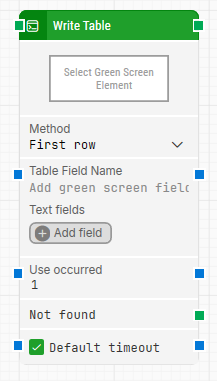
The Write Table block is used to enter a specified range of values into a table-like structure on a green screen. Leapwork derives a logical table structure from the screen content so you can target fields by column and row numbers, which can make green screen automation faster to build and maintain.
The Green Screen Recorder and green screen building blocks are available with Enterprise plans.
Fully expanded, the Write Table block shows the following properties:
Note: The screenshot on this page uses the Elegance Design, introduced in 2025.3. If you are using an earlier version, your layout may look different.
Quick-start
Drag Write Table onto the canvas.
Connect the block in the flow and, for a minimal setup, set Select Green Screen Element. The remaining parameters are optional.
Run the flow when it’s ready.
Building block parameters
Parameters
Block header: Shows the current title of the Write Table block. You can rename it by double-clicking the header and typing a new title.
The green input connector triggers the block when the flow reaches it, and the green output connector triggers when the table values have been entered successfully.
Select Green Screen Element: Specifies the green screen element that the block uses as the reference for identifying the table structure it will write into.
This parameter is mandatory.
Method: Defines how the block selects which row to target when writing values.
First row: Always targets the first row in the range.
Row index: Targets a specific row by its index.
Table Field Name: Defines the field that Leapwork looks for as an anchor representing the start of the table the block should work with.
Text fields: Stores key–value pairs that can be inserted as dynamic tokens into supported fields using Insert token.
Use occurred: Specifies which occurrence to use if more than one match is found on the screen.
Not found: Triggers if the field representing the table is not found before the timeout expires.
This parameter is optional and can be used to branch the flow for error handling or to explicitly fail a case.
Default timeout: Controls whether the block uses a fixed, local timeout or the flow’s default timeout. If the checkbox is selected, the block uses the Default timeout configured in the flow settings under Max. run time.
Timeout (sec): The maximum time spent trying to find the table/field and write the values before giving up and triggering Not found. This value is used when Default timeout is not selected (default is 10 seconds unless changed manually).