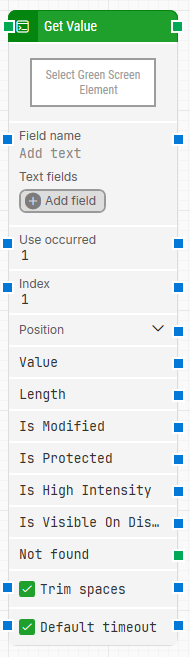
The Get Value block retrieves a value from a green screen based on Leapwork’s intelligent field recognition. It identifies the nearest Protected field (typically a label) and then finds the first matching Unprotected field following it. This strategy significantly simplifies automation in green screen environments by avoiding manual pixel-based targeting.
Fully expanded, the Get Value block shows the following properties:
Note: The screenshot on this page uses the Elegance Design, introduced in 2025.3. If you are using an earlier version, your layout may look different.
Quick-start
Drag Get Value onto the canvas.
Connect the block in the flow and optionally specify basic parameters such as Field name, Use occurred, Index, Position, and Text fields.
Run the flow when it’s ready.
Building block parameters
Parameters
Block header: Shows the current name of the Get Value block. You can rename it by double-clicking the header and typing a new title.
Field name: Used to identify the reference Protected field. This is auto-resolved by Leapwork based on the closest field to the left of the value you want to retrieve.
Text fields: Stores custom key–value pairs. These values can be reused dynamically in other fields (such as Field name) using the Insert token feature.
Use occurred: Specifies which occurrence to use when there are multiple matches for the same Field name. For example, if “Username” appears three times, setting this to 2 will use the second match.
Index: Identifies which Unprotected field should be used if there are multiple unprotected fields aligned with the same Protected label. The input can be fed from another block, and the value can be passed forward as output.
Position: Specifies a particular screen coordinate to locate the value, using a row and column format. Use this only if you need precise positional targeting.
Value: Returns the text or number fetched from the green screen field.
Length: Outputs the length of the retrieved value. For example, for the value "Username", the length would be 8.
Is Modified: Returns true if the target field was unprotected and its default value was changed by the user.
Is Protected: Returns true if the identified field is Protected, meaning it is read-only.
Is High Intensity: Returns true if the field is visually highlighted (e.g., with bold or colored text), indicating a special attribute.
Is Visible On Display: Returns true if the field is visible (i.e., not hidden like a password).
Not found: This output triggers if the specified field is not found before timeout. You can use this to route to a Fail block or handle errors explicitly.
Default timeout: If unchecked, the timeout is 10 seconds unless changed manually. If checked, the block uses the flow’s Default timeout under Max. run time.
Timeout: The maximum time spent trying to find and fetch the field value before giving up and triggering Not found. This value is used when Default timeout is unchecked (default is 10 seconds unless changed manually).