
The Hit Key block executes terminal-specific commands by sending a selected terminal key/action to the active terminal session. It is used in terminal automation flows where you need to trigger actions such as submitting input (for example, Enter) or invoking other supported terminal commands.
Note: The Green Screen Recorder and terminal building blocks are available with Enterprise plans.
Fully expanded, the Hit Key block shows the following properties:
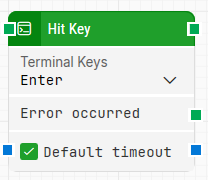
Note: The screenshot on this page uses the Elegance Design, introduced in 2025.3. If you are using an earlier version, your layout may look different.
Quick-start
-
Drag Hit Key onto the canvas.
-
Connect the block in the flow and optionally specify the basic parameters required for this block to operate: Terminal Keys, Default timeout.
-
Run the flow when it’s ready.
Building block parameters
Resources
|
Topic |
Description |
|---|---|
|
Common questions about creating, running, and managing flows in Leapwork. |
|
|
Guidelines and solutions for identifying and fixing issues that occur when building or running flows in Leapwork. |