The Type Text block types text at a specific row and column on an IBM i / green-screen terminal. You can use it to enter values into fields or to send keystrokes and commands (such as ENTER) as part of a terminal automation flow. Compared to Set Value, this block lets you embed special keys directly inside the text.
The Green Screen Recorder and its building blocks are available with Enterprise plans.
Note: The screenshot on this page uses the Elegance Design, introduced in 2025.3. If you are using an earlier version, your layout may look different.
Quick-start
Drag Type Text onto the canvas.
Set the main parameters you need, such as Position and Text value, and optionally add Text fields or use Capture to include special keys.
Run the flow when it’s ready.
Building block parameters
Parameters
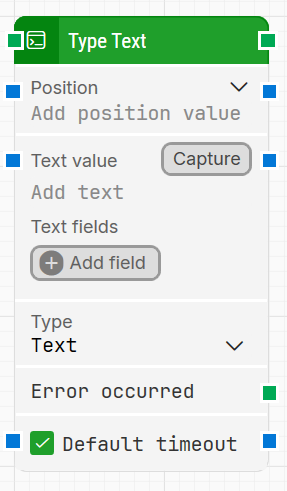
Block header: Shows the current name of the Type Text block. You can rename it at any time by double-clicking the header and entering a new title.
The green input connector triggers execution when the flow reaches this block.
The green output connector triggers when the text has been typed successfully.
Position: Defines where the text will be typed on the green screen, using row and column coordinates.
The top-left character cell is row 1, column 1.
Use this to align the text with the correct field or location on the terminal screen.
Text value: The text that will be sent as keyboard input to the specified position.
Can include tokens for dynamic values (inserted via Text fields).
You can also embed special keys (for example, ENTER) when using Capture.
Capture: Records keystrokes directly into Text value.
Click Capture and press the keys you want (including combinations such as CTRL+C, ENTER, etc.).
This makes it easy to reproduce complex key sequences without manually encoding them.
Text fields: Lets you define fields that hold external or dynamic values and use them inside Text value.
Click Add field to create a field and set its value.
In Text value, right-click and choose Insert token to insert these fields, so the typed text can change at runtime (for example, different IDs or dates).
Error occurred: Triggers if Type Text encounters an error during execution (for example, if the terminal is not ready or input fails).
Use this connector to branch the flow for error handling, retries, or explicit failure.
Default timeout: Controls whether the block uses a fixed, local timeout or the flow’s default timeout. If the checkbox is selected, the block uses the Default timeout configured in the flow settings under Max. run time.
Timeout (sec): The maximum time spent typing the text before giving up and triggering Error occurred. This value is used when Default timeout is not selected (default is 10 seconds unless changed manually).