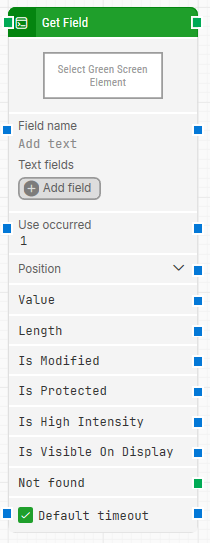
The Get Field block retrieves information about a named field on a green screen. Leapwork derives (“invents”) a field structure from the screen content so the block can search for a Field name and return details such as the field’s position (row/column), its value, and related field attributes.
The Green Screen Recorder and green screen building blocks are available with Enterprise plans.
Fully expanded, the Get Field block shows the following properties:
Note: The screenshot on this page uses the Elegance Design, introduced in 2025.3. If you are using an earlier version, your layout may look different.
Quick-start
Drag Get Field onto the canvas.
Connect the block in the flow and set the required parameters Select Green Screen Element and Field name. You can optionally adjust other parameters such as Text fields, Use occurred, and Default timeout if needed.
Run the flow when it’s ready.
Building block parameters
Parameters
Block header: Shows the current title of the Get Field block. You can rename it by double-clicking the header and typing a new title.
The green input connector triggers the block when the flow reaches it, and the green output connector triggers when the field information has been fetched successfully.
Select Green Screen Element: Defines the green screen element that the block uses as the reference for finding fields on the screen.
This parameter is mandatory.
Field name: Specifies the name of the field the block should search for on the green screen. This parameter is mandatory.
Text fields: Stores key–value pairs that let you insert dynamic values into Field name.
To use a value from Text fields, right-click in Field name, select Insert token, and choose the field name.
Use occurred: Specifies which occurrence to use if more than one matching field name is found on the screen.
Position: Returns the field’s location based on row and column numbers.
Value: Returns the text or number that Leapwork fetched from the field on the green screen.
Length: Returns the length of the field value (for example, if a field contains “User Name” with 9 characters, the length is 9).
Is Modified: Returns whether the field is unprotected (editable) and its default value has been modified.
Is Protected: Returns whether the field is protected (read-only).
Is High Intensity: Returns whether the field uses high-intensity formatting (for example, specific styling such as text color).
Is Visible On Display: Returns whether the field value is visible (for example, not hidden like a password).
Not found: Triggers if the field is not found before the timeout expires.
This is typically used to branch the flow or to explicitly fail a case by linking it to a Fail block.
Default timeout: Controls whether the block uses a fixed timeout or the flow’s default timeout.
If the Default Timeout checkbox is not selected, the timeout is 10 seconds unless you change it manually. If it is selected, the Default timeout value from the flow settings (under Max. run time) is applied.