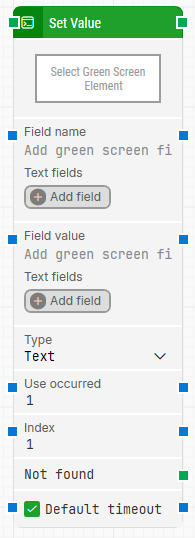
The Set Value block writes a specified value to a target field on a green screen interface. It uses Leapwork’s unique field recognition system, which understands the layout relationship between Protected (label) and Unprotected (input) fields. This enables fast, reliable automation without relying on fixed coordinates or manual mappings.
If the target unprotected field is already populated and visible, entering a new value will overwrite the existing content. Hidden fields, typically used for passwords, will not be cleared before writing.
Fully expanded, the Set Value block shows the following properties:
Note: The screenshot on this page uses the Elegance Design, introduced in 2025.3. If you are using an earlier version, your layout may look different.
Quick-start
Drag Set Value onto the canvas.
Connect the block in the flow and optionally specify basic parameters such as FField name, Field value, Use occurred, Index, and Type.
Run the flow when it’s ready.
Building block parameters
Parameters
Block header: Shows the current name of the Set Value block. You can rename it by double-clicking the header and typing a new title.
Field name: Automatically resolved based on the closest Protected field to the left of the input field. This identifies the label associated with the field you want to set.
Text fields: Allows you to define key–value pairs whose values can be inserted dynamically into the Field name using the Insert token feature.
Field value: The value (text or number) to be entered into the unprotected field. If the field is already filled and visible, the current value will be cleared before the new value is entered.
Text fields: Enables the use of dynamic key–value pairs for generating the value to be written. Tokens can be inserted into the Field value for flexible runtime behavior.
Type: Specifies the format of the value to be entered. Options typically include:
Text: Standard string input.
(Other types may be available depending on configuration.)
Use occurred: Specifies which matching instance of the Protected field to use when there are multiple on screen. For example, set to 2 to select the second match.
Index: Identifies which Unprotected field to use when multiple fields are associated with the same Protected label.
You can provide this value dynamically using the left input connector.
The resolved index can also be passed forward using the right output connector.
Not found: Triggers if the target field is not located before the timeout period ends. Use this to link to a Fail block or to create fallback logic in your flow.
Default timeout: Controls how long the block waits for the field to appear:
If unchecked, a fixed timeout of 10 seconds applies (unless manually changed).
If checked, the flow’s Default timeout (set under Max. run time) is used instead.