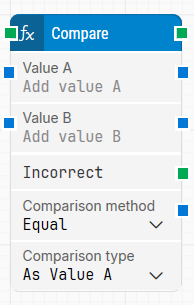
The Compare building block compares two values A and B, using a comparison method such as “equals” or “less than or equal to”. See the Use Numbers and Variables lesson for an example of how to use the Compare block.
Fully expanded, the Compare block shows the following properties:
Note: The screenshot on this page uses the Elegance Design, introduced in 2025.3. If you are using an earlier version, your layout may look different.
Quick-start
Drag Compare onto the canvas.
Connect the block in the flow and specify Value A, Value B, and Comparison method. Optionally select Comparison type when you need to control how values are interpreted.
Run the flow when it’s ready.
Building block parameters
Parameters
Block header: Shows the current name of the Compare block. You can rename it by double-clicking the header and typing a new title.
Value A: Specifies the first value used in the comparison. This can be typed directly in the field or provided from another block through an input connection.
Value B: Specifies the second value used in the comparison. This can be typed directly in the field or provided from another block through an input connection.
Incorrect: Triggers when the comparison evaluates to false. For example, if Value A is 100, Value B is 200, and Comparison method is Greater than, then Incorrect triggers.
Comparison method: Defines how Value A and Value B are compared. Available options are:
Equal
Not equal
Greater than
Greater than or equal
Less than
Less than or equal
Comparison type: Controls which data type is used for the comparison. Values are automatically converted to appropriate data types, but in some cases it makes sense to select the type explicitly.
Choosing the wrong comparison type can have unforeseen consequences. For example, comparing the text 200,200 with the position 200,50 results in false, but comparing the position 200,200 with the position 200,50 results in true.
The dropdown includes the following options: