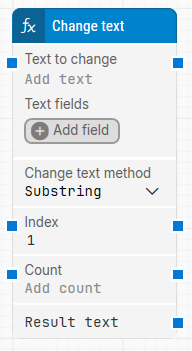
The Change text block modifies an input string by applying a selected text operation, such as extracting a substring or concatenating additional text. It is used to transform a text value and provide the result to other building blocks in the flow.
This block has no green input or output connectors in the header because it is not explicitly executed. It is used to change a text value and deliver the result to other blocks.
Fully expanded, the Change text block shows the following properties:
Note: The screenshot on this page uses the Elegance Design, introduced in 2025.3. If you are using an earlier version, your layout may look different.
Quick-start
Drag Change text onto the canvas.
Connect the block in the flow and specify Text to change and Change text method. If the selected method requires additional fields, also specify the relevant method properties such as Index, Count, Old value, New value, or Text.
Run the flow when it’s ready.
Building block parameters
Parameters
Block header: Shows the current name of the Change text block. You can rename it by double-clicking the header and typing a new title.
Text to change: Specifies the original text that will be transformed. The text can be dynamic by inserting tokens from Text fields. To insert a token, right-click in the text field, select Insert token, and then select the field name.
Text fields: Stores key value pairs whose values can be inserted into Text to change using Insert token. This is useful when the text to transform is built from dynamic runtime values.
Add field: Adds a field to Text fields so it can be used as a token in Text to change.
Change text method: Selects which operation to apply to the text. Depending on the selected method, additional method specific fields become available.
Substring: Extracts a portion of the text. This method uses:
Index, which is the first character position to start from.
Count, which is the number of characters to extract.
Replace: Replaces all occurrences of one value with another. This method uses:
Old value, which is the value to find.
New value, which is the value to replace it with.
Concat: Appends text to the existing text. This method uses:
Text, which is the text to concatenate to the original.
Uppercase: Converts all characters to uppercase.
Lowercase: Converts all characters to lowercase.
Index of: Finds the position of the first occurrence of a value within the text. This method uses:
Subtext, which is the value to search for.
Occurrence, which specifies which occurrence to use.
Last index of: Finds the position of the last occurrence of a value within the text. This method uses:
Subtext, which is the value to search for.
Occurrence, which specifies which occurrence to use, starting from the end and moving backwards.
Length: Returns the number of characters in the text.
Trim: Removes whitespace, or specific characters, from the start and end of the text. This method uses:
Trim characters, which are one or more characters to trim.
Pad left: Adds padding characters to the left side of the text. This method uses:
Pad characters, which are one or more characters to pad with.
Length, which is the desired final length after padding.
Pad right: Adds padding characters to the right side of the text. This method uses:
Pad characters, which are one or more characters to pad with.
Length, which is the desired final length after padding.
Index: Used when Change text method = Substring. Specifies the first character position to start extracting from.
Count: Used when Change text method = Substring. Specifies how many characters to extract.
Result text: Provides the transformed text as the result of the selected operation so it can be used in following blocks.