The Regular expression block performs regular expression operations on strings. You can use it to search for matches, split text into parts, or replace matching content. The block returns the resulting text so it can be used by subsequent blocks in the flow.
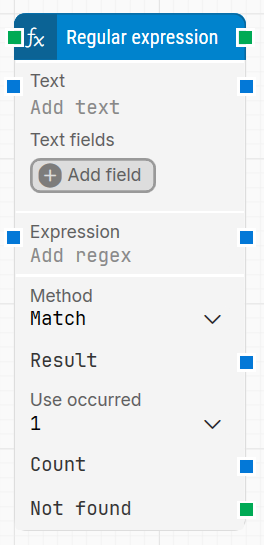
Fully expanded, the Regular expression block shows the following properties:
Note: The screenshot on this page uses the Elegance Design, introduced in 2025.3. If you are using an earlier version, your layout may look different.
Quick-start
Drag Regular expression onto the canvas.
Connect the block in the flow and specify Text, Expression, and Method.
Run the flow when it’s ready.
Building block parameters
Parameters
Block header: Shows the current name of the Regular expression block. You can rename it by double-clicking the header and typing a new title.
Text: Defines the text to parse. You can type the text directly, feed it as input from a previous block, or insert dynamic values using tokens from Text fields.
Text fields: Stores key value pairs that enable external values to be inserted into Text. To use a value, right-click in Text, select Insert token, and then insert the field name.
Add field: Adds a field that can be used as a token in Text.
Expression: Holds the regular expression pattern used by the selected method. This is the pattern the block uses to match, split, or identify content to replace.
Method: Defines how the regular expression is applied. The available methods are:
Match: Searches the input text for substrings that match the pattern and returns the occurrences. In this method, the input string is matched against the rule defined in Expression.
Split: Splits the input text into an array of substrings at positions defined by the pattern in Expression, which acts as the delimiter.
Replace: Replaces parts of the input text that match a pattern with a specified replacement string. This method uses two expressions, one to match part of the input string and one to insert the matched substring into.
Result: Returns the text result of the regular expression operation. If you select All in Use occurred, each occurrence produces its own result, and the block can provide each result to subsequent blocks.
Use occurred: Specifies which occurrence to use when multiple matches are found. You can select a specific occurrence or select All to iterate through all matching results. If you select All, the top green connector triggers once per result found.
Count: Returns the total number of results found. This shows the count of all occurrences even if Use occurred is set to a single specific occurrence.
Not found: Triggers when no match is found for the selected method. When a match is found, the top green output connector triggers instead. This output is typically used to branch execution flow or explicitly fail a case by linking it to a Fail block.