-
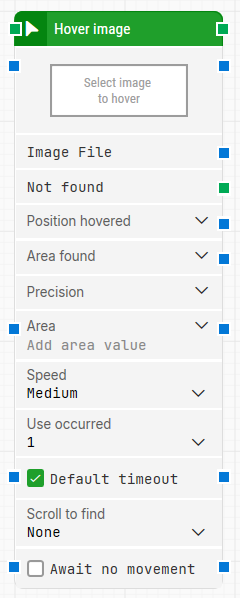
Block header: Shows the current name of the Hover image block. You can rename it at any time by double-clicking the header and typing a new title to keep flows readable and organized.
-
Select image / Image File: Contains the image to search for and hover.
-
Right-click and select Capture new image to capture the image from the screen.
-
Right-click and select Clear image to remove it.
When the block executes and the image is found, the mouse pointer is moved to the interaction point defined for that image. You can adjust the interaction point by clicking the captured image and moving the red crosshairs.
-
Not found: Triggers if the image is not found before Timeout expires. This is typically used to branch the execution flow or explicitly fail a case by connecting it to a Fail block.
-
Position hovered: Returns the screen position where the mouse pointer was hovered as X, Y coordinates. The top-left corner of the screen is position 0, 0. This position corresponds to the interaction point, not the upper-left pixel of the image. You can expand this property to work with X and Y separately.
-
Area found: Returns the area where the image was found as X, Y, Width, Height coordinates, starting from the upper-left pixel of the matched image. The top-left corner of the screen is position 0, 0. Expanding this property lets you work with position and size independently.
-
Precision: Adjusts how strictly the image recognition algorithm must match the captured image:
-
In most scenarios, Pixel Perfect is preferred, as it only matches identical images.
-
In cases where backgrounds, overlays, or rendering differ slightly (for example, text rendered on top of a picture in different browsers), lowering the precision can make it easier to find the image despite small visual differences.
-
Area: Defines the region of the screen to search for the image, as X, Y, Width, Height coordinates from the upper-left pixel.
-
If no area is set, the entire screen is searched.
-
You can right-click and select Capture area to draw the search region.
-
Use the expander to work with position and size values separately.
-
Speed: Sets how fast the mouse moves to the interaction point:
-
Use Occurrence: Determines which occurrence to hover when the same image appears multiple times on screen:
-
Select a specific index to hover one particular occurrence.
-
Select All to iterate through every occurrence. When All is selected, Current index and Completed become available, and the main execution path is triggered once per match.
-
Current index: Indicates the index of the occurrence currently being hovered when Use Occurrence = All. For example, if three matches are found, this value is 1 for the first, then 2, then 3.
-
Completed: Triggers when all occurrences have been processed while Use Occurrence = All.
-
Default timeout: Controls how the timeout is chosen:
-
When the checkbox is not selected, the timeout value is 10 seconds unless you change Timeout manually.
-
When the checkbox is selected, the block uses the Default timeout value defined in the flow settings.
-
Timeout: Sets the maximum time the block spends searching for the image before giving up and triggering Not found. The default value is 10 seconds. This timeout applies only to this block. Each case also has a separate global timeout in the Settings panel; if a case exceeds that global timeout, it is cancelled regardless of this block’s timeout.
-
Scroll to find: Enables scrolling while searching for the image. When you choose a value other than None, the block scrolls through scrollable content (for example, web pages or documents) as part of the search.
-
Max repeats: Specifies the maximum number of scroll attempts performed when Scroll to find is enabled. If the image is still not found after this number of scrolls, the search stops.
-
Amount: Defines how far the screen should scroll on each scroll attempt when Scroll to find is enabled.
-
Delay (sec): Sets the delay, in seconds, between each scroll attempt when Scroll to find is enabled.
-
Await no movement: When selected, delays the image search until there has been no visible movement on the screen for a specified period. This is useful when you expect a screen update, such as a page load, to finish before searching. Regardless of this setting, the search and hover will still occur after a maximum wait of 30 seconds.
-
Await Timeout: Specifies, in seconds, how long the screen must remain without detected movement when Await no movement is enabled before the block proceeds.