
Scroll Wheel

The Scroll wheel building block performs a scroll action on screen in a specific position. If no position is specified, the block scrolls at the position of the last mouse action performed by LEAPWORK. If no other mouse action has been performed, scrolling happens at screen coordinates 0, 0.

Note: Many other building blocks include a built-in Scroll to find option, which can be used instead of a manual scroll in some scenarios.

See the Automation using image recognition lesson for an example of how this works.

Fully expanded, the Scroll wheel block shows the following properties:
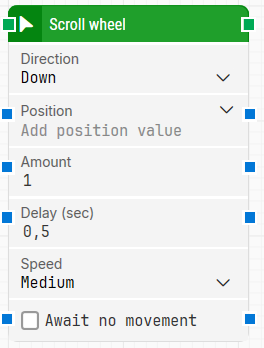
image-20260204-142700.png

Note: The screenshot on this page uses the Elegance Design, introduced in 2025.3. If you are using an earlier version, your layout may look different.

Quick-start

  1. Drag Scroll wheel onto the canvas.

  2. Connect the block in the flow and specify Direction and Amount. Optionally set Position, Delay (sec), Speed, and Await no movement.

  3. Run the flow when it’s ready.

Building block parameters

Parameters
  • Block header: The green input connector triggers the block to start executing. The green output connector triggers when the scroll has been performed. You can rename the block by double-clicking the header text and typing in a new title.

  • Direction: Selects the scroll direction (for example Down or Up).

  • Position: Sets where the scroll is performed using X, Y screen coordinates. The top-left corner of the screen is 0, 0. If Position is not set, LEAPWORK uses the position of the last mouse action. If no mouse action has been performed, scrolling happens at 0, 0. Use the expander to work with X and Y separately.

  • Amount: Defines how much scrolling is performed.

  • Delay (sec): Sets the delay in seconds between each scroll action.

  • Speed: Selects mouse movement speed. Medium is the default and is recommended because it replays well on video. Instantaneous repositions the mouse without visible movement.

  • Await no movement: Delays the scroll action until there has been no movement on the screen for a specified period (for example, two seconds). This is useful when waiting for a screen update (such as a page loading). Regardless of this checkbox, the scroll action will occur after waiting a maximum of 30 seconds.

    • Await Timeout: Sets the number of seconds the screen must have seen no movement before proceeding.

Resources

Topic

Description

Flows FAQ

Common questions about creating, running, and managing flows in Leapwork.

Flows Troubleshooting

Guidelines and solutions for identifying and fixing issues that occur when building or running flows in Leapwork.