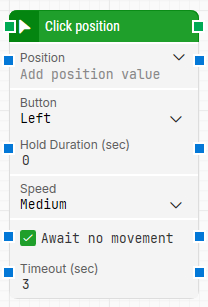
The Click position building block clicks an exact position on the screen using X, Y coordinates. It is commonly used together with blocks that find something on screen and output a position (for example Find image, Get text, or Get number), so you can click exactly where the target was detected.
Fully expanded, the Click position block shows the following properties:
Note: The screenshot on this page uses the Elegance Design, introduced in 2025.3. If you are using an earlier version, your layout may look different.
Quick-start
Drag Click position onto the canvas.
Connect the block in the flow and specify Position, Button, and (if needed) Speed and Await no movement settings.
Run the flow when it’s ready.
Building block parameters
Parameters
Block header: The green input connector triggers the block to start executing. The green output connector triggers when the click has been performed. You can rename the block title by double-clicking the header text.
Position: Specifies the screen position to click using X, Y coordinates. The top-left corner of the screen is 0, 0. Use the expander to work with X and Y separately.
Button: Selects which mouse button to use and whether to perform a single or double click.
Left: Click with the left mouse button.
Right: Click with the right mouse button.
Middle: Click with the middle mouse button.
Double Left: Double-click with the left mouse button.
Double Right: Double-click with the right mouse button.
Double Middle: Double-click with the middle mouse button.
Hold Duration (sec): Holds the left mouse button down at the selected position for the specified duration (in seconds), then releases it automatically. The default value is 0 seconds, and the supported range is 0 to 10 seconds. This field is only shown when Button is set to Left.
Speed: Controls the mouse movement speed. Medium is the default and is generally recommended because it replays well on video. Instantaneous repositions the mouse without visible movement.
Await no movement: When selected, the block waits until there has been no movement on the screen for a specified period before clicking. This is useful when waiting for screen updates (for example a page load). Regardless of this setting, the click will occur after waiting a maximum of 30 seconds.
Timeout (sec): The number of seconds the screen must have had no movement before the click proceeds (used with Await no movement).