-
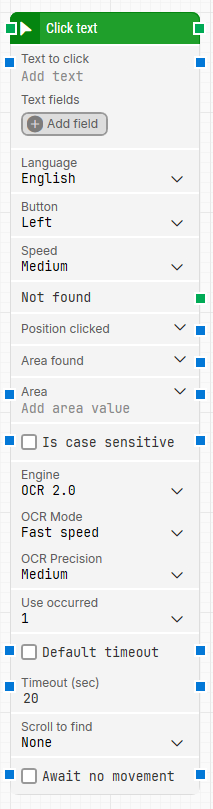
Block header: Shows the current name of the Click text block. You can rename it by double-clicking the header and typing a new title to keep flows readable and organized.
-
Text to click: Specifies the text that the block should find and click. When the text is found, the click is performed in the middle of the text. This field can contain dynamic tokens from Text fields; right-click in the field and choose Insert token to insert a field.
-
Text fields: Lets you add any number of named fields that hold dynamic values, which can be inserted into Text to click as tokens. This is useful when the text to click changes between runs (for example, user names or dates).
-
Language: Selects the language the OCR engine uses when searching for the text. Choosing the correct language improves recognition accuracy.
-
Button: Defines which mouse button and click type is used. By default, the Left mouse button is selected. You can choose other buttons or double-click options as provided by the dropdown.
-
Speed: Sets the mouse movement speed. The default Medium speed is recommended because it replays well on video. Instantaneous jumps the mouse pointer directly to the target without visible movement.
-
Not found: Triggers if the specified text cannot be found before Timeout expires. This is typically used to branch the flow or explicitly fail a case by connecting it to a Fail block.
-
Position clicked: Returns the screen position where the click was performed as X, Y coordinates, relative to the top-left corner of the screen (0, 0). The position corresponds to the interaction point (the center of the text), not the upper-left pixel. You can expand this property to work with X and Y separately.
-
Area found: Returns the screen region where the text was found as X, Y, Width, Height coordinates. The origin is the upper-left pixel of the found text, with 0, 0 at the top-left of the screen. Expanding this property lets you use position and size separately.
-
Area: Defines the area of the screen to search in, as X, Y, Width, Height coordinates from the upper-left pixel.
-
If no area is specified, the entire screen is searched.
-
You can right-click and select Capture area to draw the region.
-
Use the expand control to work with position and size values individually.
-
Is case sensitive: Controls whether text recognition and matching must respect letter case. When checked, comparisons are case-sensitive; when cleared (default), they ignore case differences.
-
Engine: Selects the OCR engine:
-
OCR 1.0: Leapwork’s original OCR engine.
-
OCR 2.0: updated Leapwork OCR engine with improved recognition.
-
ABBYY: uses an ABBYY OCR engine instead of the built-in engines (requires separate setup via Leapwork).
-
OCR Mode: Controls how thoroughly the engine scans the area:
-
Full mode: performs four recognition tries in parallel using normal and inverted colors for maximum robustness.
-
Fast speed: performs two recognition tries (normal and inverted), favouring speed over exhaustive scanning.
-
OCR Precision: Sets the OCR confidence threshold for accepted characters. Higher precision yields fewer but more reliable matches; lower precision finds more characters but with lower certainty. Options include:
-
High: strict, confidence around 70; best for clear, high-quality text.
-
Medium: threshold around 50; balanced default for many scenarios.
-
Low: threshold around 30; more permissive when text quality is lower.
-
Very Low: threshold around 20; most permissive built-in option.
-
Custom: lets you set a confidence value from 0–100 (0 returns everything recognized, 100 returns only the strongest matches).
-
Use dirty edge mode: Enables a special OCR mode for text placed on textured backgrounds or close to borders and other visual noise. Turn this on if normal OCR has trouble recognizing text near lines, frames, or patterned backgrounds.
-
Use Occurrence: Defines which occurrence of the matching text to click when more than one is found:
-
Specific index: click one particular occurrence (for example, the first match).
-
All: iterate through all occurrences. When All is selected, the Current index property and Completed output become available, and the main execution path triggers once per occurrence.
-
Current index: Shows the index of the current occurrence when Use Occurrence = All. If three matches are found, this value will be 1, then 2, then 3 as each is clicked.
-
Completed: Triggers when iteration through all occurrences has finished while Use Occurrence = All.
-
Default timeout: Controls how the timeout for this block is derived:
-
When the checkbox is not selected, the block uses a timeout of 20 seconds, unless you override it via Timeout (sec).
-
When the checkbox is selected, the block uses the Default timeout value defined in the flow settings.
-
Timeout (sec): Sets the maximum time the block spends searching for the specified text before giving up and triggering the Not found output. The default value is 20 seconds. This timeout applies only to this block. Each case also has a separate global timeout configured in the Settings panel; if the case runs longer than the global timeout, it is cancelled regardless of this block’s timeout.
-
Scroll to find: Indicates whether scrolling should be used while searching for the text. When a value other than None is selected, the block scrolls through scrollable content, such as pages or documents, during the search.
-
Max repeats: Defines the maximum number of scroll attempts performed when Scroll to find is enabled. If the text is still not found after this number of scrolls, the search stops.
-
Amount: Specifies how far the screen should scroll in each scroll attempt when Scroll to find is enabled.
-
Delay (sec): Sets the delay, in seconds, between each scroll attempt when Scroll to find is enabled.
-
Await no movement: When enabled, delays the search and click until there has been no visible movement on the screen for the period specified in Await Timeout. This is useful when waiting for a screen update, such as a page load or animation, to finish. Regardless of this setting, the search and click will still occur after a maximum wait of 30 seconds.
-
Await Timeout: Specifies, in seconds, how long the screen must remain without detected movement before the block proceeds when Await no movement is enabled.