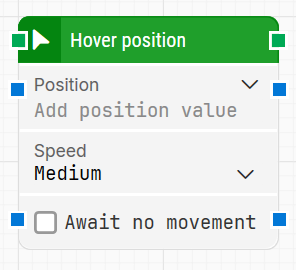
The Hover Position block moves the mouse pointer to a specific location on the screen. It is typically used to simulate a user hover at a fixed coordinate, often in combination with upstream blocks like Find Image, Get Text, or Get Number, which output positional data.
This block is useful in scenarios where the application reacts visually or functionally to mouse-over behavior, such as Drive mouse actions.
Fully expanded, the Hover Position block shows the following properties:
Note: The screenshot on this page uses the Elegance Design, introduced in 2025.3. If you are using an earlier version, your layout may look different.
Quick-start
Drag Hover Position onto the canvas.
Specify the basic parameter required for this block to operate: Position.
Run the flow when it’s ready.
Building block parameters
Parameters
Block header: The green input connector triggers the block to start executing. The green output connector triggers when a screenshot has been successfully taken. You can rename the block title (“Hover Position”) by double-clicking it and typing in a new title.
Position: Defines the exact X and Y screen coordinates to which the mouse pointer should move. The position is relative to the top-left corner of the screen (0, 0). You can expand this field to edit X and Y values separately or connect a dynamic position from another block.
Speed: Sets how quickly the pointer moves to the defined position.
Available options:
Slow: Moves the cursor gradually, useful when a slower visual transition is required.
Medium: The default speed, balanced for clarity and performance; works well for recordings or UI that responds to visible motion.
Fast: Quicker movement with less visual delay than Medium.
Instantaneous: Moves the pointer immediately to the position without animation, ideal for performance-focused flows.
Await no movement: Delays the hover action until no screen activity has been detected for a specified time. This is useful for waiting on UI transitions or page loads. Even if enabled, the maximum wait time is capped at 30 seconds.
Await Timeout: Sets how many seconds the screen must remain static before the hover action proceeds. Only takes effect if Await no movement is enabled.