
Set Element Radio Button

The Set Element Radio Button block is used to select a single option from a radio button group in a Salesforce application. It is typically used when a user must choose one value from a predefined list, such as a contact method, status, or category.

This block is automatically generated when you select a radio button while recording with the Salesforce Fusion Recorder. It works only in browser sessions launched using the Salesforce Login block or within an active Salesforce recording session.

Fully expanded, the Set Element Radio Button block shows the following properties:
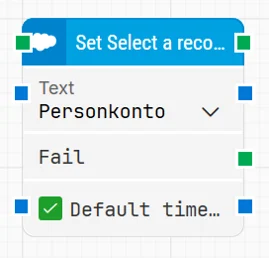
image-20260127-084851.png

Note: The screenshot on this page uses the Elegance Design, introduced in 2025.3. If you are using an earlier version, your layout may look different.

Quick-start

  1. Start the Salesforce Fusion Recorder and select a radio button option in the Salesforce UI so the recorder captures the action.

  2. Stop the recording, review and optionally adjust the generated steps (for example, Text and timeout-related settings), then save the recording so the full recorded flow is added to the canvas.

  3. Run the flow when it’s ready, and adjust any parameters in Studio if needed.

Building block parameters

Parameters
  • Block header: Shows the current title of the Set Element Radio Button block. For Fusion Recorder blocks, the title is typically auto-generated from the recorded action and target (for example, selecting a specific option), but you can rename it by double-clicking the header and typing a new title.
    The green input connector triggers the block when the flow reaches it, and the green output connector triggers when the radio button option has been selected successfully.

  • Text: Specifies the option to select within the radio button group.
    The value is captured during recording, but it can be modified manually in Studio.

  • Fail: This green output connector is triggered if the specified radio button group cannot be found within the defined timeout period.
    Use this connector to create fallback logic or conditional branching when the expected option is not available.

  • Default timeout: Controls whether the block uses a fixed timeout or the flow’s default timeout.
    If the Default Timeout checkbox is not selected, the timeout value is 10 seconds. If the checkbox is selected, the Default timeout value defined in the flow settings is applied.

  • Timeout: Defines how long the block waits for the radio button group or the specific option before triggering Fail.
    This field is only visible when the Default timeout checkbox is not selected. All cases also have a separate global timeout in Settings, which is unrelated to the timeout of a single block.

Resources

Topic

Description

Flows FAQ

Common questions about creating, running, and managing flows in Leapwork.

Flows Troubleshooting

Guidelines and solutions for identifying and fixing issues that occur when building or running flows in Leapwork.

Salesforce FAQ

Frequently asked questions about Salesforce

Salesforce Fusion Recorder

How to use the Salesforce Fusion Recorder