The Validate and Get blocks are part of a single smart block in Leapwork’s Salesforce Fusion Recorder.
They allow you to eitherverify UI conditions or extract values from elements in a Salesforce interface, supporting automation of validation and data retrieval actions during testing and process execution.
To access these actions, hold Shift and left-click on a target UI element while recording. This opens the block creation menu, where you can choose the desired Action: either Validate or Get.
Note: The Salesforce Validate and Get blocks work only in browser windows launched using the Login block or within the current Salesforce recording session.
Get Block
The Get building block extracts the content of a UI element in a Salesforce application so you can reuse live values (such as field content, labels, or calculated results) elsewhere in your flow. It is created during recording with the Salesforce Fusion Recorder by pressing Shift + left-click on an element and selecting Get. It also supports getting values inside grid elements (lists/tables).
Note: The layout shown in some documentation is part of the Elegance Design, introduced in Leapwork 2025.3. Earlier versions may display a different layout.
Quick-start
Drag Get block onto the canvas (or record it with the Salesforce Fusion Recorder).
Connect the block in the flow and use the output Text Found where needed. Optionally, adjust timeout behavior.
Run the flow when it’s ready.
Building block parameters
Parameters
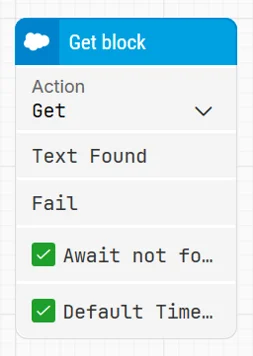
Block header: The green input connector triggers the block when the flow reaches it. Once the value has been successfully extracted, the Text Found output connector triggers. The block title is automatically generated (for example “Get Opportunity Name”), but you can rename it by double-clicking the title and typing a new title.
Action: Set to Get to retrieve the current value of the selected element. This dropdown also includes Validate, so you can switch the behavior within the same block.
Text Found: Triggers when the element is found and its value is successfully extracted. This output can be connected to other blocks to reuse the retrieved value.
Fail: Triggers if the element is not found or the value cannot be retrieved within the configured timeout, so the flow can branch into fallback or error handling.
Await not found: When selected, the block assumes the web element is currently present and waits until it can no longer be found on the page before proceeding.
Default timeout: Controls whether the block uses a fixed, local timeout or the flow’s default timeout. If the checkbox is not selected, the block uses the value in Timeout (sec) (default 10 seconds unless changed manually). If the checkbox is selected, the block uses the Default timeout configured in the flow settings.
Timeout (sec): The maximum time allowed to get the specified element before giving up and triggering Fail. This is separate from the case global timeout in Settings.
Validate Block
The Validate building block confirms that a UI element in a Salesforce application meets a specific condition (for example containing a value, being visible, or being enabled). It also supports validating checkbox/toggle elements by checking whether they are Checked/Unchecked or On/Off, and it can validate actions inside grid elements (lists/tables) to support tabular automation.
Note: The layout shown in some documentation is part of the Elegance Design, introduced in Leapwork 2025.3. Earlier versions may display a different layout.
Quick-start
Drag Validate block onto the canvas.
Connect the block in the flow and specify the basic parameters required for this block to operate: Action (set to Validate) and Validation Text (when validating text). Optionally, adjust other parameters if needed.
Run the flow when it’s ready.
Building block parameters
Parameters
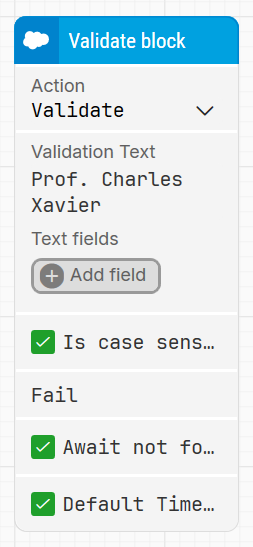
Block header: The green input connector triggers the block when the flow reaches it. If the validation condition is met, the green output connector triggers. The block title is automatically generated (for example “Validate Name Field”), but you can rename it by double-clicking the title and typing a new title.
Action: Defines the purpose of the block. Select Validate to perform a verification check on the selected UI element.
Validation Text: The expected text content used for comparison during validation.
Text fields: Lets you add dynamic values to Validation Text via Add field, so the expected value can come from earlier steps in the flow. This section appears only when the validation type is set to text.
Is case sensitive: When enabled (checked by default), validation only passes if the text matches exactly, including upper/lowercase. Disable it to allow case-insensitive comparisons.
Fail: Triggers if the validation condition is not met within the timeout, so you can branch into error-handling or fallback logic.
Await not found: When selected, the block assumes the web element is currently present and waits until it can no longer be found on the page before proceeding.
Default timeout: Controls whether the block uses a fixed, local timeout or the flow’s default timeout. If the checkbox is not selected, the block uses the value in Timeout (sec) (default 10 seconds unless changed manually). If the checkbox is selected, the block uses the Default timeout configured in the flow settings.
Timeout (sec): The maximum time allowed to validate the specified condition before giving up and triggering Fail. This is separate from the case global timeout in Settings.