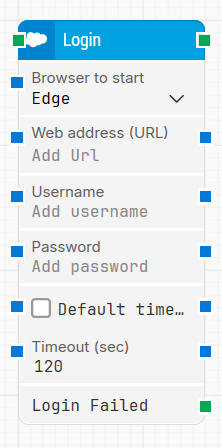
The Login building block automates the authentication process required to launch a Salesforce session inside a Leapwork flow. It starts a browser session, navigates to the specified Salesforce URL, and signs in so subsequent Salesforce steps can run in the same session context.
Fully expanded, the Login block shows the following properties:
Note: The screenshot on this page uses the Elegance Design, introduced in 2025.3. If you are using an earlier version, your layout may look different.
Quick-start
Use the Salesforce Fusion Recorder and start a recording that includes a login so the recorder generates the Login step.
Stop the recording, review and optionally adjust the generated step (for example, Browser to start, Web address (URL), and timeout-related settings), then save the recording so the full recorded flow is added to the canvas.
Run the flow when it’s ready.
Building block parameters
Parameters
Block header: The green input connector triggers the block when the flow reaches it. You can rename the block by double-clicking the header text and typing a new title.
Browser to start: Selects which browser is launched as part of the login sequence.
Web address (URL): Defines the Salesforce environment URL where login will occur. It must point to a valid Salesforce instance or login page and is used to initiate the session context required for automation.
Login method: Defines how authentication is performed:
Automated: credentials and any supported authentication steps (including MFA) are handled automatically by Leapwork. Use this for fully hands-off login flows.
Manual: the login is performed by a user during recording or execution. Choose this when interactive steps are required (for example, complex or unpredictable MFA flows).
Username: The Salesforce username used to log in. This is typically an organizational account with sufficient access rights for the Salesforce area you want to automate.
Password: The password for the provided Username. The password is obscured and handled as sensitive data during execution.
OTP result code: Provides the One-Time Password (OTP) value used for MFA during Automated logins. This field is available only when Login method = Automated. You can:
Enter the OTP value manually (for example, from an authenticator app), or
Connect this field to the output of a TOTP block so Leapwork supplies the OTP automatically.
The OTP/TOTP flow works with authentication providers that support shared secrets (such as Microsoft Authenticator, Google Authenticator, Duo Security, and Okta using a secret key). Okta Verify in the new Okta Identity Engine is not supported because it no longer allows manual setup with a secret key.
Default timeout: Controls whether the block uses the default timeout from the flow settings or a custom timeout value.
Timeout (sec): Sets the maximum time the block waits for the login process to complete before triggering Login Failed. This field is used when Default timeout is not selected.
Note: All cases have a global timeout configured in the Settings panel. This is unrelated to the timeout of a single building block. However, a running case will automatically be cancelled if it runs for longer than the global timeout.
Login Failed: Triggers if the login attempt does not succeed. Use it to branch the flow for retries, fallback handling, or to fail the case explicitly.