
Set Toggle Button

The Set Toggle Button block is used to change the state of toggle switches in Salesforce applications. These controls are commonly used to enable or disable settings, such as activating notifications or turning a feature on or off.

The block is created automatically when you interact with a toggle element while using the Salesforce Fusion Recorder. It also supports toggle actions inside grid elements, so you can automate switches that appear in tabular views.

This block works only in browser sessions launched using the Salesforce Login block or within an active Salesforce recording session.

Fully expanded, the Set Toggle Button block shows the following properties:
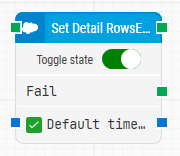
image-20260108-132206.png

Note: The screenshot on this page uses the Elegance Design, introduced in 2025.3. If you are using an earlier version, your layout may look different.

Quick-start

  1. Start the Salesforce Fusion Recorder and record your scenario. When you interact with a toggle in the Salesforce UI, the recorder automatically inserts a Set Element Toggle block into the recording flow.

  2. Save and close the Fusion Recorder so the recorded flow, including the Set Element Toggle block, is converted into a Studio flow, and optionally adjust parameters such as Toggle state and Default timeout.

  3. Run the flow from Studio when it’s ready.

Building block parameters

Parameters
  • Block header: Shows the name of the Set Element Toggle block, typically generated from the element being toggled (for example, Set Detail Rows Expanded). You can rename it at any time by double-clicking the header and typing a new title to keep flows readable and traceable.

  • Toggle state:Specifies the target state of the toggle switch. The state recorded in Fusion Recorder is set automatically when the block is created, but you can change it later in Studio. Available options are:

    • On: sets the toggle to the enabled/active state.

    • Off: sets the toggle to the disabled/inactive state.

  • Fail: Triggers if the toggle element cannot be found or cannot be interacted with within the allowed time. You can connect this output to a Fail block or to an alternative branch to implement error handling or recovery logic.

  • Default timeout: Controls how the timeout for this block is derived:

    • When the checkbox is not selected, the block uses a fixed timeout of 10 seconds, unless you override it via Timeout.

    • When the checkbox is selected, the block uses the Default timeout value defined in the flow settings for the current flow.

  • Timeout: Defines how long the block will wait for the toggle element to become available and accept the new state before giving up and triggering the Fail output. This timeout applies only to this block. Each case also has a separate global timeout configured in the Settings panel; if the case runs longer than the global timeout, it is cancelled regardless of this block’s timeout.

Resources

Topic

Description

Flows FAQ

Common questions about creating, running, and managing flows in Leapwork.

Flows Troubleshooting

Guidelines and solutions for identifying and fixing issues that occur when building or running flows in Leapwork.

Salesforce FAQ

Frequently asked questions about Salesforce

Salesforce Fusion Recorder

How to use the Salesforce Fusion Recorder