
The Set Element Text block is used to enter values into editable fields within a Salesforce application. It supports standard input types like text fields, password fields, and grid cells in List or Table views. This block is automatically generated by the Salesforce Fusion Recorder when the user types into a form field during recording.
Note: This block only works in browser windows launched using the Salesforce Login block or during an active Salesforce recording session.
It allows both static and dynamic input and includes the option to press Enter after input is completed. You can also use it to populate fields inside tables or editable grids, enabling robust data-entry automation in Salesforce UI.
Fully expanded, the Salesforce Set Element Text block shows the following properties:
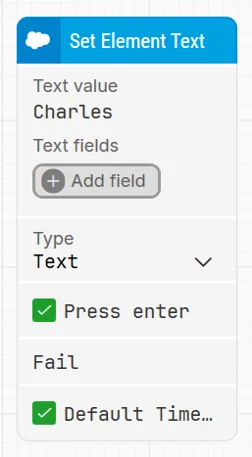
Note: The screenshot on this page uses the Elegance Design, introduced in 2025.3. If you are using an earlier version, your layout may look different.
Quick-start
-
Launch the Salesforce Fusion Recorder to begin capturing a new flow.
-
Interact with the Salesforce UI, for this block, type into an input field during recording.
-
Review and adjust the block’s parameters (e.g., Text value, Type, Press enter) within the Recorder.
-
Click Save in the Recorder. The Set Element Text block will appear on the canvas with your configured values.
Building block parameters
Resources
|
Topic |
Description |
|---|---|
|
Common questions about creating, running, and managing flows in Leapwork. |
|
|
Guidelines and solutions for identifying and fixing issues that occur when building or running flows in Leapwork. |
|
|
Frequently asked questions about Salesforce |
|
|
How to use the Salesforce Fusion Recorder |