
The Click Element block clicks an element (for example, a button or other interactive component) in a Dynamics 365 Finance & Operations web application. It is automatically generated when you perform a click during recording. When executed, the target element is automatically scrolled into view and clicked.
Fully expanded, the D365 Click Element block shows the following properties:
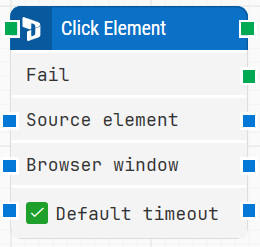
Note: The screenshot on this page uses the Elegance Design, introduced in 2025.3. If you are using an earlier version, your layout may look different.
Quick-start
-
Use the D365 Fusion Recorder and click an element in the D365 F&O UI so the recorder generates the Click Element step.
-
Stop the recording, review and optionally adjust the generated step (for example, timeout-related settings), then save the recording so the full recorded flow is added to the canvas.
-
Run the flow when it’s ready.
Building block parameters
Resources
|
Topic |
Description |
|---|---|
|
Common questions about creating, running, and managing flows in Leapwork. |
|
|
Guidelines and solutions for identifying and fixing issues that occur when building or running flows in Leapwork. |
|
|
Frequently asked questions about Fusion Recorder |