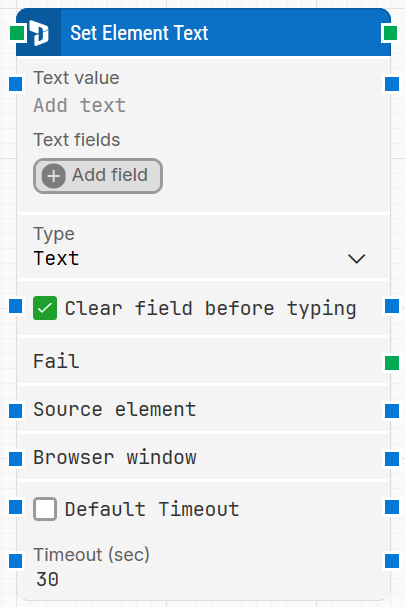
The Set Element Text block enters text into input fields in a Dynamics 365 Finance & Operations application, such as usernames, search bars, and other editable fields. It is automatically generated when you type into a field while recording with the D365 Fusion Recorder. The block supports both regular text and password-style input, and it can optionally clear the field before typing.
This block works only in browser windows launched using the Login block or within the current D365 recording session.
Fully expanded, the D365 Set Element Text blockshows the following properties:
Note: The screenshot on this page uses the Elegance Design, introduced in 2025.3. If you are using an earlier version, your layout may look different.
Quick-start
Use the D365 Fusion Recorder and type into an input field in the D365 F&O UI so the recorder generates the Set Element Text step.
Stop the recording, review and optionally adjust the generated step (for example, Text value, Type, Clear field before typing, and timeout-related settings), then save the recording so the full recorded flow is added to the canvas.
Run the flow when it’s ready.
Building block parameters
Parameters
Block header: The green input connector triggers the block’s execution when the flow reaches this step. The green output connector activates once the value has been successfully entered into the target field. The block title is automatically named based on the edited element (for example, “Set <element name>”) and can be renamed by double-clicking the header text.
Text value: The text that should be entered into the target input field. The value can be typed directly into the field.
Text fields: Adds dynamic fields that can be inserted as tokens into Text value (via Insert token), for example values captured earlier in the flow. This section appears only when Type is set to Text.
Type: Controls how the entered value is treated.
Text: Enters and displays the value as normal text.
Password: Conceals the entered value. This is typically used for authentication or other sensitive inputs.
Clear field before typing: When enabled, the input field is cleared before entering the new value. If disabled, the block appends the new text to any existing content in the field.
Fail: Triggers if the target field is not found within the configured timeout behavior. Use it to branch the flow or implement error handling when an expected field is missing.
Source element: Restricts the search for the target field to a specific parent element. In Early Access versions, this setting is not yet configurable.
Browser window: Specifies the browser window instance where the input action will be performed.
Default timeout: Controls whether the block uses the default timeout from the flow settings or a custom timeout value.
Timeout (sec): Sets the maximum time the block waits for the target field before it gives up and triggers Fail. This field is used when Default timeout is not selected.
Note: All cases have a global timeout configured in the Settings panel. This is unrelated to the timeout of a single building block. However, a running case will automatically be cancelled if it runs for longer than the global timeout.