
The Set Element Expand/Collapse block expands or collapses UI sections (for example, menus or accordions) in a Dynamics 365 Finance & Operations application. It is automatically created when you interact with an expandable element during recording with the D365 Fusion Recorder. At runtime, the block enforces the chosen UI state so your flow can navigate consistently through sections whose fields depend on whether they are opened or closed.
This block works only in browser windows launched using the Login block or within the current D365 recording session.
Fully expanded, the D365 Set Element Expand/Collapse block shows the following properties:
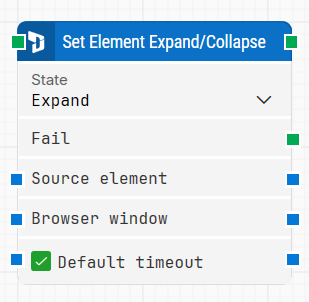
Note: The screenshot on this page uses the Elegance Design, introduced in 2025.3. If you are using an earlier version, your layout may look different.
Quick-start
-
Use the D365 Fusion Recorder and expand or collapse a section in the D365 F&O UI so the recorder generates the Set Element Expand/Collapse step.
-
Stop the recording, review and optionally adjust the generated step (for example, State and timeout-related settings), then save the recording so the full recorded flow is added to the canvas.
-
Run the flow when it’s ready.
Building block parameters
Resources
|
Topic |
Description |
|---|---|
|
Common questions about creating, running, and managing flows in Leapwork. |
|
|
Guidelines and solutions for identifying and fixing issues that occur when building or running flows in Leapwork. |
|
|
Frequently asked questions about Fusion Recorder |