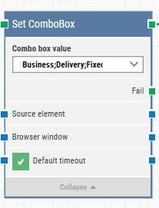
The Set Element Combo Box block is used to select one or more values in a multi-select combo box in a Dynamics 365 Finance & Operations (D365 F&O) application. It gives you full control over which options should be selected at runtime in fields that accept multiple values.
This block is automatically created when you interact with a multi-select dropdown while using the D365 Fusion Recorder. It works only in browser windows launched with the Login block or within the current D365 recording session.
Fully expanded, the D365 Set Element Combo Box block shows the following properties:
Quick-start
Start a D365 recording with the D365 Fusion Recorder (for example, via Add building block > Recorders > Start D365 F&O Recorder, or from the recorder toolbar).
While recording, open the target multi-select combo box in D365 and select the values you want. When you stop and save the recording, a Set Element Combo Box block is added to the generated flow.
Back in Flow, open the block, adjust the Combo Box Value selections if needed, and run the flow when it’s ready.
Building block parameters
Parameters
Block header: Shows the current name of the Set Element Combo Box block.
The green input connector starts execution when the flow reaches this step.
The green output connector triggers once the combo box values have been successfully set.
The title is auto-generated from the captured element (for example, Set Categories), and you can rename it by double-clicking the header.
Combo Box Value: Defines which values should be selected in the combo box.
When you edit the block, the dropdown expands to show all options captured during recording.
Each item has a checkbox; select or clear the checkbox to include or exclude that value from the final selection.
Multiple values can be selected at the same time.
Fail: Triggers if the combo box element cannot be found or interacted with within the configured timeout.
Use this connector to branch the automation (for example, to log an error, retry, or explicitly fail the case).
Source Element: Optionally limits the search for the combo box to a specific container (such as a section, panel, or component). This is useful when multiple combo boxes share similar labels or structure.
Browser Window: Indicates which browser window the block should work against. The value is set automatically by the recorder and reused by downstream blocks.
Default timeout: Controls where the timeout value comes from:
When Default timeout is cleared, the block uses the explicit Timeout value configured on the block (default 10 seconds).
When Default timeout is selected, the block uses the Default timeout value from the flow settings.
Timeout: Sets the maximum number of seconds the block will wait for the combo box to be available and updated before it triggers the Fail connector. This field is only visible when Default timeout is not selected.
Note: Each case also has a global timeout configured in the Settings panel. This is separate from the block’s timeout. If the case exceeds the global timeout, it is cancelled even if this block’s timeout has not been reached.