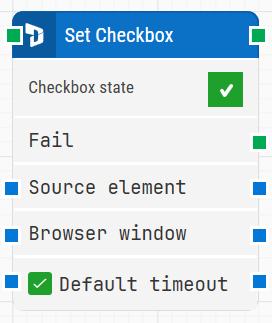
The Set Element Checkbox block is used to set a checkbox to a specific state (checked or unchecked) in a Dynamics 365 Finance & Operations (D365 F&O) interface. It is automatically created when you interact with a checkbox while recording using the D365 Fusion Recorder, which helps ensure the checkbox is set consistently during execution.
Note: This block works only in browser windows launched using the Login block or within the current D365 recording session.
Fully expanded, the D365 Set Element Checkbox block shows the following properties:
Note: The screenshot on this page uses the Elegance Design, introduced in 2025.3. If you are using an earlier version, your layout may look different.
Quick-start
Use the D365 Fusion Recorder and interact with a checkbox in the D365 F&O UI so the recorder generates the Set Element Checkbox step.
Stop the recording, review and optionally adjust the generated steps (for example, Checkbox state and timeout-related settings), then save the recording so the full recorded flow is added to the canvas.
Run the flow when it’s ready.
Building block parameters
Parameters
Block header: Shows the current title of the Set Element Checkbox block. For Fusion Recorder blocks, the title is typically auto-generated from the recorded action and target element, but you can rename it by double-clicking the header and typing a new title.
The green input connector triggers the block when the flow reaches it, and the green output connector triggers when the checkbox state has been applied successfully.
Checkbox state: Defines whether the checkbox should be set as checked or unchecked.
This parameter is mandatory.
Fail: Triggers if the checkbox element cannot be located within the timeout period.
Use this output connector to branch the flow for fallback logic or error handling.
Source element: Scopes the checkbox lookup to a specific parent container (for example, a panel or form section), which can help when the page contains similar checkboxes.
In Early Access versions, this field may be visible but not configurable.
Browser window: Specifies the browser window where the checkbox interaction is performed.
In Early Access versions of the Smart Recorder, only one browser session may be supported, so this field may not be editable.
Default timeout: Controls whether the block uses a fixed timeout or the flow’s default timeout.
If the checkbox is not selected, the timeout value is 10 seconds. If the checkbox is selected, the Default timeout value from the flow settings is applied.
Timeout: Sets how long the block waits for the checkbox to be located before triggering Fail.
This field is only visible when Default timeout is not selected. Note that the case’s global timeout in Settings is separate and unrelated to the timeout of a single block.