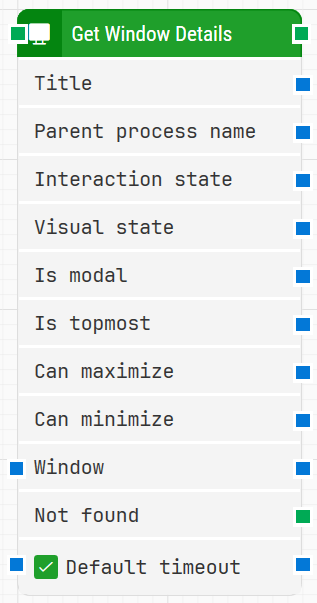
The Get Window Details building block is used to retrieve information about an open application window; such as its title, process name, and window state, during Desktop UI automation.
Fully expanded, the Get Window Details block shows the following properties:
Note: The screenshot on this page uses the Elegance Design, introduced in 2025.3. If you are using an earlier version, your layout may look different.
Quick start
Drag Get Window Details onto the canvas.
Connect any window detail outputs you need (you can use multiple) to the blocks that will consume them. You can use multiple outputs at the same time.
Run the flow when it’s ready.
Building block parameters
Parameters
Block header: Shows the current title of the Get Window Details block. You can rename it by double-clicking the header and typing a new title. The green input connector triggers the block when the flow reaches it, and the green output connector triggers when the window details are retrieved successfully.
Title: Outputs the title of the open application window.
Parent process name: Outputs the process name associated with the open application window.
Interaction state: Outputs the window’s current interaction state.
Visual state: Outputs the window’s current visual state.
Is modal: Outputs True if the window is modal, otherwise False.
Is topmost: Outputs True if the window is the topmost window, otherwise False.
Can maximize: Outputs True if the window can be maximized, otherwise False.
Can minimize: Outputs True if the window can be minimized, otherwise False.
Window: Specifies which application window to read details from. Typically, this window handle is provided by a Start Application or Use Window block.
Not found: Triggers if the window cannot be found within the allowed time.
Default timeout: When selected, the block uses the default timeout configured in the flow settings. When not selected, a Timeout (sec) field is available so you can set a custom timeout.