-
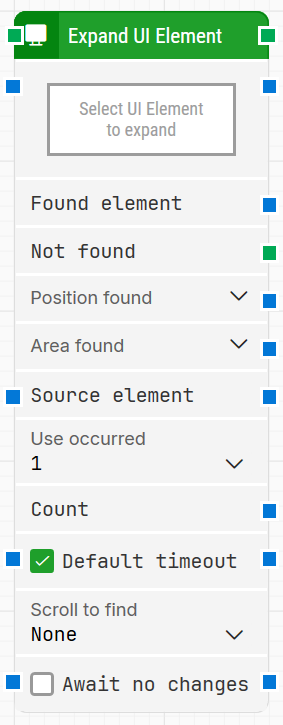
Block header: The green input connector triggers the block to start executing. The green output connector triggers when the UI element has been successfully expanded. You can rename the block by double-clicking the header text and typing in a new title.
-
Select UI Element: Required. Contains the locator for the UI element to expand. Capture a locator by clicking the property and selecting Capture new element. Once set, you can edit it via Edit element, or clear it via Clear element.
-
Found element: Contains the found UI element in the application window. You can reuse it as a Source element in other blocks to narrow down searches (for example, locating a specific cell inside a table row). If the element is not found, this property is empty.
-
Not found: Triggers if the UI element is not found within the configured timeout behavior. If nothing is attached to this connector and the element is not found, the case ends with status Fail. Use this connector to branch the flow depending on whether the element is found.
-
Position found: Outputs the application canvas position where the UI element was found as X, Y coordinates relative to the top-left corner of the screen (generally 0, 0). In multi-screen environments, X and Y may be negative (for example if the window is on a screen to the left of the main screen) or larger than the main screen resolution (for example if the window is on a screen to the right). Use the expander to work with X and Y separately.
UI elements that are not visible return position 0, 0.
-
Area found: Outputs the application canvas position and size of the found UI element as X, Y, Width, Height, starting with the upper-leftmost pixel, relative to the top-left corner of the screen (generally 0, 0). In multi-screen environments, values can be negative or exceed the main screen resolution depending on where the window is located. Use the expander to work with position/size and their nested sub-properties separately.
-
Source element: Limits the UI element locator to work inside the provided source element instead of searching globally. This is useful when you capture a container (for example a row in a table) and then want to expand a specific control within that exact context.
-
Use occurred: Selects which occurrence of the UI element to expand if more than one match is found. Select All to iterate through all occurrences; when All is selected, Current index and Completed are shown, and the block’s top connector is triggered for each occurrence.
-
Current index: Outputs the current index while iterating through all occurrences of the matching UI element (for example 1, then 2, then 3).
-
Completed: Triggers when iteration through all occurrences has completed.
-
Count: Outputs the total number of found UI elements that match the locator.
-
Default timeout: Controls whether the block uses the default timeout from the flow settings or a custom timeout value.
-
Timeout (sec): Sets the maximum time spent searching for the UI element before the block gives up and triggers Not found. This field is used when Default timeout is not selected.
Note: All cases have a global timeout configured in the Settings panel. This is unrelated to the timeout of a single building block. However, a running case will automatically be cancelled if it runs for longer than the global timeout.
-
Scroll to find: Controls whether the block scrolls while searching for the UI element. When a value other than None is selected, the block uses scrolling to search in scrollable content where elements may load asynchronously.
-
Await no changes: When enabled, the block waits for changes on screen to stop within the specified await timeout before performing the expand operation.
-
Await Timeout: Sets how many seconds the screen must have had no changes before the block proceeds.