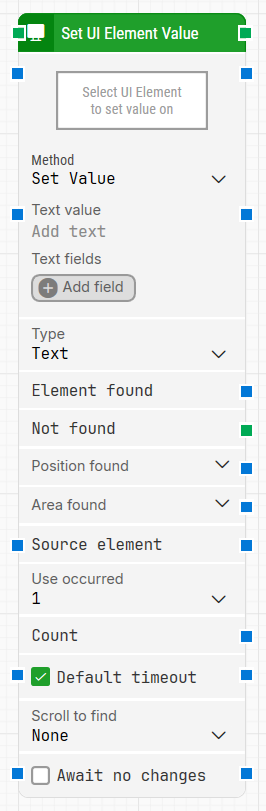
The Set UI Element Value block is used to set a value in a UI element, such as a textbox, in an already open application window. It’s typically used when automating interactions with desktop UI controls in Leapwork.
Fully expanded, the Set UI Element Value block shows the following properties:
Note: The screenshot on this page uses the Elegance Design, introduced in 2025.3. If you are using an earlier version, your layout may look different.
Quick-start
Drag Set UI Element Value onto the canvas.
Specify the basic parameters required for this block to operate: Select UI Element, Method.
Run the flow when it’s ready.
Building block parameters
Parameters
The Block Header: The green input connector in the header is used to trigger the block to start executing.
The green output connector in the header triggers when the UI element has been successfully found.
The title of the block (“Set UI Element Value”) can be changed by double-clicking on it and typing in a new title.
Select UI Element: Contains the locator for the UI element where the value is to be set. Can be captured, edited, or cleared using context menu options.
Method: Determines how the value is set in the UI element.
Values:
Set Value: Inserts text (or password) into a standard input field such as a textbox or form field.
Set Range Value: Sets a numeric value on controls like sliders, progress bars, or volume controls that operate over a defined range.
Text value: Specifies the text to input into the target UI element. Accepts plain text or dynamic content via tokens, making it suitable for both static and data-driven inputs. Tokens can be inserted by right-clicking and selecting from defined Text fields. Input connector.
Text fields: Defines custom key-value pairs that can be referenced as tokens throughout the block and across connected blocks.
Fields can be inserted into Text value, or used as input in other blocks that support tokens (e.g., search fields, logs, selectors).
Right-click in any compatible input field and choose Insert token to reference a field.
Type: Selects the kind of input to be entered into the UI element—either visible or masked.
Values:
Text: Standard visible input, suitable for general use such as names, comments, or search fields.
Password: Secure input that masks the typed characters and prevents them from being read during or after execution. Use this when entering credentials or sensitive data.
Element found: Returns the found UI element. Can be reused as input in other blocks.
Not found: Triggers if the element is not found within the specified timeout. If left unconnected and not found, the case will fail.
Position found: Provides the (X, Y) position of the found element. Coordinates are relative to screen top-left. May be negative or large in multi-screen setups.
Area found: Returns the (X, Y, Width, Height) of the element. Includes expandable sub-properties.
Source element: Narrows the search to within a previously found element. Useful for nested UI structures.
Use occurred: Selects which occurrence to interact with if multiple elements are found.
Values: specific index (1, 2, etc.) or All. Enables iteration.
Current index: Shows the index of the current occurrence during iteration. Starts from 1.
Completed: Triggers when all occurrences have been processed.
Count: Total number of matching elements found.
Default timeout: Defines whether to use the default timeout from flow settings. If not selected, the timeout is 10 seconds.
Scroll to find: Enables scroll-based search, useful for scrollable UIs. Default: None.
Await no changes: Waits for screen stability before setting value/range. Prevents conflict with dynamically updating elements.
Guidelines for understanding and using the Strategy Editor in Leapwork to define, refine, and validate robust locator strategies for UI elements using DOM structure, tokens, and wildcards.