-
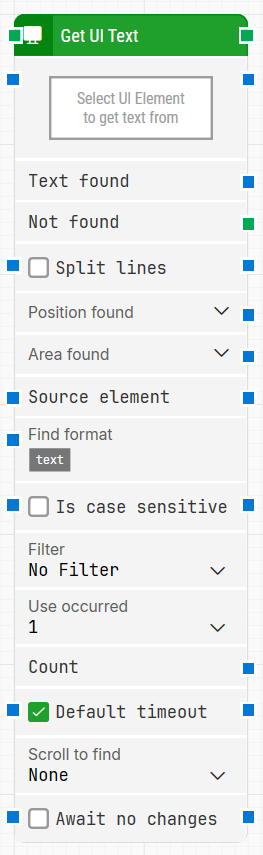
Block header: Shows the current name of the Get UI Text block. You can rename it at any time by double-clicking the header and typing a new title to keep flows readable and organized.
-
Select UI Element: Contains the locator for the UI element from which the text should be retrieved. This parameter must be set for the block to operate.
-
Click the field and select Capture new element to capture a locator.
-
Click and choose Edit element to adjust the locator.
-
Right-click and select Clear element to remove it.
-
Text found: Contains the text that was found in the selected UI element, after applying any format and filter rules.
-
Not found: Triggers if suitable text is not found within the time specified in Timeout. If nothing is connected to this output and the element is not found, the case ends with status Fail. Use this connector to branch the flow when the expected text is missing.
-
Split lines: When selected, the block captures the text as separate lines, splitting on whitespace and line breaks. When not selected, the text is returned as a single continuous string.
-
Position found: Returns the application canvas position where the UI element was found as X, Y coordinates, relative to the top-left corner of the primary screen (usually 0, 0).
In multi-screen environments the coordinates can be negative or larger than a single screen’s resolution, depending on monitor placement. Elements that are not visible are reported at position 0, 0. You can expand this property to access X and Y separately.
-
Area found: Returns the position and size of the found UI element as X, Y, Width, Height coordinates, relative to the top-left corner of the screen. The same multi-screen considerations as Position found apply. Expanding this property lets you work with the area’s position and size individually.
-
Source element: Limits the search so that the UI element locator works only inside a previously captured source element instead of scanning the entire application window. For example, you can capture a table row in one block and then use Source element to find text in a specific cell within that row.
-
Find format: Defines a text pattern that the retrieved text must match. For example, using Status: [TEXT] today will only return text from phrases such as Status: Green Mode today, with [TEXT] representing the dynamic part.
-
Is case sensitive: Controls whether the format and filter comparisons are case-sensitive. When checked, letter case must match exactly; when cleared (default), comparisons ignore case.
-
Filter: Adds an extra filter that the retrieved text must satisfy (for example, rules like “Starts with”, “Contains”, as provided by the UI). Only text matching this filter is returned.
-
Filter value: Provides the value used by the Filter. For example, with a “Starts with” filter, you might set Filter value to Green to keep only text that begins with “Green”.
-
Use occur. / Use occurrence: Determines which occurrence of matching text to use when more than one is found in the selected element:
-
Specific index: use a particular occurrence (for example, the first match).
-
All: iterate through all occurrences. When All is selected, the Current index property and Completed output become available, and the main execution path triggers once per occurrence.
-
Current index: Shows the index of the occurrence currently being processed when Use occurrence = All. For example, if three matching text values are found, this property will contain 1 for the first, then 2, then 3.
-
Completed: Triggers when iteration through all occurrences has finished while Use occurrence = All.
-
Count: Contains the total number of UI elements or text matches that satisfy the current settings (locator, format, filter, etc.). This can be used for validation or for decisions later in the flow.
-
Default timeout: Controls how the timeout for this block is determined:
-
When the checkbox is not selected, the block uses a timeout of 10 seconds, unless you override it via Timeout.
-
When the checkbox is selected, the block uses the Default timeout value defined in the flow settings.
-
Timeout: Sets the maximum time the block spends searching for the text before giving up and triggering the Not found output. This timeout applies only to this block. Each case also has a separate global timeout configured in the Settings panel; if the case runs longer than that global timeout, it is cancelled regardless of this block’s timeout.
-
Scroll to find: Specifies whether scrolling should be used while searching for the UI element. When a value other than None is selected, the block scrolls through scrollable content (for example, long lists or panels) during the search, which is useful when elements are loaded asynchronously, such as with infinite scroll.
-
Await no changes: When selected, instructs the block to wait until there have been no visible changes on the screen for the duration defined in Await Timeout before trying to find the text. This helps ensure the UI has stabilized before extraction.
-
Await Timeout: Defines, in seconds, how long the screen must remain unchanged when Await no changes is enabled before the block proceeds to read the text.