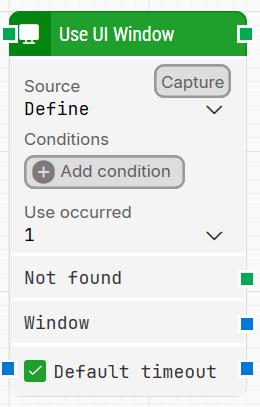
The Use UI Window building block switches focus to a specific desktop application window during Desktop UI automation. It finds the target window either by criteria you define (such as title, process name, or execution path) or by limiting the search to a provided source element. When the window is found, the block focuses it and exposes a window handle you can reuse in later steps.
Fully expanded, the Use UI Window block shows the following properties:
Note: The screenshot on this page uses the Elegance Design, introduced in 2025.3. If you are using an earlier version, your layout may look different.
Quick-start
Drag Use UI Window onto the canvas.
Connect the block in the flow, then set Source and identify the target window:
If Source = Define, click Capture and select the target UI window, then review and adjust the captured criteria if needed (for example Where, Method, and Value).
If Source = Element, provide the target via Source element so the block uses the injected element information.
Run the flow when it’s ready.
Building block parameters
Parameters
Block header: The green input connector triggers the block to start executing. The green output connector triggers when the UI window has been successfully found. You can rename the block by double-clicking the header text and typing a new title.
Source: Determines how the block identifies the UI window.
Define: You identify the window by capturing it and/or defining criteria (see Capture and Conditions).
Element: The window context is provided via Source element.
Capture: Used when Source is set to Define. Click Capture and select the target UI window so the block can populate the identification details. The captured values may vary depending on the selected window.
Conditions: Used when Source is set to Define. Add one or more conditions using Add condition to find the desired window. At least one condition is required with Define.
Where: Selects which window property a condition should evaluate when using Define.
Title: Finds a window based on its title.
Process Name: Finds a window based on the process name.
Execution path: Finds a window based on the executable path.
Method: Selects how the condition matches the Value for the selected Where.
Equals: Requires an exact match.
Contains: Matches when the field contains the entered text.
Starts with: Matches when the field starts with the entered text.
Ends with: Matches when the field ends with the entered text.
Value: The text used to find the desired window for the chosen Where and Method. This is required when using Define.
Source element: Provides the window context when Source is set to Element. When used, the locator is limited to work inside the provided source element instead of searching globally. This is useful when you capture something like a row or container in one block and want subsequent window-related actions to operate within that same context.
Use occurred: Selects which occurrence to use if more than one matching window is found.
Not found: Triggers if the UI window is not found within the time specified by the timeout settings. If nothing is attached to this connector and the window is not found, the case ends with status Fail. Use this connector to branch the flow depending on whether the window is found.
Window: Once the desktop application window is found and focus is set, this field contains a handle to the window. Use it when multiple application windows are open to direct other building blocks to use a specific window.
Default timeout: Controls whether the block uses the default timeout from the flow settings or a custom timeout value.
Timeout: The maximum time spent searching for the application UI window before giving up and triggering Not found. This field is used when Default timeout is not selected.
Note: All cases have a global timeout that can be configured in the Settings panel. This is unrelated to the timeout of a single building block. However, a running case will automatically be cancelled if it runs for longer than the global timeout.