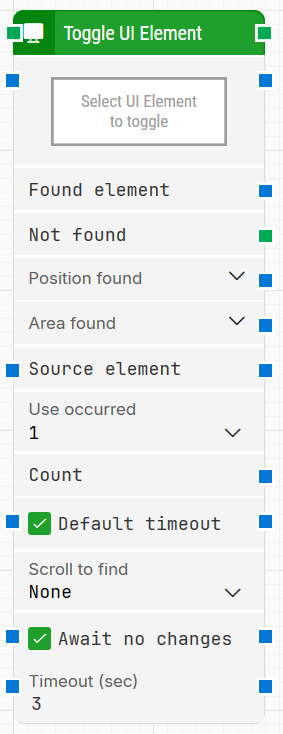
The Toggle UI Element block toggles a UI element (for example, a toggle control) in an already open application window when working with Desktop UI automation. It can also return information about the element that was found so you can reuse it later in the flow.
When fully expanded, the Toggle UI Element block shows the following properties:
Note: The screenshot on this page uses the Elegance Design, introduced in 2025.3. If you are using an earlier version, your layout may look different.
Quick-start
Drag Toggle UI Element onto the canvas.
Connect the block in the flow and set the required parameter Select UI Element. You can optionally adjust other parameters as needed.
Run the flow when it’s ready.
Building block parameters
Parameters
Block header: Shows the current title of the Toggle UI Element block. You can rename it by double-clicking the header and typing a new title.
The green input connector triggers the block when the flow reaches it, and the green output connector triggers when the toggle operation completes successfully.
Select UI Element: Contains the locator for the UI element to toggle. You can capture a locator by selecting Capture new element, update it using Edit element, or remove it using Clear element.
This parameter is mandatory.
Found element: Returns the UI element that was found in the application window. This can be reused in later blocks (for example, to scope searches using Source element). If the element is not found, this value is empty.
Not found: Triggers if the UI element is not found within the relevant timeout settings. This output is typically used to branch the flow for error handling or recovery.
Position found: Returns the screen position where the UI element was found as X, Y coordinates relative to the top-left corner of the screen (typically 0, 0). In multi-screen setups, coordinates can be negative or exceed a single screen’s resolution depending on where the window is located. UI elements that are not visible can return position 0, 0.
Area found: Returns the screen area occupied by the found UI element as X, Y, Width, Height, starting from the upper-leftmost pixel. In multi-screen setups, values can be negative or exceed a single screen’s resolution depending on where the window is located.
Source element: Restricts the search to only occur inside the provided source element instead of searching broadly in the application window. This is useful when you want to work within a specific container, such as a row in a table.
Use occurred: Selects which occurrence to use if more than one matching UI element is found. If you select All, the block iterates through each occurrence and exposes additional iteration-related properties while it runs (such as a current index and a completion trigger).
Count: Returns the total number of found UI elements that match the locator.
Default timeout: Controls whether the block uses a fixed timeout or the flow’s default timeout. If the Default timeout checkbox is not selected, the timeout is 10 seconds. If it is selected, the Default timeout value from the flow settings is applied.
Scroll to find: Enables scrolling while searching for the UI element when a value other than None is selected. This can be useful in scrollable content where elements load asynchronously.
Await no changes: When selected, the block waits for the screen to stop changing before it searches for and toggles the specified UI element.
Timeout (sec): Sets how long the block waits for the “no changes” condition before proceeding.
Guidelines for understanding and using the Strategy Editor in Leapwork to define, refine, and validate robust locator strategies for UI elements using DOM structure, tokens, and wildcards.