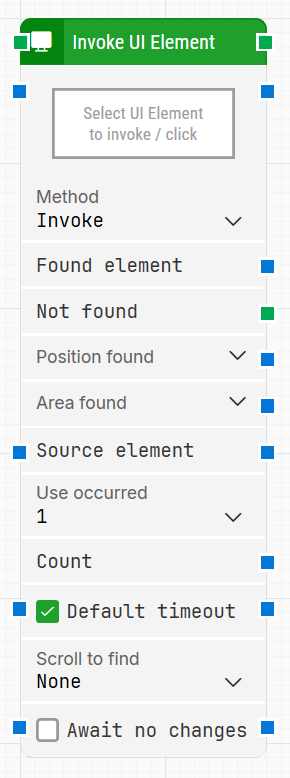
The Invoke UI Element block is used in Desktop UI automation to trigger a UI element using the Windows Invoke automation pattern. Instead of moving the mouse pointer, it sends an internal message to the control, which is often faster and more reliable. It can be used for actions such as toggling, selecting, expanding, or clicking elements in an already open application window.
Fully expanded, the Invoke UI Element block shows the following properties:
Note: The screenshot on this page uses the Elegance Design, introduced in 2025.3. If you are using an earlier version, your layout may look different.
Quick-start
Drag Invoke UI Element onto the canvas.
Connect the block in the flow, capture the target in Select UI Element (required), and optionally adjust parameters such as Method, Source element, Use occurrence, Default timeout, Scroll to find, Await no changes.
Run the flow when it’s ready.
For a minimal setup, set Select UI Element to the control you want to invoke and keep the default settings.
Building block parameters
Parameters
Block header: Shows the current name of the Invoke UI Element block. You can rename it by double-clicking the header and typing a new title to keep flows readable and organized.
Select UI Element: Contains the locator for the UI element to be invoked. This parameter must be set for the block to operate.
Click the field and choose Capture new element to capture a locator.
Choose Edit element to adjust an existing locator.
Right-click and select Clear element to remove it.
Method: Selects which invoke operation to perform on the target element. The dropdown lists all supported invoke methods for the control; choose the one that matches the desired action (for example, operations that behave like toggle, select, expand, or click).
Found element: Contains the UI element that was found in the application window. You can pass this element to other blocks, for example as a Source element, to narrow subsequent searches to this specific control or region. If the element is not found, this property is empty.
Not found: Triggers if the UI element cannot be found within the time specified in Timeout. If nothing is connected and the element is not found, the case ends with status Fail. Use this output to branch the flow when the element cannot be located.
Position found: Returns the position of the UI element on the application canvas as X, Y coordinates relative to the top-left corner of the screen (usually 0, 0).
In multi-screen environments, coordinates can be negative or larger than a single screen’s resolution, depending on monitor arrangement.
UI elements that are not visible report position 0, 0.
You can expand this property to access X and Y separately.
Area found: Returns the position and size of the found UI element as X, Y, Width, Height coordinates, also relative to the top-left corner of the screen. The same multi-screen considerations as Position found apply. Expanding this property lets you work with the area’s position and size individually.
Source element: Limits the search to a previously captured container element instead of scanning the entire application window. For example, you can capture a table row in one block and then, by setting that row as Source element, invoke a specific control within that row.
Use occurrence: Determines which occurrence of the matching UI element is invoked when more than one is found:
Specific index: invoke a particular occurrence (for example, the first or second match).
All: iterate through all occurrences. When All is selected, the Current index property and Completed output are enabled, and the main execution path is triggered once per occurrence.
Current index: Indicates the index of the occurrence currently being processed when Use occurrence is set as All. For example, if three matching elements are found, this value is 1 for the first element, then 2, and finally 3.
Completed: Triggers when iteration through all occurrences has finished while Use occurrence = All.
Count: Contains the total number of UI elements that match the locator defined in Select UI Element. This can be used for validation or for decisions later in the flow.
Default timeout: Controls how the timeout for this block is determined:
When the checkbox is not selected, the block uses a timeout of 10 seconds, unless you override it via Timeout.
When the checkbox is selected, the block uses the Default timeout value defined in the flow settings.
Timeout: Sets the maximum time the block spends searching for the UI element before giving up and triggering the Not found output. This timeout applies only to this block. Each case also has a separate global timeout configured in the Settings panel; if the case runs longer than that global timeout, it is cancelled regardless of this block’s timeout.
Scroll to find: Specifies whether scrolling should be used when searching for the UI element. When you select a value other than None, the block scrolls through scrollable content while searching, which is useful when elements appear only after scrolling or when content is loaded asynchronously.
Await no changes: When selected, instructs the block to wait until there have been no visible changes on screen for the duration defined in Await Timeout before performing the invoke operation. This helps ensure that the UI has stabilized before interacting with the element.
Await Timeout: Defines, in seconds, how long the screen must remain unchanged when Await no changes is enabled before the block proceeds to invoke the element.
Guidelines for understanding and using the Strategy Editor in Leapwork to define, refine, and validate robust locator strategies for UI elements using DOM structure, tokens, and wildcards.