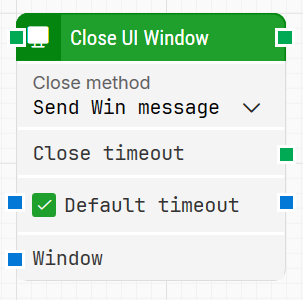
The Close UI Window block is used to close a desktop application window as part of a desktop UI automation flow. If no window input is provided, the block closes the last active window; if a window handle is supplied, it closes that specific window instead.
Fully expanded, the Close UI Window block shows the following properties:
Note: The screenshot on this page uses the Elegance Design, introduced in 2025.3. If you are using an earlier version, your layout may look different.
Quick-start
Drag Close UI Window onto the canvas.
Connect it in the flow and set the basic parameters you need, such as Close method, Close timeout, Default timeout, and (optionally) Window.
Run the flow when it’s ready; the block will attempt to close the chosen window and branch on Close timeout if the window does not close in time.
Building block parameters
Parameters
Block header: Shows the current name of the Close UI Window block. You can rename it by double-clicking the header and typing a new title. The green input connector starts the close operation when the flow reaches this block, and the green output connector triggers when the UI window has been closed successfully.
Close method: Defines how the window should be closed:
Send Win message (default): sends a standard Windows close message to the application under test.
Force kill process: forcibly terminates the process if a normal close is not sufficient or the application is unresponsive.
Close timeout: Green output connector that is triggered if the window is not closed within the configured timeout period. Use this connector to handle alternate flows, such as logging, retries, or forced termination.
Default timeout: Controls how the timeout is determined:
When the checkbox is not selected, the block uses an explicit Timeout value of 10 seconds, unless you change it.
When the checkbox is selected, the block uses the Default timeout value defined in the flow settings.
Timeout: Specifies the maximum time the block will wait for the UI window to close before giving up and triggering Close timeout.
This timeout is specific to the block. Each case also has a separate global timeout configured in the Settings panel; if the case runs longer than that global timeout, it is automatically cancelled regardless of this block’s timeout.
Window: Holds the handle of the window to be closed.
Typically, this is provided by a Start Application or Use Window block.
If this input is left empty, Close UI Window will attempt to close the last active window instead.
Guidelines for understanding and using the Strategy Editor in Leapwork to define, refine, and validate robust locator strategies for UI elements using DOM structure, tokens, and wildcards.