
Drag UI Element

Drag UI Element drags a UI element with the mouse from one location to another in an open application window.

When fully expanded, the Drag UI Element block shows the following properties:
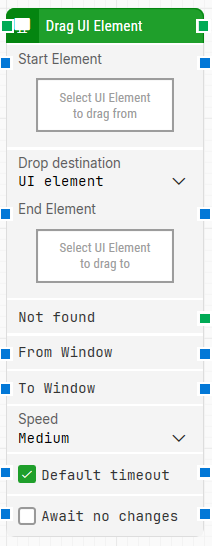
image-20260128-125944.png

Note: The screenshot on this page uses the Elegance Design, introduced in 2025.3. If you are using an earlier version, your layout may look different.

Quick-start

  1. Drag Drag UI Element onto the canvas.

  2. Connect the block in the flow (green input and output connectors).

  3. Set Start Element and End Element.

  4. Optionally adjust parameters such as Drop destination UI element, From Window / To Window, Speed, Default timeout / Timeout, and Await no changes, and branch via Not found if the element cannot be found in time.

  5. Run the flow when it’s ready.

Building block parameters

Parameters
  • Block header: Rename the block by double-clicking the title. The green input connector starts the block when the flow reaches it. The green output connector triggers when the drag action completes successfully.

  • Start Element: The UI element locator the mouse drag starts from.

  • Drop destination UI element: Select how the drop destination UI element is handled.

  • End Element: The UI element locator the mouse drag drops to.

  • Not found: Green output connector that triggers if the UI element is not found before the timeout. Use it to branch the flow or link to a Fail block.

  • From Window: Use this window as the source window to drag the element from.

  • To Window: Use this window as the destination window to drop the element in.

  • Speed: Mouse movement speed. Default is Medium.

  • Default timeout: If enabled, the block uses the default timeout from Flow settings. If disabled, it uses the Timeout value.

  • Timeout: The maximum time spent searching for the UI element before giving up and triggering Not found.

  • Await no changes: When enabled, the block waits for the screen to have no changes (within the specified timeout) before performing the drag operation.

Resources

Topic

Description

Flows FAQ

Common questions about creating, running, and managing flows in Leapwork.

Flows Troubleshooting

Guidelines and solutions for identifying and fixing issues that occur when building or running flows in Leapwork.

Strategy Editor

Guidelines for understanding and using the Strategy Editor in Leapwork to define, refine, and validate robust locator strategies for UI elements using DOM structure, tokens, and wildcards.