
While Leapwork's recording capabilities make it easy to build test automation flows without worrying about how elements are located, some advanced scenarios might require you to investigate and optimize how locators are identified.
Leapwork’s Strategy Editor is a powerful feature that shows how UI elements are identified and lets you adjust the approach to target the right element.
This level of control is rare in no-code tools and is what sets Leapwork apart combining ease of use with powerful customization when needed.
What is the Strategy Editor?
When you capture an element on the screen, Leapwork needs to know exactly how to identify it, even when there are many others that look similar.
Think of it as teaching Leapwork to recognize a specific face in a crowd: you define the unique features, like position, label, shape, or attributes, so that it doesn’t mistake it for something else.
This allows you to build automations that are reliable, resistant to UI changes, and easy to maintain, even as the application evolves.
What do you see when you open the Strategy Editor?
When you open the Strategy Editor in Leapwork, you’ll see a visual interface that helps you define how Leapwork finds and interacts with UI elements. It lets you configure and fine-tune strategies, so the right element is selected reliably, even in complex applications.
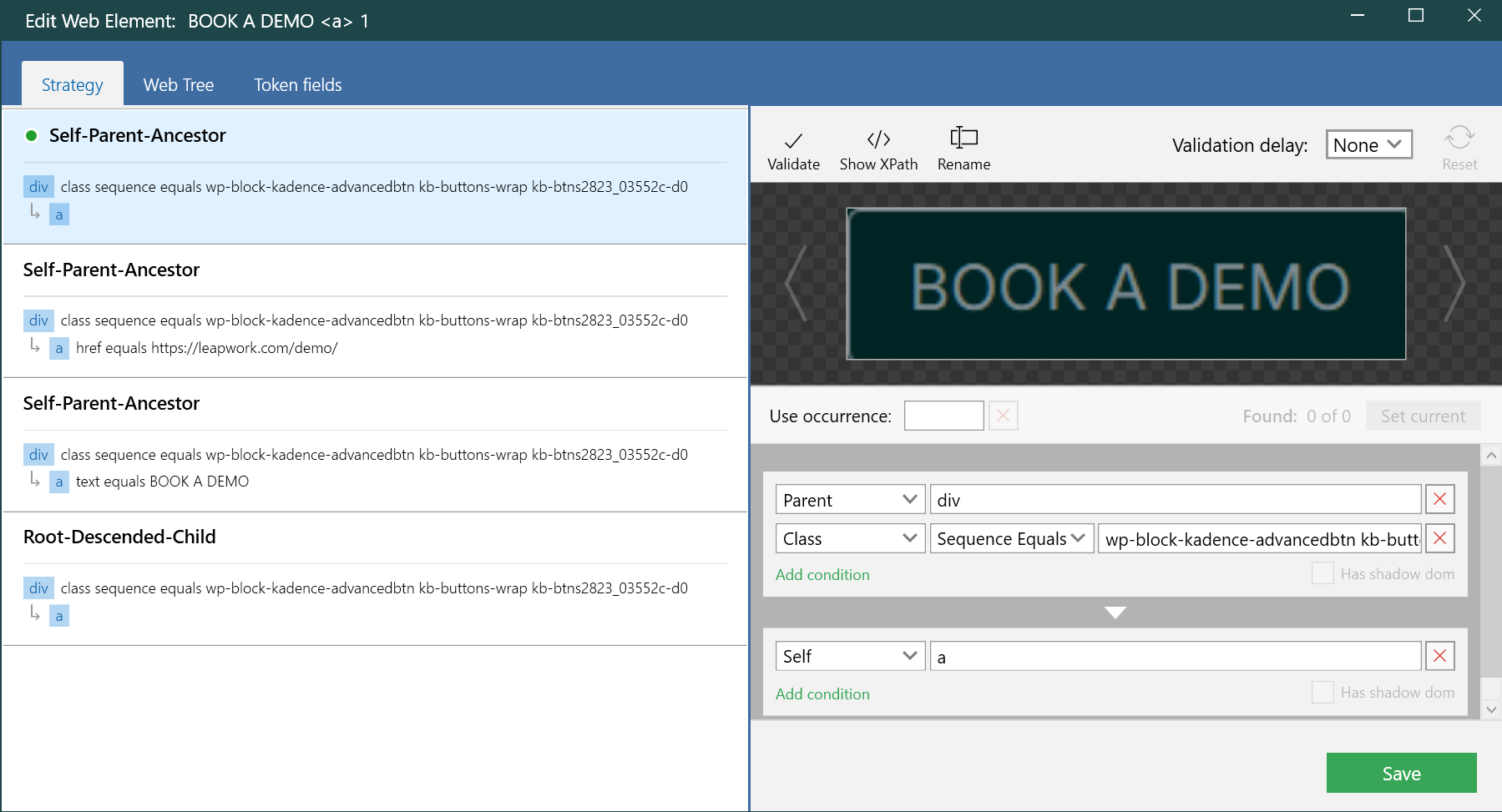
Tabs at the top
Top-right toolbar
UI Element Preview
Just below the toolbar, you’ll see a live preview of the UI element you just captured. This helps you confirm that you are on the right element.
Use Occurrence section
This area appears just below the preview.
Conditions panel
The conditions panel defines how Leapwork identifies the target element through simple rules.
Each condition specifies:
-
What to target (the element itself, a parent, ancestor, or XPath),
-
Which property to use (ID, class, text, or other attributes),
-
How to compare it (equals, contains, starts with, etc.).
These rules can be combined to reliably locate elements, even in complex or changing UIs. You can also insert dynamic tokens to make strategies flexible for variable content.
To learn how to use this panel and its tabs effectively, watch the related video on Leapwork Learning Center.
How to use the Strategy Editor in Leapwork
The Strategy Editor lets you define exactly how Leapwork should locate a specific UI element, especially when there are many similar ones on the screen. Here's how to use it effectively:
Step 1: Open the Strategy Editor
To open the Strategy Editor:
-
Right-click on the element box inside a UI-related block.
-
From the dropdown menu, choose Edit web element.
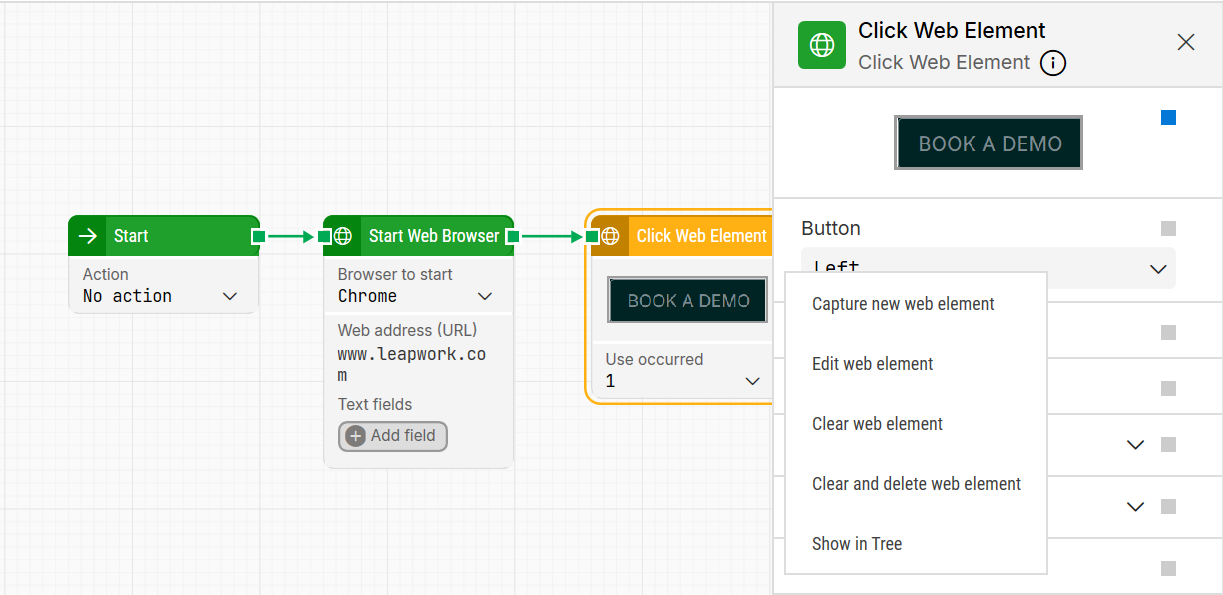
Note: The screenshot on this page uses the Elegance Design, introduced in 2025.3. If you are using an earlier version, your layout may look different.
This action opens the Strategy Editor window, where you’ll fine-tune how Leapwork identifies the element.
Step 2: Validate the Element
Once inside the Strategy Editor, you must click the Validate button before continuing.
Note: This is essential, if you don’t validate the element, the Web Tree tab will remain empty, and you won’t be able to inspect the DOM structure.
.jpg?cb=8093cbc161b14fc28abb6f4db913e252)
Step 3: Strategy Tab: Build a Strategy Using DOM Relations
In the Strategy tab, you define how Leapwork should locate the element using declarative conditions based on the HTML structure and attributes that were present when the element was captured.
In the image below, you can see the Strategy tab with its hierarchy types highlighted.
This view groups strategies based on DOM relationships, helping you understand how each condition relates to the element's position in the structure.
.jpg?cb=d8cd7dd1e6d111c6ed73406b592d8140)
The tab displays multiple strategies grouped by relationship types, such as:
-
Self-Parent-Ancestor: Uses the properties of the element itself and its immediate parents.
-
Root-Descendant-Child: Builds a path from the root of the DOM down to the element.
You can view, edit, or combine these conditions to ensure a stable strategy. The conditions here are generated using the DOM structure visible in the Web Tree at the moment of capture, which means the two tabs are closely related.
Step 4: Web Tree Tab: Build a Strategy Using the Full HTML Tree
The Web Tree tab provides a live view of the actual DOM (Document Object Model) at validation time. It shows the full HTML structure, where you can:
-
Navigate through the element hierarchy (parents, children, siblings).
-
Click on any node to inspect its properties (e.g., tag, class, href, text).
-
Use this structure to define or refine your selection manually.
The image below shows the Web Tree tab, where you can see the HTML hierarchy on the left and the element’s available properties on the right, both highlighted. You can use these structural and attribute-based details to build or refine your locator strategy more easily.
.jpg?cb=55474339c140e0801ddcba492dface7a)
Note: While Strategy and Web Tree are different ways of viewing and editing locator strategies, they are not mutually exclusive. The Strategy tab builds on the structure shown in the Web Tree at the time of capture, and both can be used together to create and validate an effective locator.
Step 5: Insert Tokens – Dynamic Strategies
Anywhere you can type inside the Strategy Editor, you can right-click to insert tokens:
-
Right-click on a textbox (e.g., attribute value).
-
Select Insert token, then choose:
-
Wildcard (
*): Matches any number of characters. Useful when part of a value may vary, such as dynamic IDs or links. -
Add new field: Lets you define a custom token (e.g., Field 1). Tokens act as placeholders for dynamic values, ideal for data-driven tests.
-
For more details, explore this resource to deepen your understanding: Wildcards vs Tokens in Leapwork
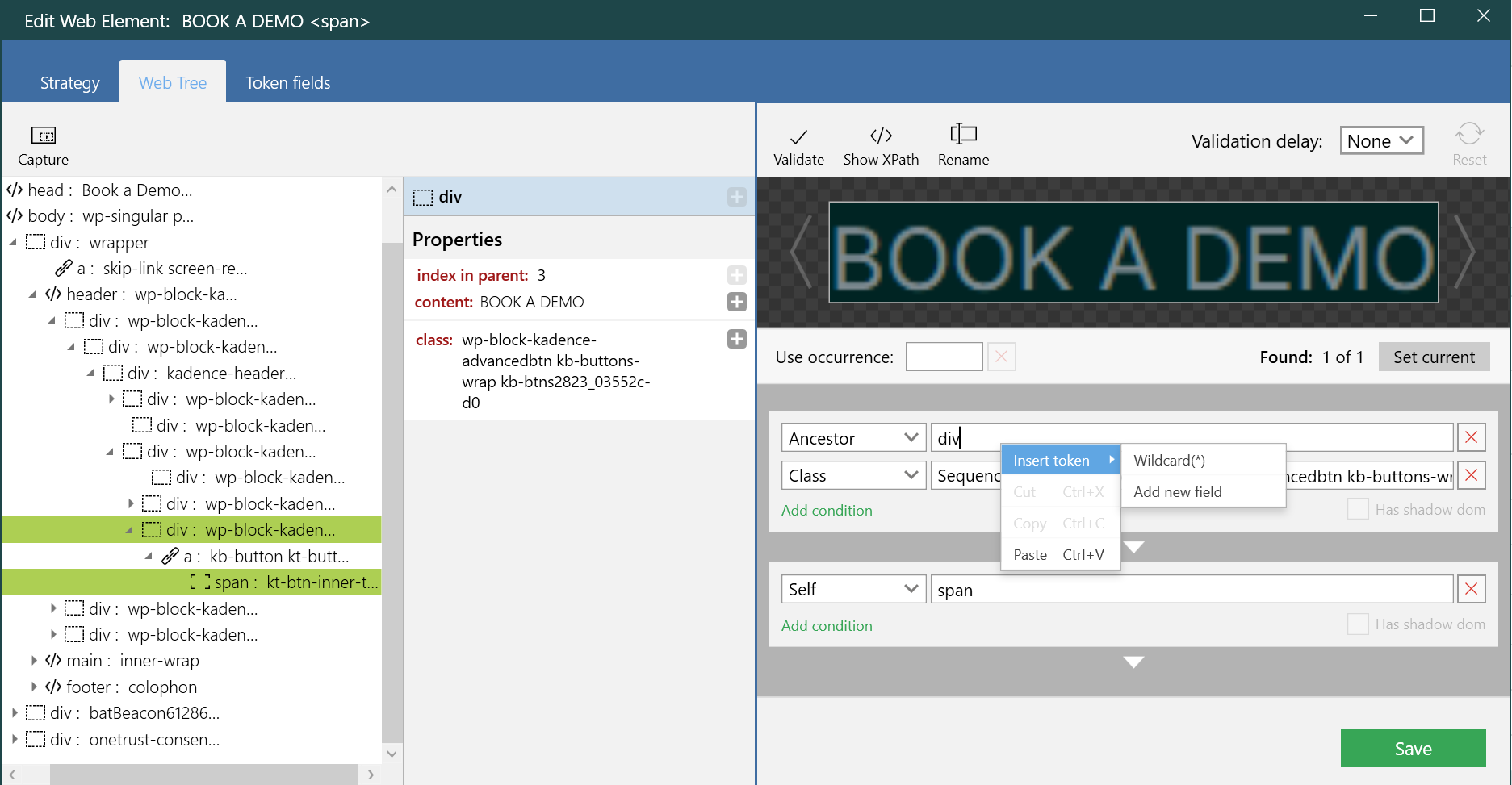
Step 6: Token Fields Tab – Manage Dynamic Inputs
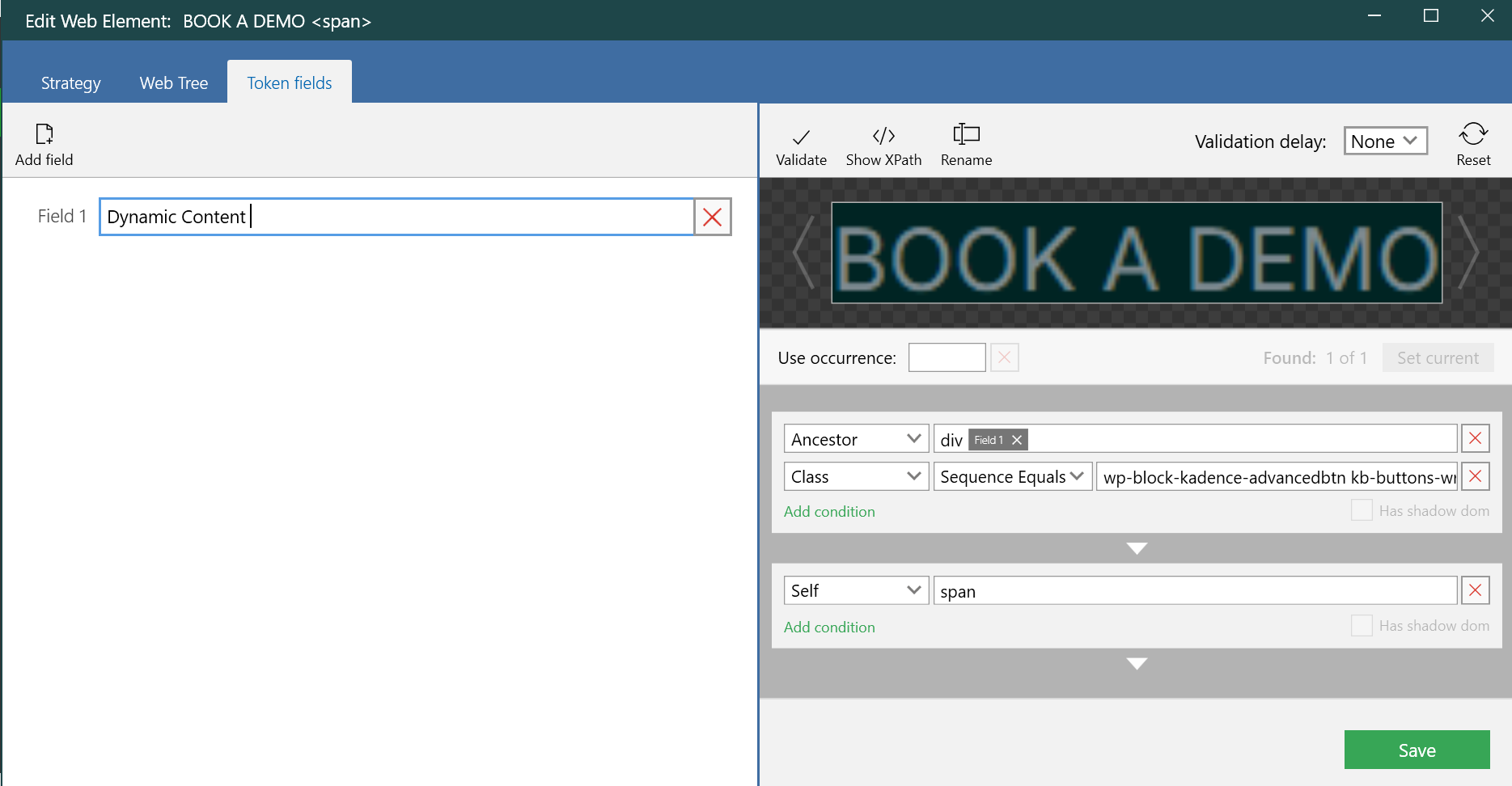
Every time you add a token in the strategy (like Field 1), it appears in the Token Fields tab.
Here’s where you define what each token should represent:
-
In the typebox next to Field 1, you enter the actual dynamic content (e.g., a product name, a username, etc.).
-
This field can be connected to data sources or variables in your test case.
Tokens make your element locators flexible and reusable, especially when testing with multiple data inputs.
The image below shows the Token Fields tab, where a token named Field 1 has been manually labeled as Dynamic Content. This field corresponds to a token previously inserted in the Strategy tab, and its value can now be defined here to be used during execution.
If you're working with mobile automation, be aware that the Strategy Editor has some platform-specific differences. You can learn more in the official knowledge base article, Key Differences Between Web and Mobile Strategy Editors.
For hands-on learning and real-world examples, visit the Leapwork Learning Center, where step-by-step video tutorials guide you through using the Strategy Editor, working with tokens and wildcards, and creating robust, reliable element locators.