
Workflow Management helps you get the most out of Leapwork’s teams functionality by making it easier to govern and collaborate across large teams and multiple automation projects. It gives you clear visibility into versions, contributors, approvals, and handovers, so you always know what’s in progress, what needs review, and what’s already approved and by whom.
This is what allows you to confidently manage hundreds or even thousands of flows throughout their entire lifecycle.
With Workflow Management, you can:
-
Save flows in different states (in “draft”, “assign for approval”, “publish”, “retired”)
-
Assign flows to the correct owners or change an assignee for a flow or sub-flow
-
Segregate duties
-
Notify users of the consequence of an action before it is done
-
Get an instant overview of revision state
-
Get improved versioning for immediate progress transparency
-
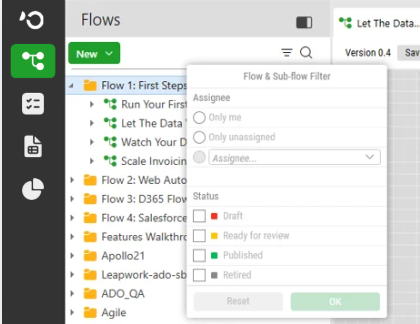
Filter flows and sub-flows by assignee
-
Filter flows and sub-flows by progress status
-
Bulk update flow statuses
Note: The screenshots on this page use the Elegance Design, introduced in 2025.3. If you are using an earlier version, your layout may look different.
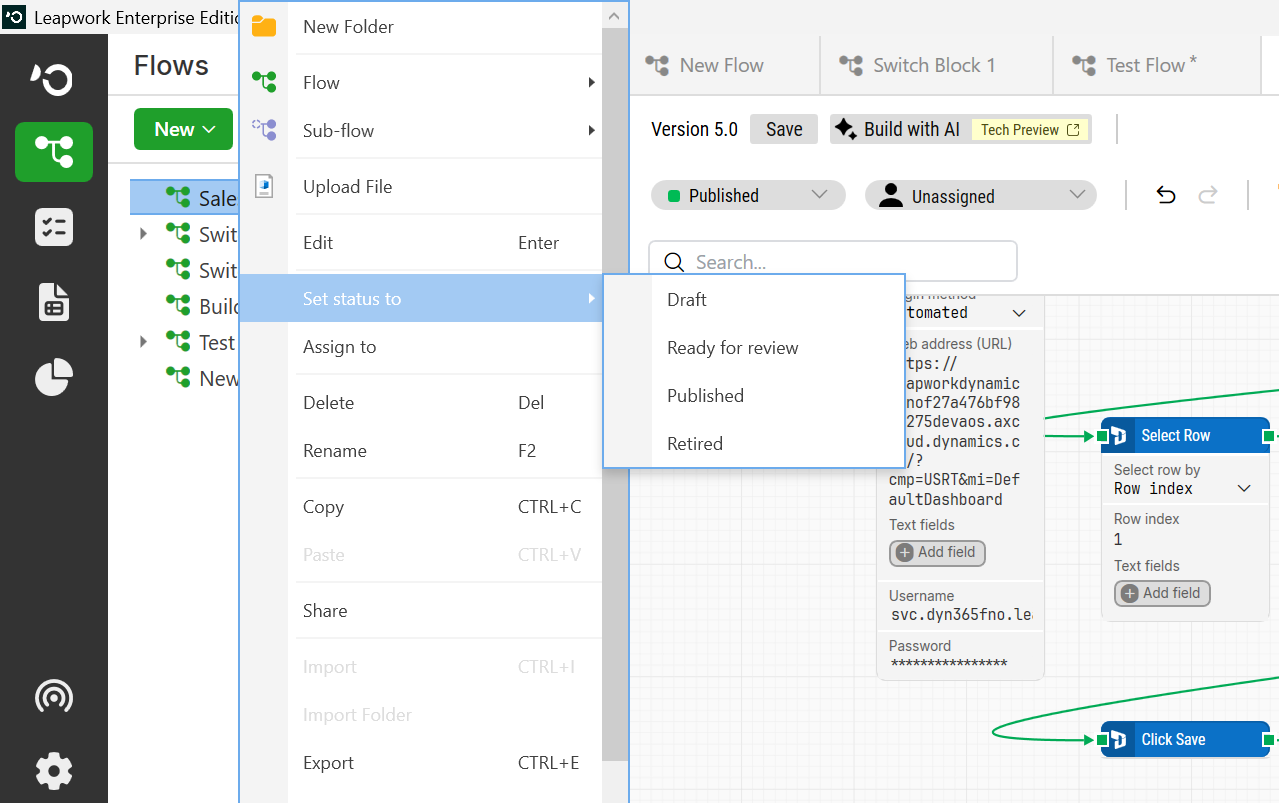
Tracking Progress and Responsibilities in the Leapwork Toolbar
You’ll find the Workflow Management functionality in the new Leapwork toolbar at the top of the Flow canvas. From here, you get an instant overview of the flow’s revision state, assignee, and version number, so you can quickly see its current status and make changes if you have the right permissions.

Enterprise-grade versioning
Each time you make a change, you can mark the flow as Ready for review and assign it to another team member with the right role. When you do this, the flow’s minor version number increases, for example from 1.1 to 1.2 or from 2.6 to 2.7.
This means you can now configure Run Lists to use only published flows with a major version number. You can continue editing and improving flows using minor versions, while the published version keeps running as usual.
Preview runs
A key part of building robust and reliable automation flows is previewing them as you work. This lets you test the flow and fix issues along the way.
To do a Preview Run of a flow, you simply have to click on the Run button available in the top header of the Design Canvas:
The preview run executes the flow on your local machine, making it easy to debug and verify your work. When you click Run, Leapwork Flow minimizes and the flow starts running.
Once the flow finishes, whether it passes or fails, Leapwork Flow opens again so you can make any needed changes.
You can also pause and resume the preview run at any time.
-
This lets you analyze and inspect recent changes immediately, without waiting for the flow to finish.

-
Each building block includes a blue data container, called a data item, which gives you useful insights into what that building block is doing in the flow.
-
These insights include data values from the application under automation, data from external sources, and the parameters, settings, and attributes applied to the building block.
-
This makes it easy to see not only where a flow has failed but also understand why it failed by looking at the data behind it.
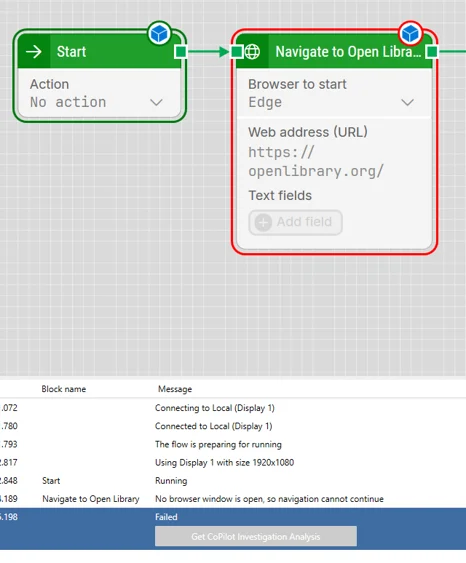
After a Preview run, the Preview pane is available. It consists of the three elements:
-
A video recording of the entire run of the flow: Simply click on the play button in the video player to review the entire run.
-
A debug version of the Design Canvas, where the active building block is highlighted with an orange border.
-
The Activity log containing valuable debug information from the individual building blocks.
All three elements are linked and can be inspected at the same time. For example, when you press Play, an orange border highlights the corresponding building block, and the selected item in the Activity Log updates to show exactly what’s happening and when.
If you select an entry in the Activity Log, the video jumps to the matching moment in the recording.
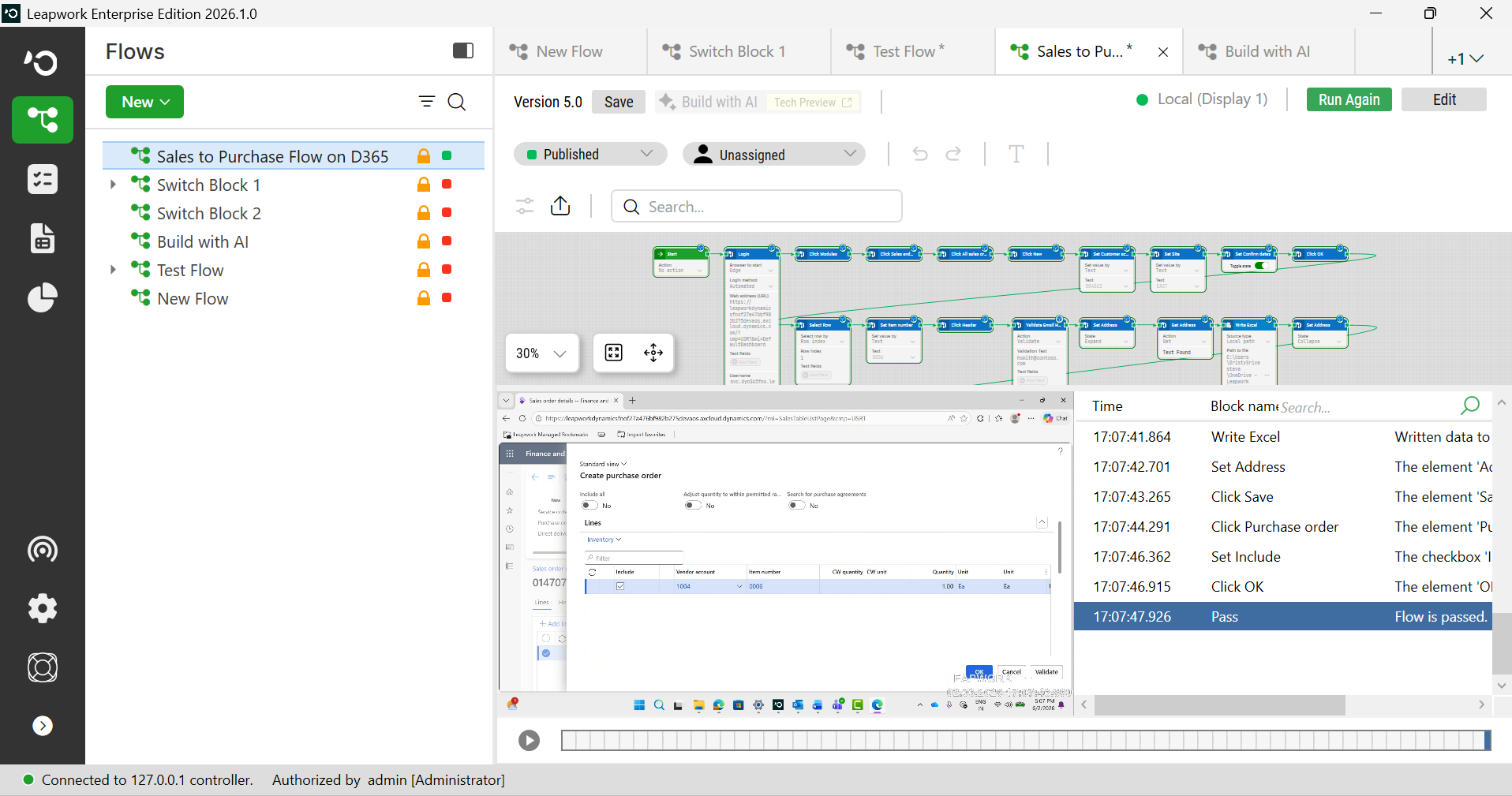
The combination of the debug view, video, and activity log gives you a powerful and intuitive way to identify failures and handle unexpected behavior.
After a preview run, you can return to edit mode by clicking Edit in the top header of the Design Canvas, or by simply double-clicking the grayed-out canvas.
Administrators can start the day by filtering the asset tree to show flows assigned to them. This makes it easy to review flows and either approve and publish them for production or return them to the sender with feedback for improvement.
Note: These capabilities are available in the Enterprise Edition only.