
Automation flows in Leapwork are designed visually, without writing any code.
In Leapwork Flow, every flow is built by connecting building blocks on the Design Canvas to define:
-
Logic
-
Data flow
-
Outcomes
Note: The screenshots on this page use the Elegance Design, introduced in 2025.3. If you are using an earlier version, your layout may look different.
Understanding the studio layout
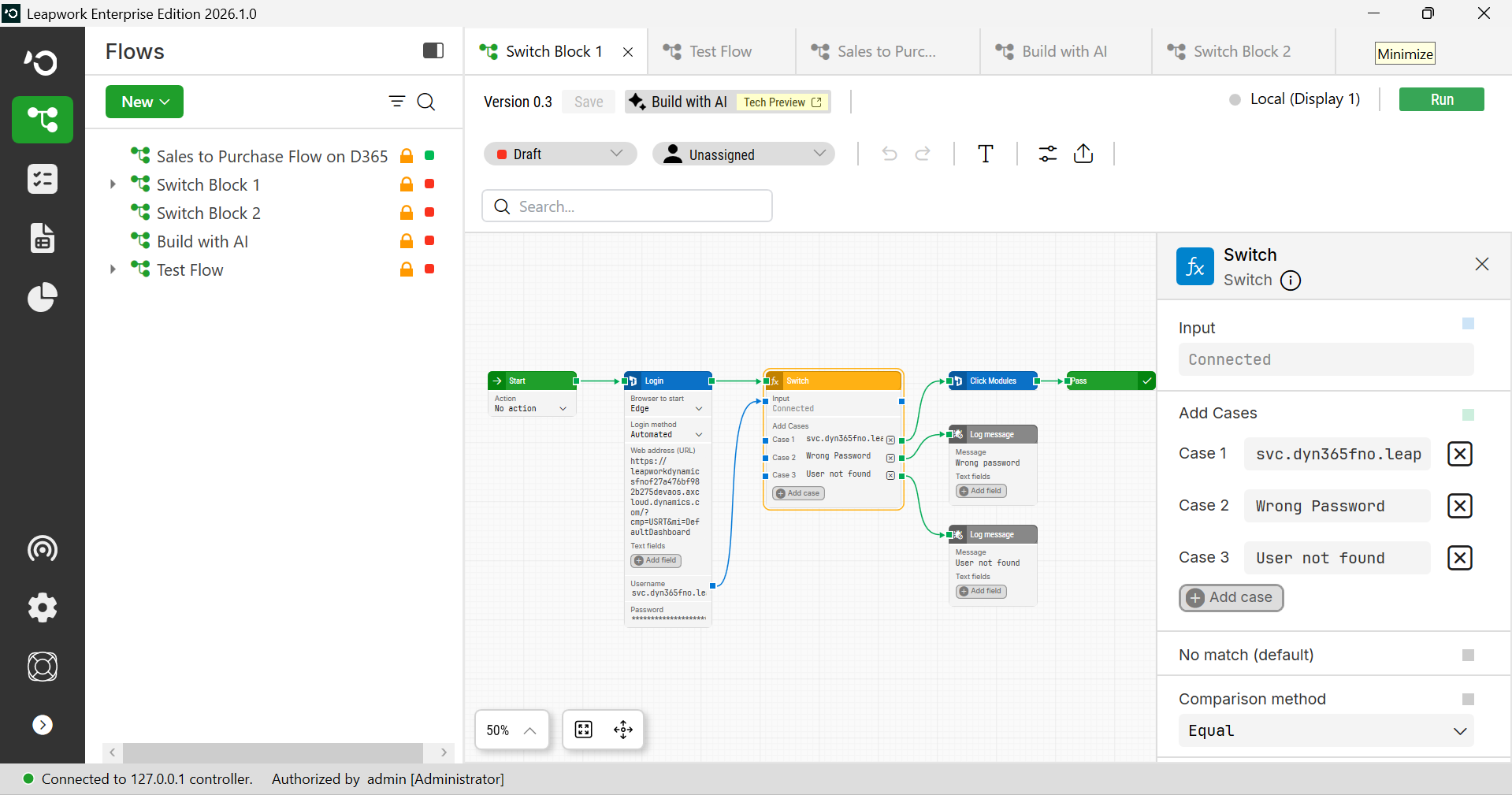
Leapwork Flow consists of four main areas:
-
Left navigation menu: Access modules such as Flows, Run Lists, Reporting, Agents, Settings, and more.
-
Flows panel: Organizes your flows, folders, and subflows in a structured tree view, allowing you to manage and navigate automation assets.
-
Top toolbar: Contains key controls like Run, Save, Zoom, Agent selection, and Status settings.
-
Design canvas: The central workspace where automation flows are built using visual building blocks and connectors. It supports zoom, pan, and alignment tools to help you arrange blocks neatly and keep flows easy to read.
-
Inspector panel: Located on the right, it displays and allows editing of the properties for the selected block.
The flows panel
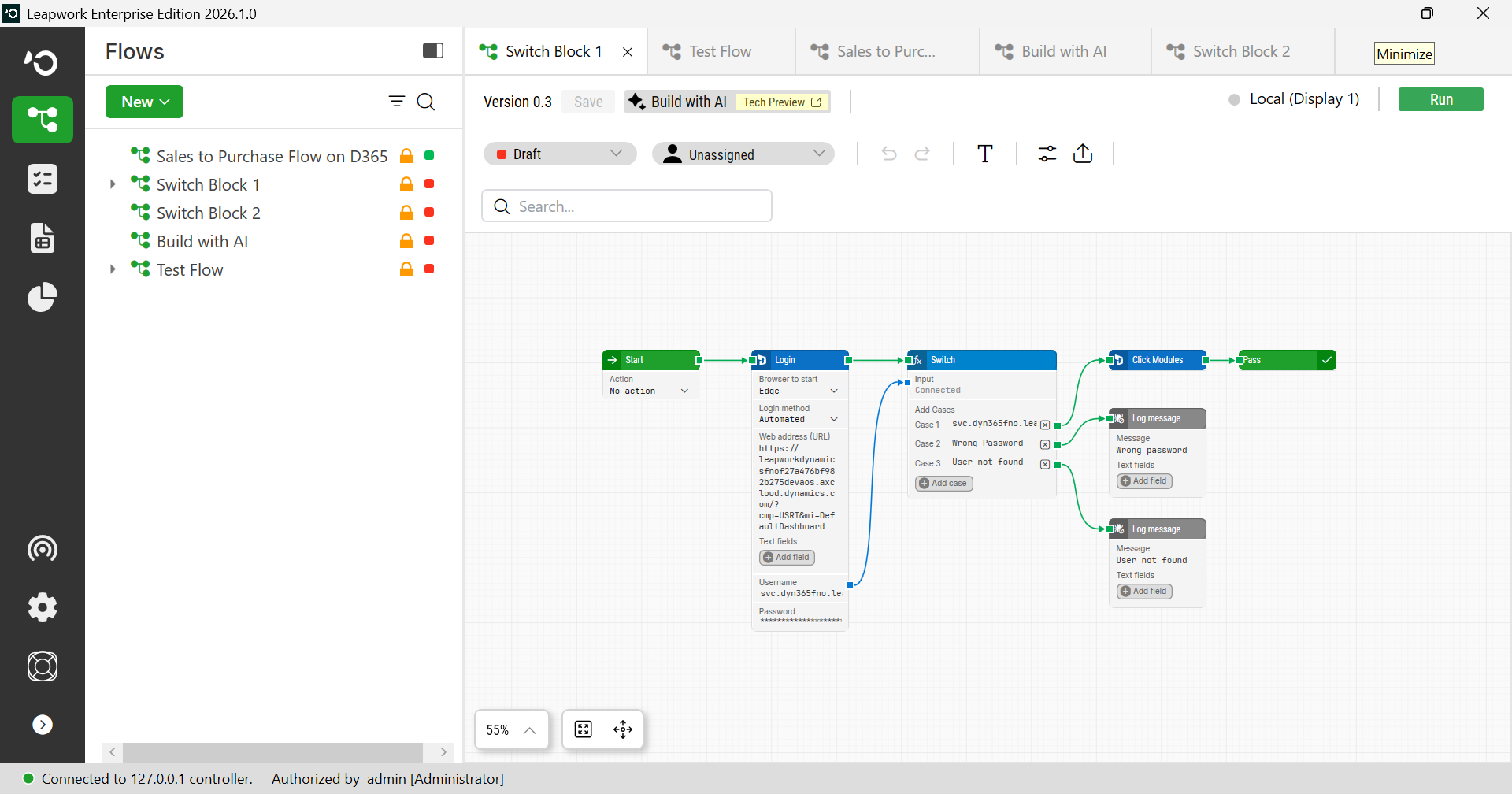
The Flows panel is where your automation assets live. It includes:
-
Folders: to group flows and related items
-
Flows: the individual automation processes
-
Subflows: reusable flow components
-
Captured elements: UI elements used during automation
This section allows you to organize your work, create new assets, and interact with flows via right-click or the New button.
How to design a flow
Designing a flow in Leapwork Flow means building automation visually on the design canvas using building blocks connected in sequence to define both logic and data flow. Each flow begins with a Start block by default, and from there, you can expand it into simple or complex automation, all without writing a single line of code.
The design canvas
The Design Canvas is the central workspace where flows are created and edited. Here, you connect blocks to define the order of execution and how data moves between steps.
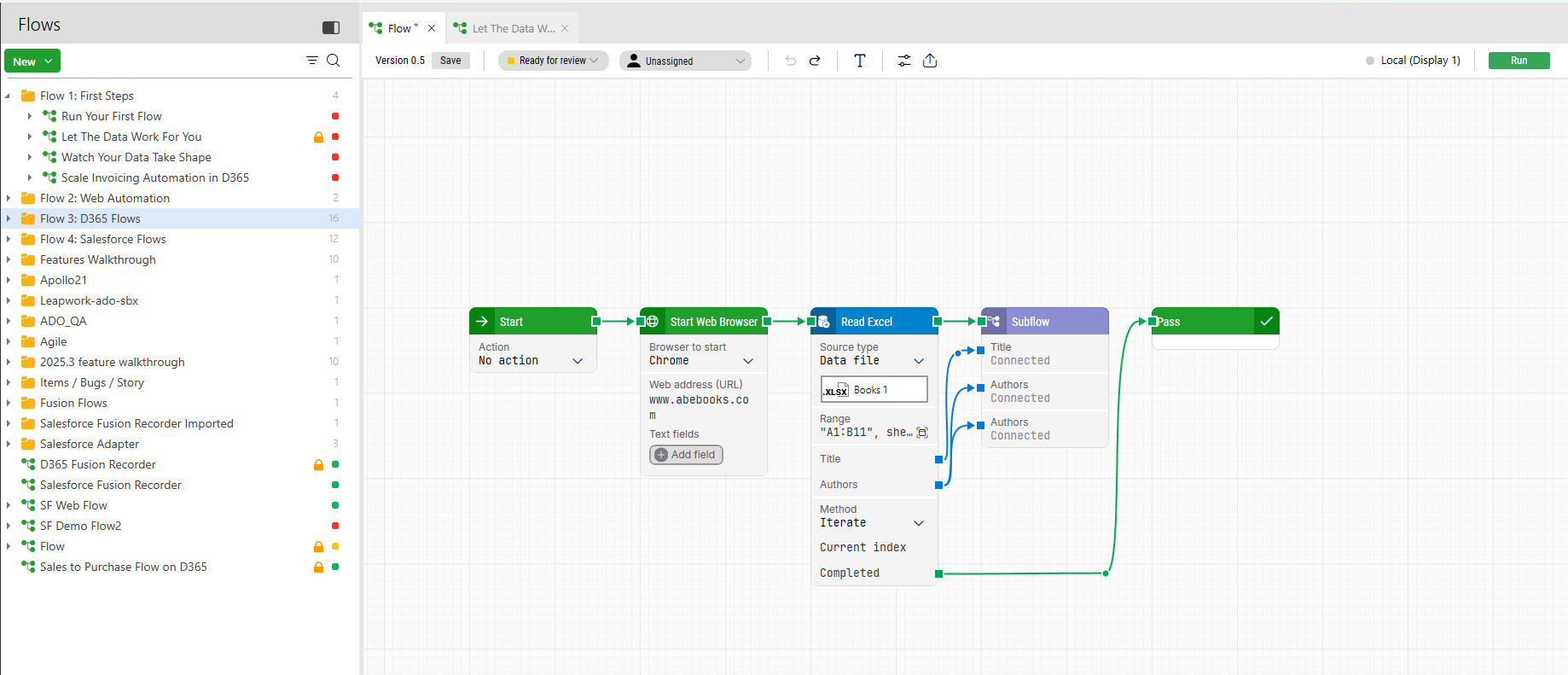
The canvas supports full zoom, pan, and alignment tools, helping you keep your flows organized and readable. Blocks are connected using two types of visual connectors:
-
Green connectors define the execution order and indicate what happens next.
-
Blue connectors pass data or properties between blocks and show how values flow.
With the latest design update, connectors (or wires) are now more flexible. You can create elbows by double-clicking on a wire, allowing you to shape paths, tidy up complex layouts, and align flows for better clarity.
Steps to Design a Flow
-
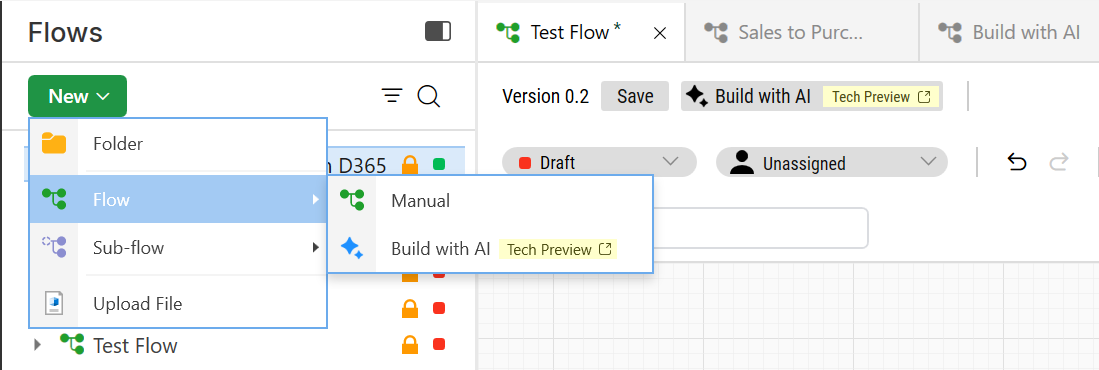
Create a new flow: In the Flows Panel, click the New Flow button or right-click and select New Flow from the list (Manual and Build with AI). A blank canvas opens with a Start block in place, ready for you to begin designing.
-
Add building blocks: Once the flow is created, you can start adding blocks to define the automation logic.
-
Hover over the green connector of the Start block (or any block) and drag to open the Building Block Library. You can also right-click anywhere on the canvas and choose Add Building Block.
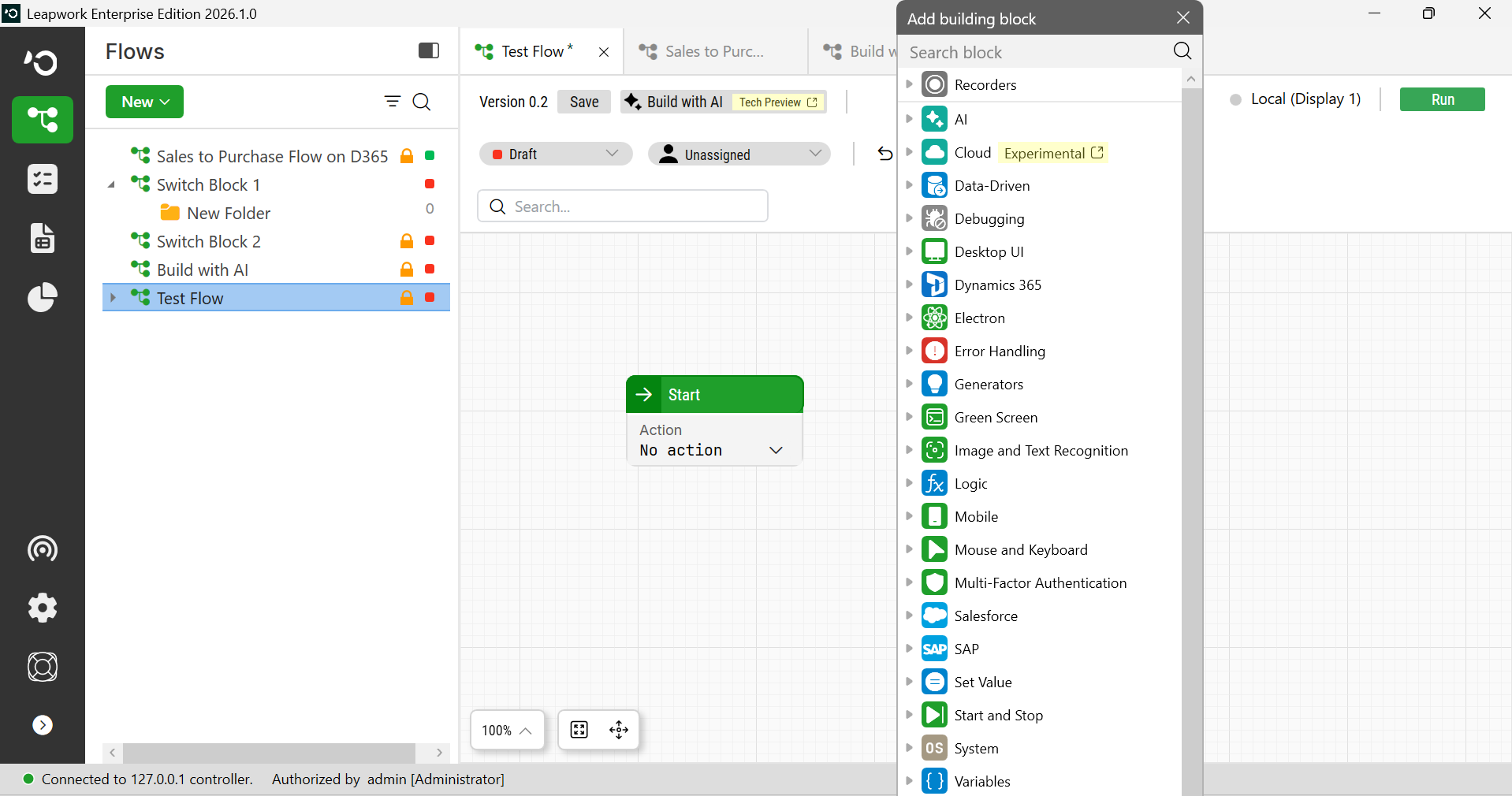
b. Select a block from the list to add it to the flow.
-
Connect blocks: Link the blocks together using connectors to define execution order and data flow.
a. Green connectors define the execution order and indicate what happens next.
b. Blue connectors pass data or properties between blocks and show how values flow. You can use both types of connectors between the same two blocks when a step requires both logic and data exchange.
-
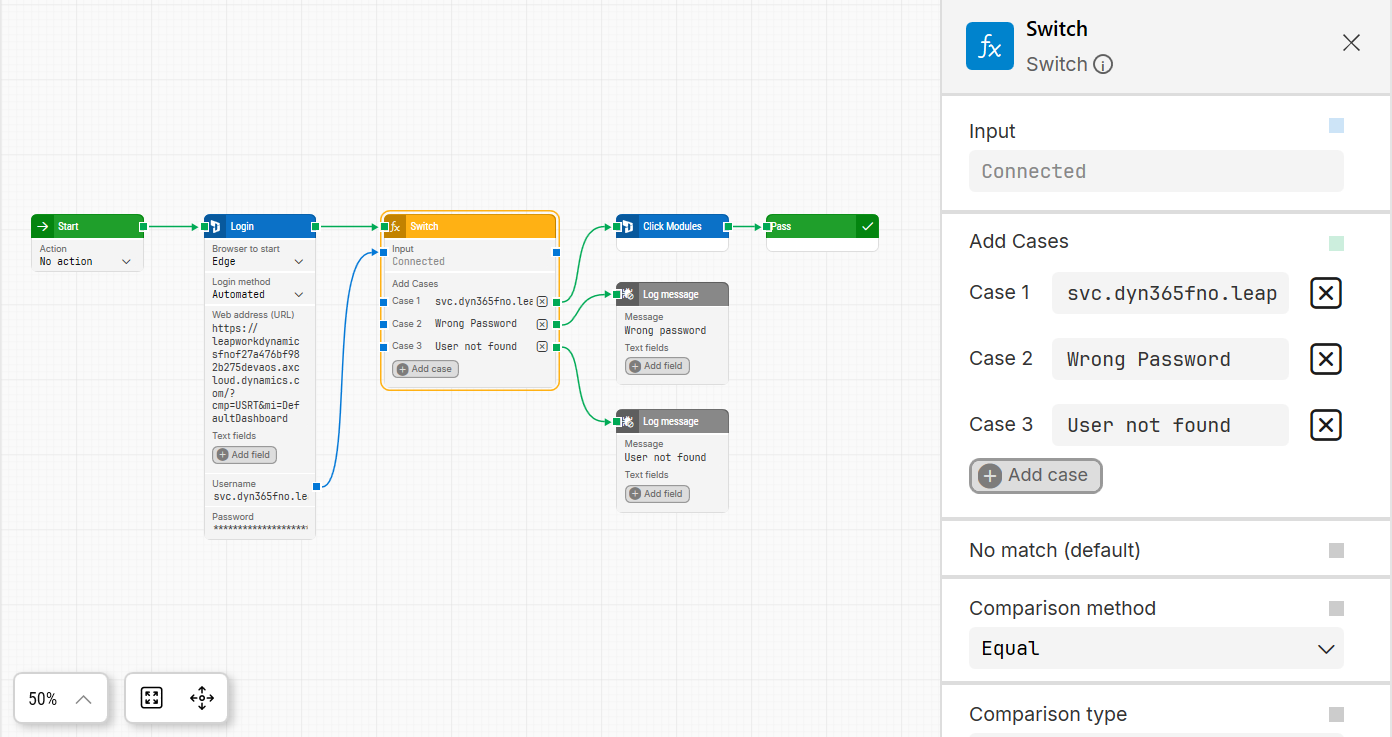
Configure block properties: Click on a block to open its Inspector Panel on the right side of the screen.
a. Configure each block’s parameters, inputs, and outputs.
b. Expose additional data paths by toggling the small green or blue checkboxes beside each property.
-
Reorganize and refine your flow
a. Rearrange blocks by dragging them across the canvas to improve layout and readability.
b. Create elbows by double-clicking on a wire to shape paths and align flows neatly.
c. Use alignment and zoom tools to keep complex flows structured and clear.
-
Run the flow
a. Select the execution agent in the top toolbar: Local (Display 1) or a Remote Agent.
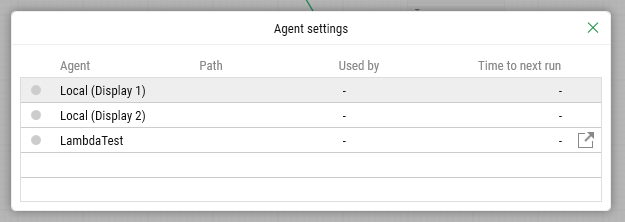
b. Click Run to execute the flow.
Note: Local (Display 1) runs in Preview mode and is visible on your screen. Any Remote Agent runs as a standard Run, intended for scheduled or unattended executions.

Verifying Flows
Verification ensures your automation ends with a clear and meaningful result. Leapwork encourages the explicit use of output blocks to mark the outcome of every flow. We recommend always ending a flow with one of the following:
-
Pass: When the flow completes successfully
-
Done: For neutral or informational end states
-
Fail: When the automation detects a failure condition
If none of these blocks are reached during execution, Leapwork automatically considers the flow failed.
This prevents silent errors and ensures accurate reporting in dashboards and analytics.
Best practice: Always end with a Pass, Fail, or Done block to ensure predictable results.
Branching Flows
Flows often include logic branches that determine which path to take based on conditions during execution.
For example, a Compare block can evaluate a condition and output through:
-
The top green connector for True
-
The “Incorrect” output connector for False
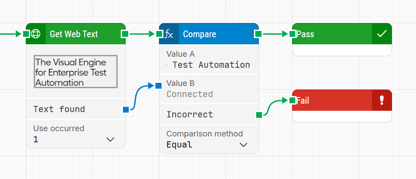
Using these exact connector labels helps users trace logic directly in the interface.
You can also create branches with blocks like Find image which trigger alternate paths depending on whether the image is found or not.
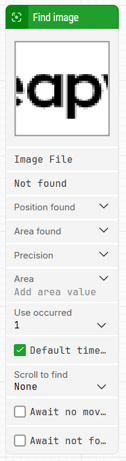
You can create elbows on branch wires to keep paths tidy and readable in complex designs.
Looping Inside Flows
Use the Loop block to repeat steps.
-
It cycles through a range (for example, 1–10) or collection, executing the connected blocks in each iteration.
-
Loops are especially useful for working with tables, lists, repeated form fields, or dynamic UI elements.
Preview Panel and Activity Log
Leapwork's new design offers an improved way to debug flows directly on the canvas.
Use blocks from theError Handling section, such as Any Error, to capture and analyze issues during execution.
When a flow encounters an error, the Any Error block provides:
-
Immediate feedback on the type of error that occurred.
-
A clear indication of where in the process the error occurred.
-
A direct link to the block that caused the issue, enabling quick inspection and resolution.
In the Activity Log,
-
Each error entry links directly to its block on the canvas.
-
The video and debug view clearly explain why the flow failed and where to focus your investigation, step by step.
This debugging method enhances visibility and shortens troubleshooting time by enabling identification, reproduction, and resolution of automation issues within the canvas.
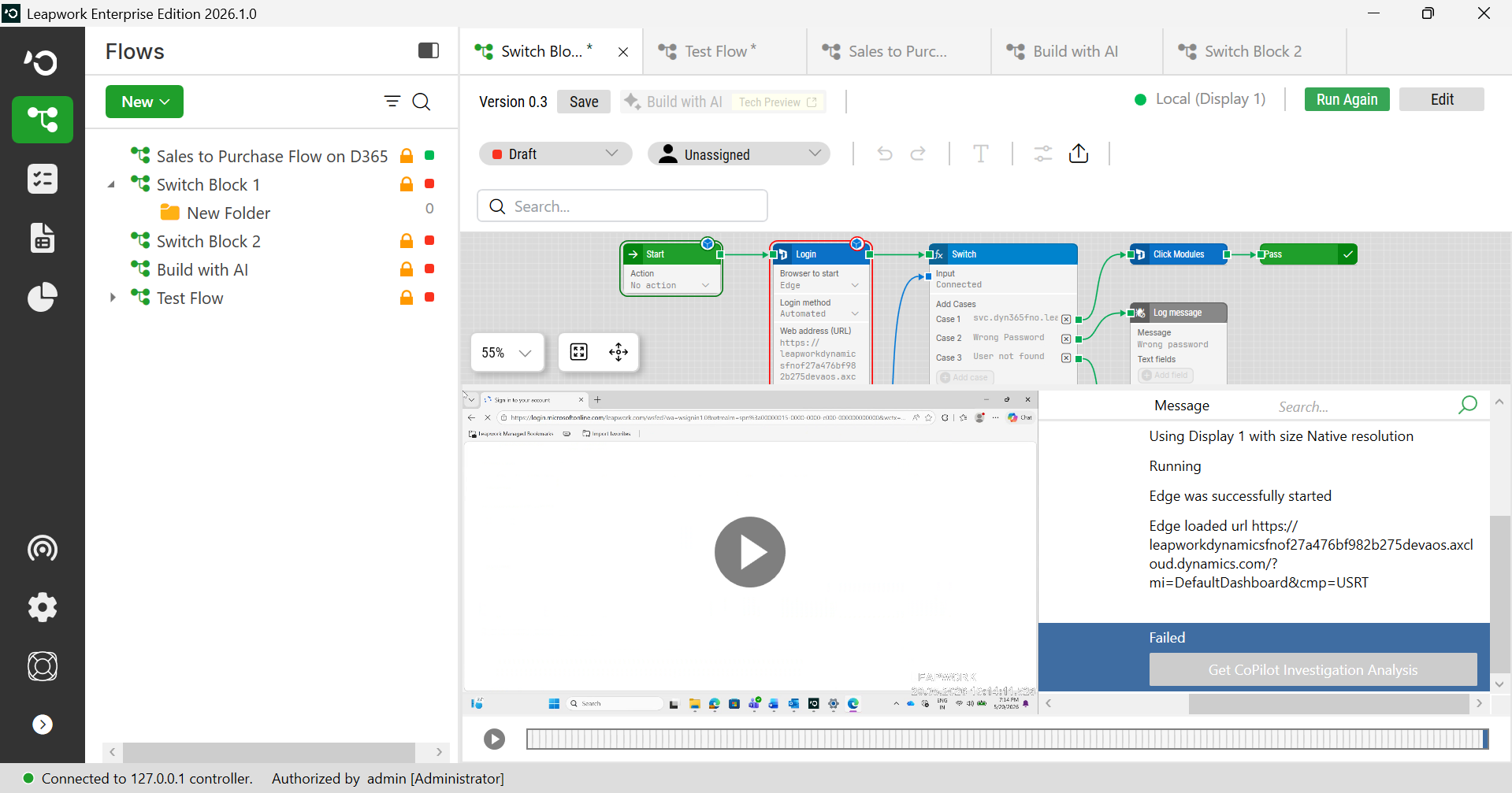
CoPilot Investigation Analysis
CoPilot explains why a flow failed by analyzing the run and providing likely root causes with actionable recommendations within the Activity Log.
You can configure this behavior in Default Flow Settings, to apply CoPilot automatically to:
-
Preview Runs
-
Run Lists & Schedules
-
Or both
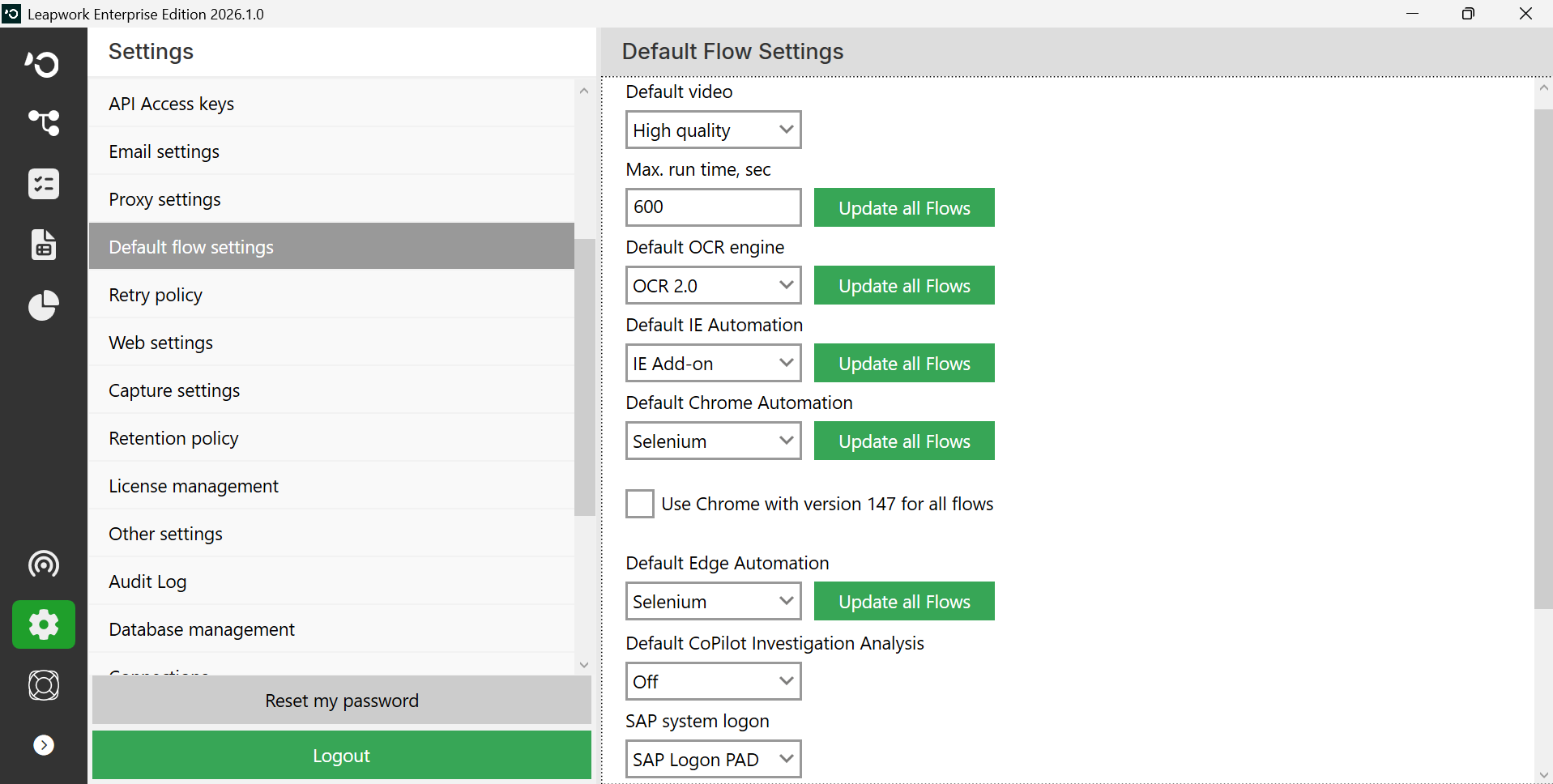
If enabled, CoPilot analysis appears after a failed run. Otherwise, trigger it manually by clicking the CoPilot Analysis button in the Activity Log.
CoPilot assists by:
-
Highlighting the most probable reason for failure
-
Suggesting what to check or modify
-
Reducing trial-and-error debugging time
This feature is especially useful for new users and for diagnosing complex flows quickly.
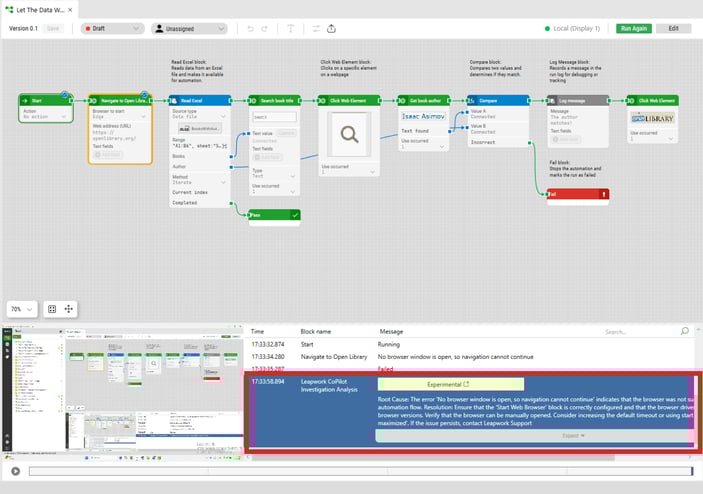
CoPilot helps speed up troubleshooting by:
-
Highlighting the most likely reason for failure
-
Suggesting what to check or modify
-
Reducing the need for trial-and-error debugging
This helps new users and clarifies complex flows where issues may be unclear.
Versioning and Collaboration
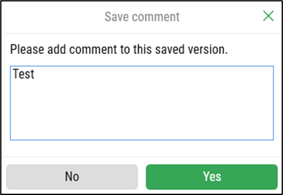
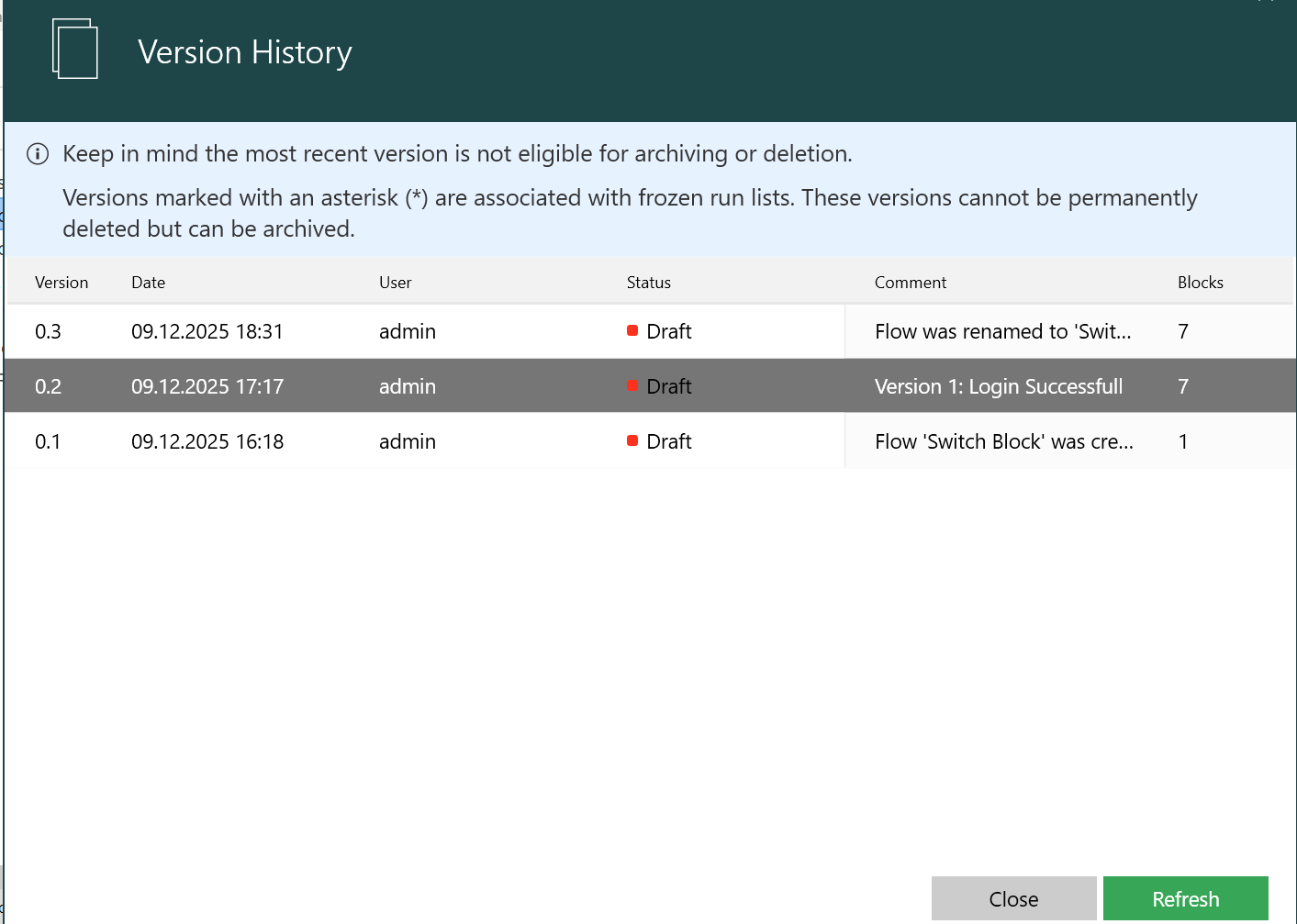
Leapwork provides version history to track and manage changes. When saving a flow, you’re prompted to add a description.
Each version can be:
-
Previewed
-
Restored using one of three methods:
-
Deleted: The Delete option in the Version History panel allows you to either archive or permanently delete the corresponding version data. Here’s what each option entails:
-
Archive: This option archives a version of a flow. A single confirmation dialog will appear, explaining that the flow will no longer be visible in the Flow but will remain in the database.
Note: Archiving a version will create an audit log entry showing Archived in the Details column.
-
Permanent Delete: This option permanently deletes a version of a flow. There will be two confirmation dialogs:
-
One to explain that the flow will be removed from both the database and Flow
-
Others to explain that the operation is irreversible.
-
Note: Deleting a version permanently will create an audit log entry showing Permanently deleted in the Details column.
If someone is editing a flow, Leapwork warns you before you override their work.