
AI Flow builder helps you design automation flows faster using natural language prompts and guided suggestions.
Instead of starting from an empty canvas, you describe what you want to automate. AI Flow builder proposes a draft flow that you can review, adjust, and run like any other Leapwork flow.
Use AI Flow builder when you want to:
-
Turn a written scenario into a first version of a flow.
-
Explore alternative designs for an existing flow.
-
Help new team members get started without deep product knowledge.
Before you start
To use AI Flow builder, you need:
-
Leapwork Flow and Controller version 2026.1 or later.
-
A connection to an AI provider configured by your administrator (if required by your environment).
-
Permissions to create and edit flows in the selected project.
If your organization restricts AI usage, check with your administrator before using AI Flow builder in production projects.
Open AI Flow builder
You can start AI Flow builder from Leapwork Flow:
-
Open Leapwork Flow.
-
Go to the Design area.
-
Select a Project where you want to create or update flows.
-
Do one of the following:
-
To create a new flow with AI:
-
Select New flow with AI (or AI Flow builder) from the toolbar or context menu.
-
-
To improve an existing flow:
-
Open the flow.
-
Select AI Flow builder from the toolbar or flow menu.
-
-
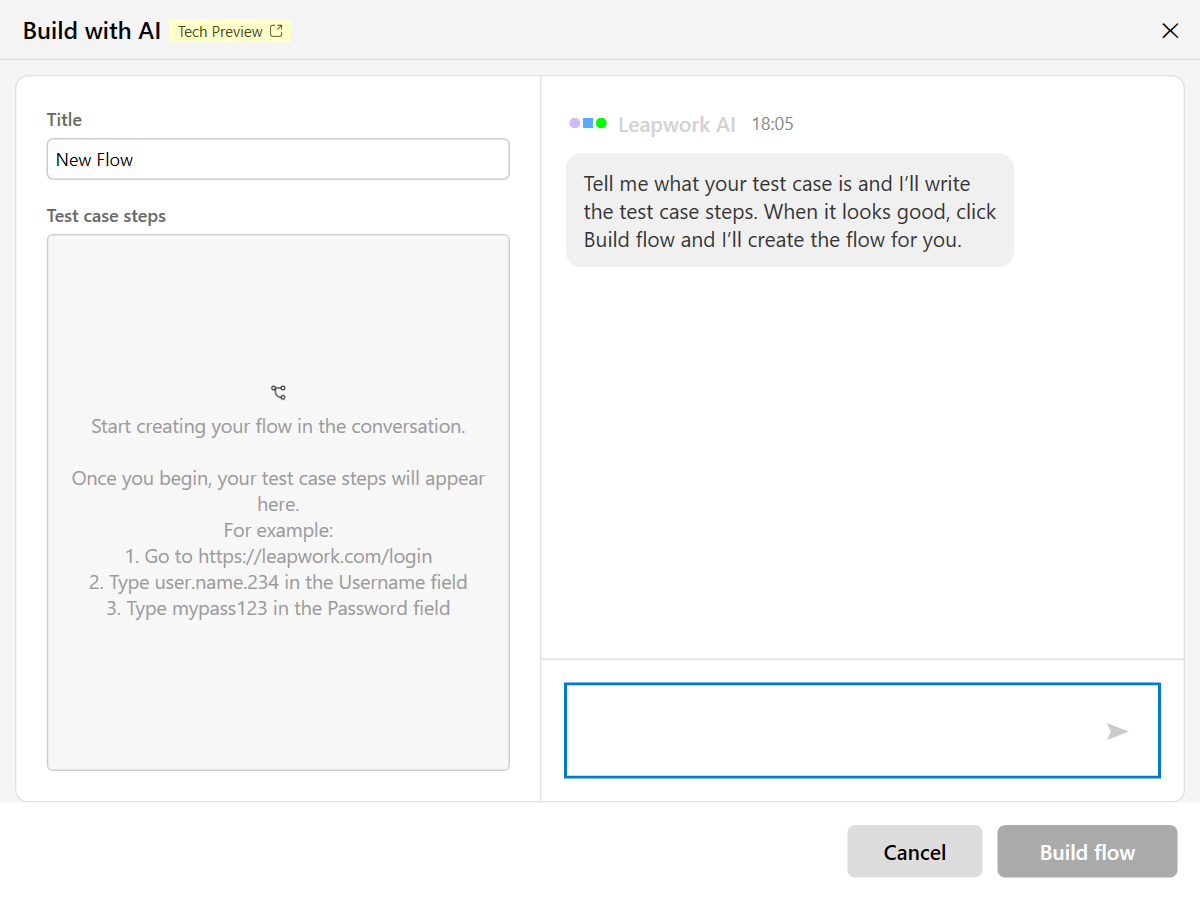
AI Flow builder opens with a prompt panel and a preview of the proposed flow.
Create a new flow from a prompt
When you create a new flow with AI, you describe the scenario in your own words. AI Flow builder converts this description into a draft flow.
-
In the AI Flow builder panel, enter a description of your scenario. For example:
-
“Log in to Salesforce, create a new account, and verify the account appears in the account list.”
-
“Open our D365 F&O environment and validate that today’s orders have a status of Confirmed.”
-
-
(Optional) Add more context:
-
The application you use (web, desktop, Salesforce, D365, SAP, etc.).
-
Any data you want to reuse (test data, credentials, variables).
-
Preconditions (for example, “user is already created”).
-
-
Select Generate flow.
AI Flow builder analyzes your prompt and proposes a draft flow:
-
Relevant building blocks are added to the canvas.
-
The high-level structure of the scenario is reflected in the sequence of blocks.
-
Comments can be added to explain complex steps.
Review and refine the draft flow
The draft produced by AI Flow builder is a starting point. You remain in control of the final design.
Inspect the generated flow
-
Review the structure:
-
Start block.
-
Main steps that match your description.
-
Any loops, conditions, or sub-flows suggested by AI.
-
-
Check key actions:
-
Log in steps.
-
Navigation blocks.
-
Validation or “Get and Validate” actions.
-
-
Confirm that the flow follows your intended business logic.
If the structure looks correct, continue with configuration. If not, adjust the prompt and regenerate (see below).
Configure details
AI Flow builder can propose a structure, but you still need to connect the flow to your environment and data.
Update the generated blocks to:
-
Select the correct applications and environments (URLs, endpoints, login blocks).
-
Point to actual test data (variables, data sources, credentials).
-
Adjust selectors, locators, or UI references captured by recorders.
-
Align validation logic with your acceptance criteria.
Run the flow against a test environment and refine as needed.
Regenerate or extend the flow
If the generated flow does not match your needs, you can:
-
Edit the prompt and select Regenerate to get a new proposal.
-
Add follow-up instructions, for example:
-
“Also validate that the confirmation email is sent.”
-
“Add a negative case where login fails with an invalid password.”
-
-
Keep useful parts of the generated flow and remove or replace the rest.
AI Flow builder is iterative. Use it to explore options, then settle on the design that best fits your use case.
Use AI Flow builder with existing flows
You can also use AI Flow builder to analyze and improve an existing flow.
-
Open the flow in Leapwork Flow.
-
Start AI Flow builder from the toolbar or menu.
-
Describe what you want to improve. Examples:
-
“Simplify login logic and remove duplicate steps.”
-
“Refactor this flow into a main flow plus two sub-flows.”
-
“Add validation for the order total before submitting.”
-
-
Select Analyze flow (or equivalent action).
AI Flow builder reviews the current flow and proposes changes:
-
Grouping repeated sequences into sub-flows.
-
Adding comments to clarify complex logic.
-
Inserting additional validation or error handling steps.
You decide which changes to accept. All updates are made through the regular flow editor so the logic remains transparent.
Best practices
When working with AI Flow builder:
-
Be specific in your prompt
Include the application, main actions, and the expected outcome. Vague prompts lead to generic flows that require more editing. -
Start small
Begin with a single scenario or happy path. Add negative paths and edge cases afterwards. -
Keep human review in the loop
Always review and test flows generated by AI before using them in production schedules. -
Document the intent
Use comments and naming conventions so it is clear why each step exists, not only what it does.
Limitations
AI Flow builder does not:
-
Replace the need to configure connections, environments, and credentials.
-
Guarantee that generated flows match your internal standards without review.
-
Understand proprietary business rules that are not described in your prompt.
If you work in a regulated environment, ensure that your review and approval process covers flows generated or modified with AI Flow builder.