
With the Smart Recorder, you build flows one robust step at a time by clicking on user interface elements, selecting an action from a smart suggestion list and entering the data needed, after which the action is immediately performed. After performing the desired number of steps, the Smart Recorder will then construct the flow with the right building blocks for you.
Note: The screenshots on this page use the Elegance Design, introduced in 2025.3. If you are using an earlier version, your layout may look different.
Using the Smart Recorder
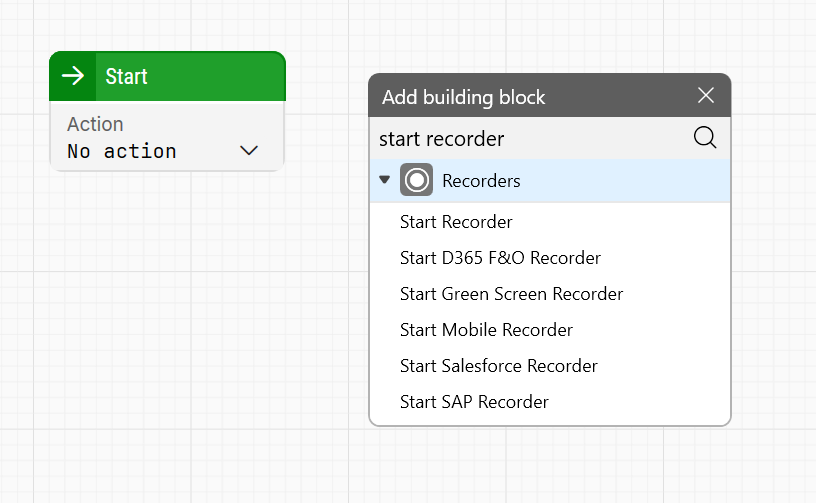
Starting the Smart Recorder is just like adding a new building block.
-
Simply pull the green connector from an existing building block or right-click the design canvas and select Start Recorder.
You can start recording from any building block to extend an existing flow or create a new one.
When the Smart Recorder starts, Leapwork minimizes and the Smart Recorder Widget is visible in the lower left corner of the screen:

When the red dot is blinking and the status says Recording, you can start capturing elements in one or more applications.
Starting an application
Typically, the first action using the Smart Recorder is to start an application.
-
Hover over the Smart Recorder widget, and the following options shows:
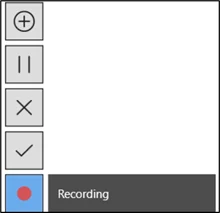
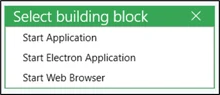
Clicking the plus sign, you can launch Start Application, Start Electron Application, or Start Web Browser:
-
Select Start Web Browser, the wizard guides you to enter the required information based on your selection.
-
Specify the browser and the URL to navigate to.
-
Click Start.
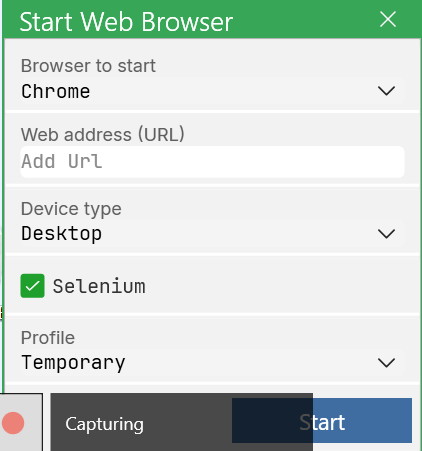
To get more knowledge about the individual fields, please see the list of action, essentially Leapwork building blocks.
Adding actions to a flow
Once the application under automation is running, you can start automating the process. Simply use the mouse to select the element in the application that you want to interact with:
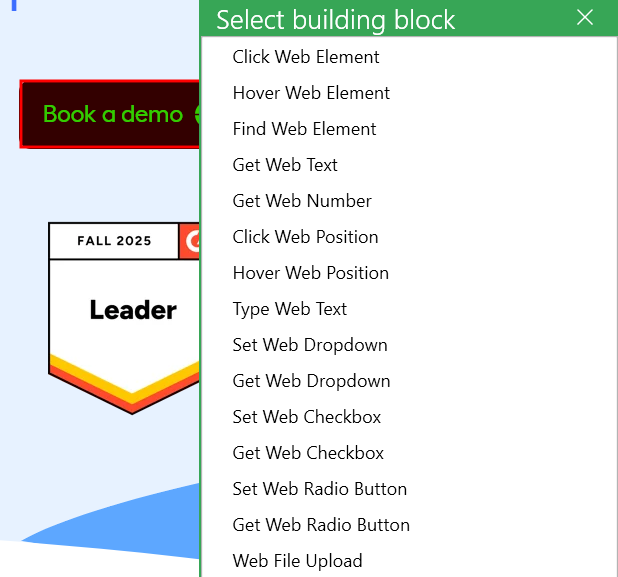
In this example. the purpose is to book a demo. To get started,
-
Launch the browser to open the website and capture the Book a demo button using the mouse.
-
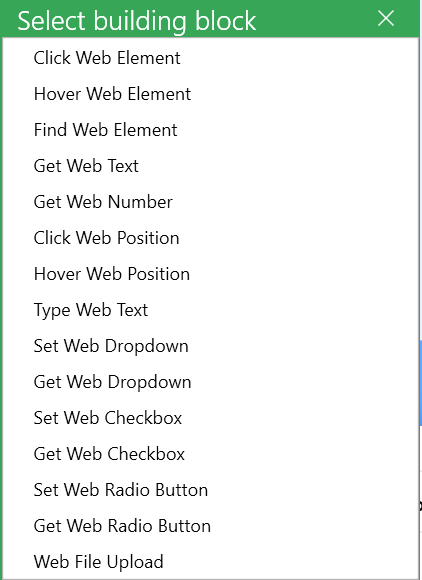
To add an action to this element, left click the mouse, and Leapwork will present an intelligent list of available actions for the selected element.
-
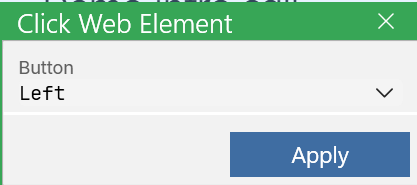
To click the button, select the Click Web Element option. This will start a wizard to configure the selected action, similar to when you open the browser. For a click action the wizard is simple: select the button to perform the click:
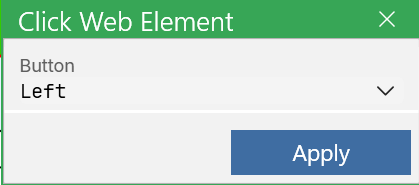
When you click Apply, the following actions occur:
1. The action and the configuration are added to the recording.
2. The Smart Recorder will perform the action inside the actual application, making both the recording and the application under automation ready for the next action.
Clicking Book demo opens a webpage to select the demo intro call. The Smart Recorder continues running, so you can select a field in the form right away.
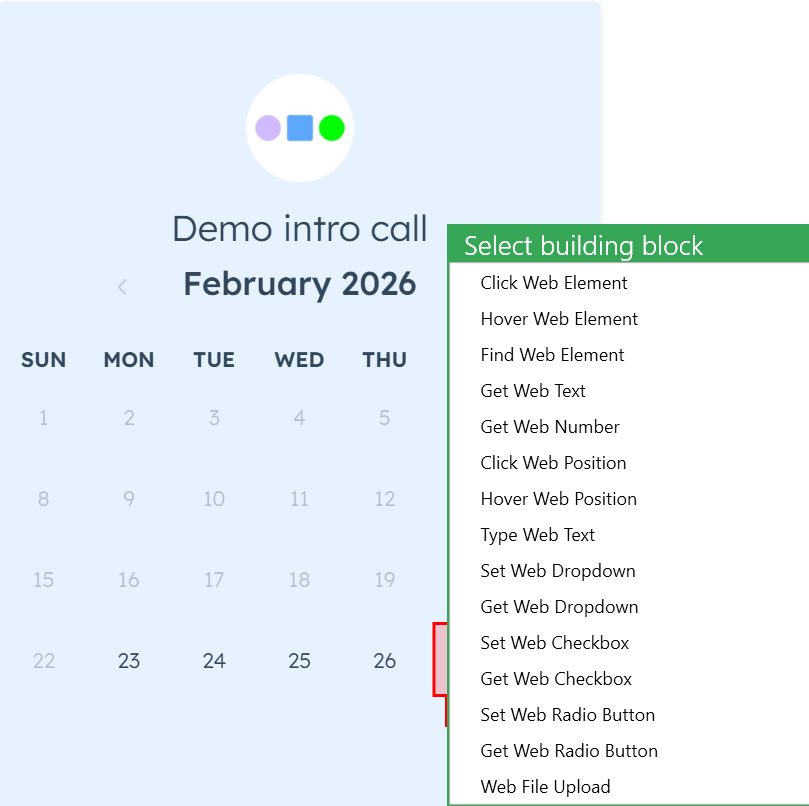
When a date is selected, a list of actions is shown.
Notice that the actions displayed and the ordering of the actions are different from when the link was selected.
The Smart Recorder understands the context of the selected element and will propose the best suited actions for the individual elements
-
Select Click Web Text, it will allow you to specify demo intro call date.
-
Click Apply to add it to the recording.
Commit the recording
Once you’ve added the actions you want, save the recording by hovering over the Smart Recorder and clicking the check mark.

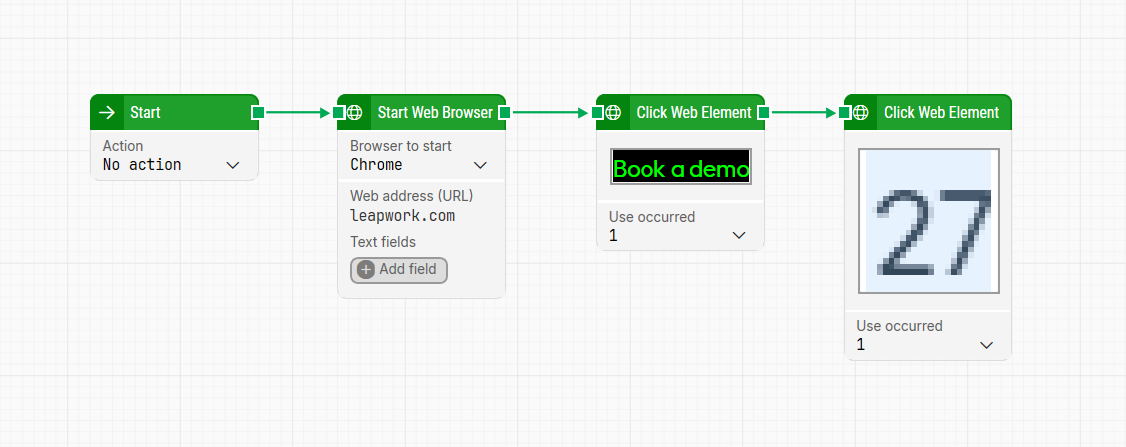
The Smart Recorder stops, returning focus to Leapwork studio, where it adds the actions to the flow as building blocks.
Pause the recording
If you need to interact with the application or gather data during recording, you can use Pause button in the Smart Recorder.
To resume the recording, click the Play button in the Smart Recorder widget.
Both pausing and resuming the recording can be done using keyboard shortcuts:
|
Action |
Keyboard short cut |
|
Pause |
ESC |
|
Resume recording |
Ctrl + F1 |
Clear the recording
To clear an ongoing recording to either restart the Smart Recording or simply skip it:
-
Hover the Smart recorder widget.
-
Click on the Cross sign.
This will clear the recording, close the Smart Recorder and move focus back into Leapwork.