
The Smart Mobile Recorder lets you create a flow by performing actions on a mobile application. To use the Smart Mobile Recorder, you must configure a mobile configuration and a mobile connection in Connections. As you interact with user interface elements or images, the recorder suggests relevant actions. After you select an action and provide the required input, it performs the action immediately. When you complete the recording, the Smart Mobile Recorder automatically generates the flow using the appropriate building blocks.
Note: The screenshots on this page use the Elegance Design, introduced in 2025.3. If you are using an earlier version, your layout may look different.
Using the Smart Mobile Recorder
Starting the Smart Mobile Recorder is just like adding a new building block.
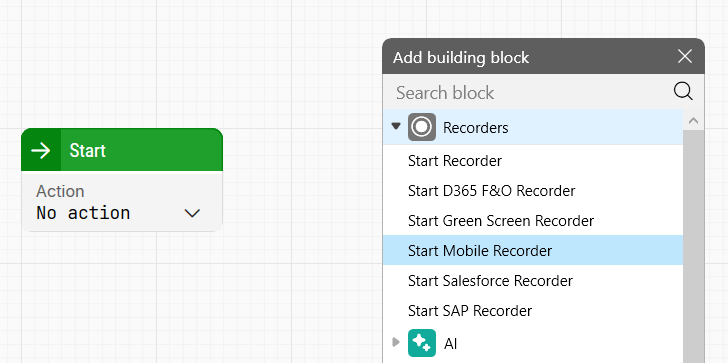
Start the Mobile Recorder by dragging the green connector from a building block or by right clicking the canvas and selecting Start Mobile Recorder. Next, the Select Mobile Connection dialog opens. Select the mobile connection you want to use for the recording.
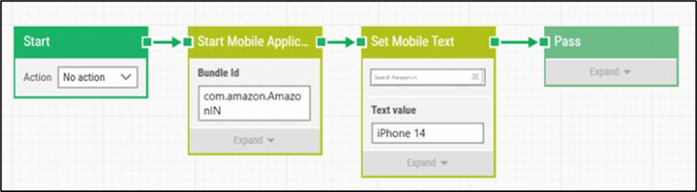
You can begin recording from any building block to extend an existing flow or create a new one.
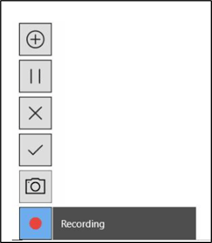
When the Smart Mobile Recorder starts, Leapwork minimizes and the Smart Mobile Recorder Widget is visible. You can see Recorder in the lower left corner of the screen:

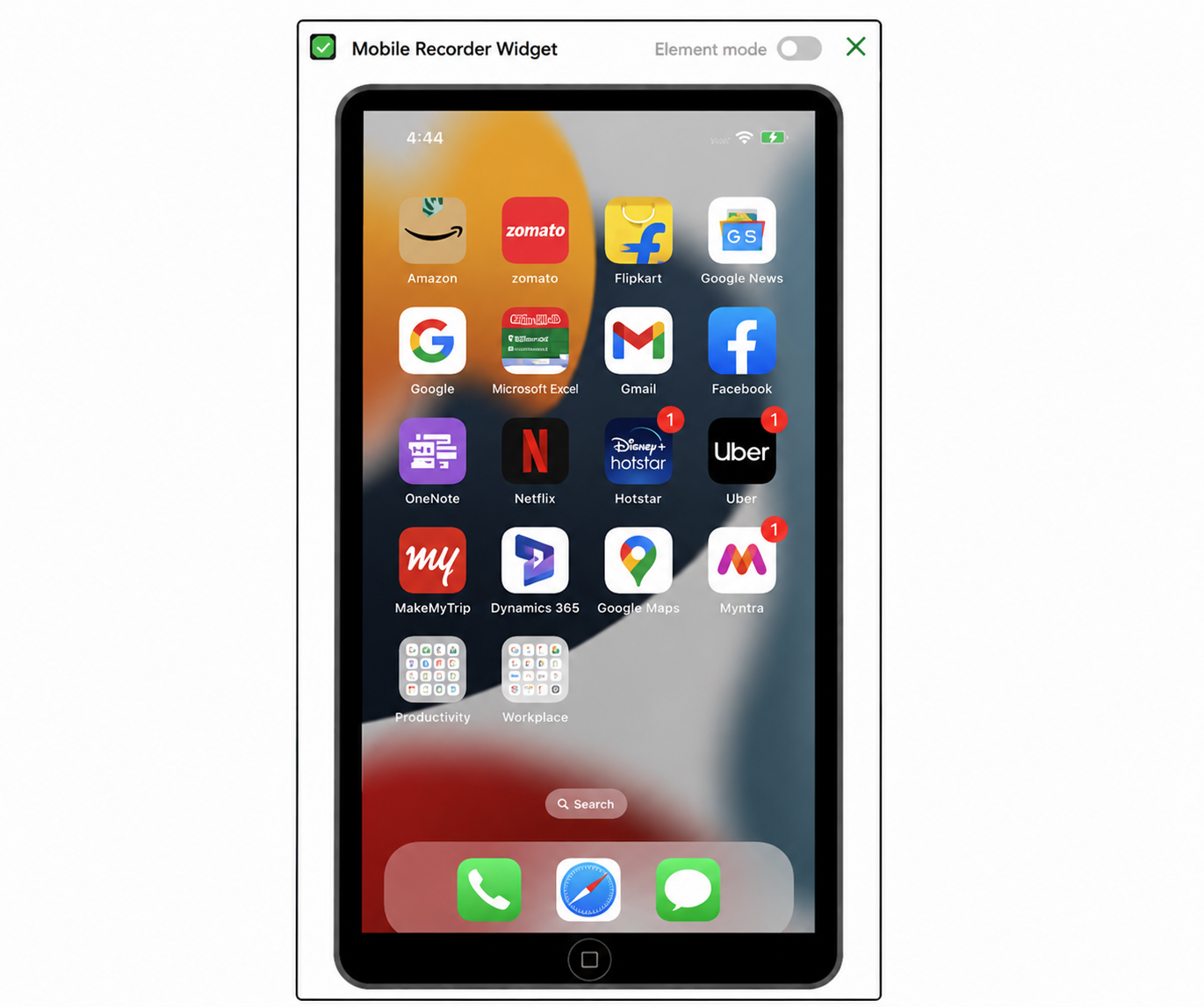
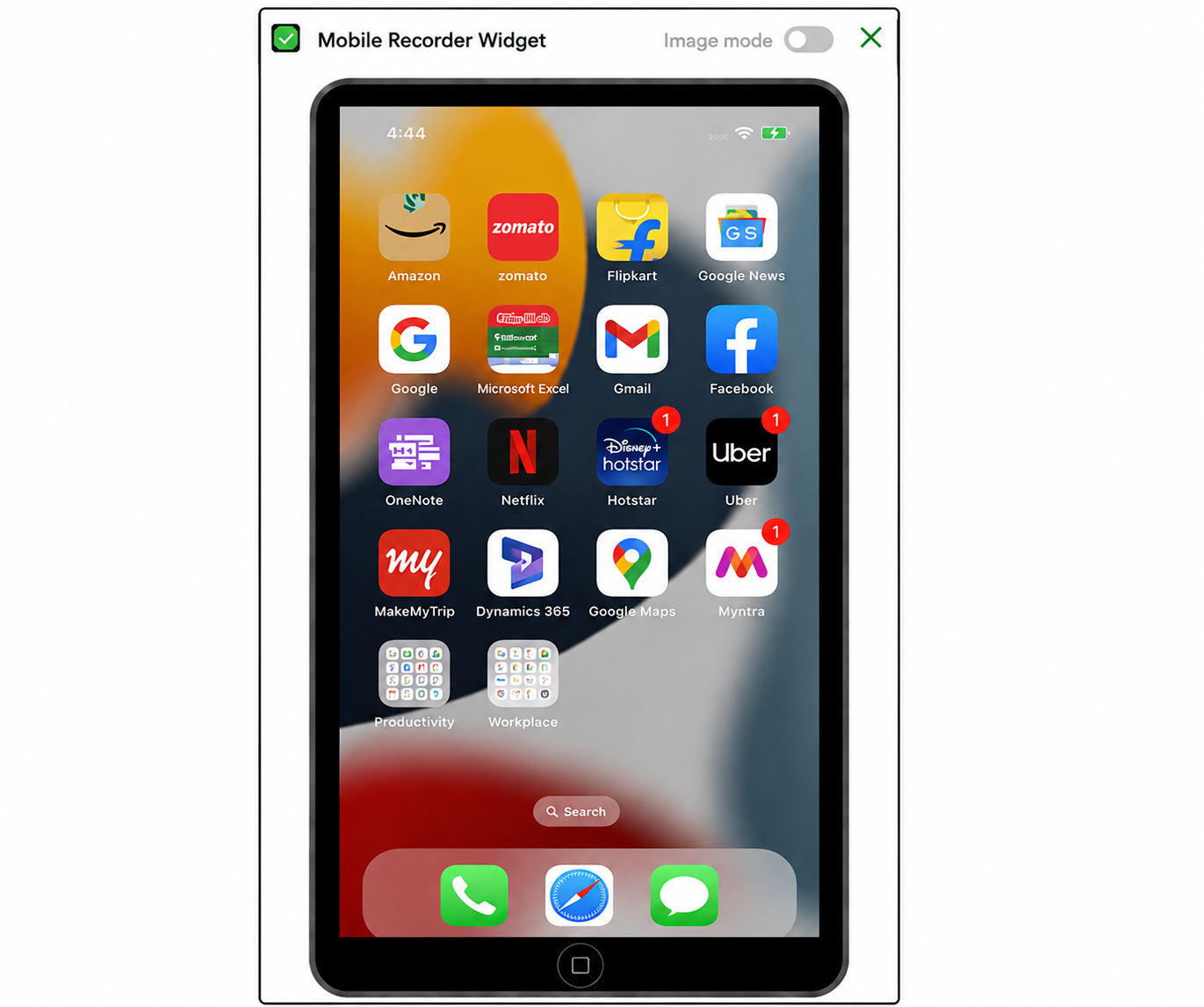
On the top right corner of Mobile Recorder Widget, you can find the toggle button which helps you to switch between Element mode and Image mode.
|
Element Mode |
Image Mode |
|---|---|
|
|
A blinking red dot means you can start capturing elements or images.
Starting an application
Typically, the first action using the Smart Mobile Recorder is to start an application.
-
Hover over the Smart Mobile Recorder widget, you’ll see the following options:
-
Click the plus sign. The following options appear for selection:
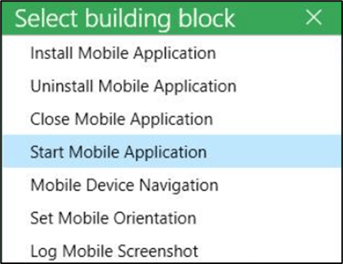
Based on your selection, a wizard helps you enter the required details. For example, choosing Start Mobile Application lets you launch a mobile app.
Adding actions to a flow
Once the application is running,
-
Start automating by selecting the element or image you want to interact with in the mobile app.
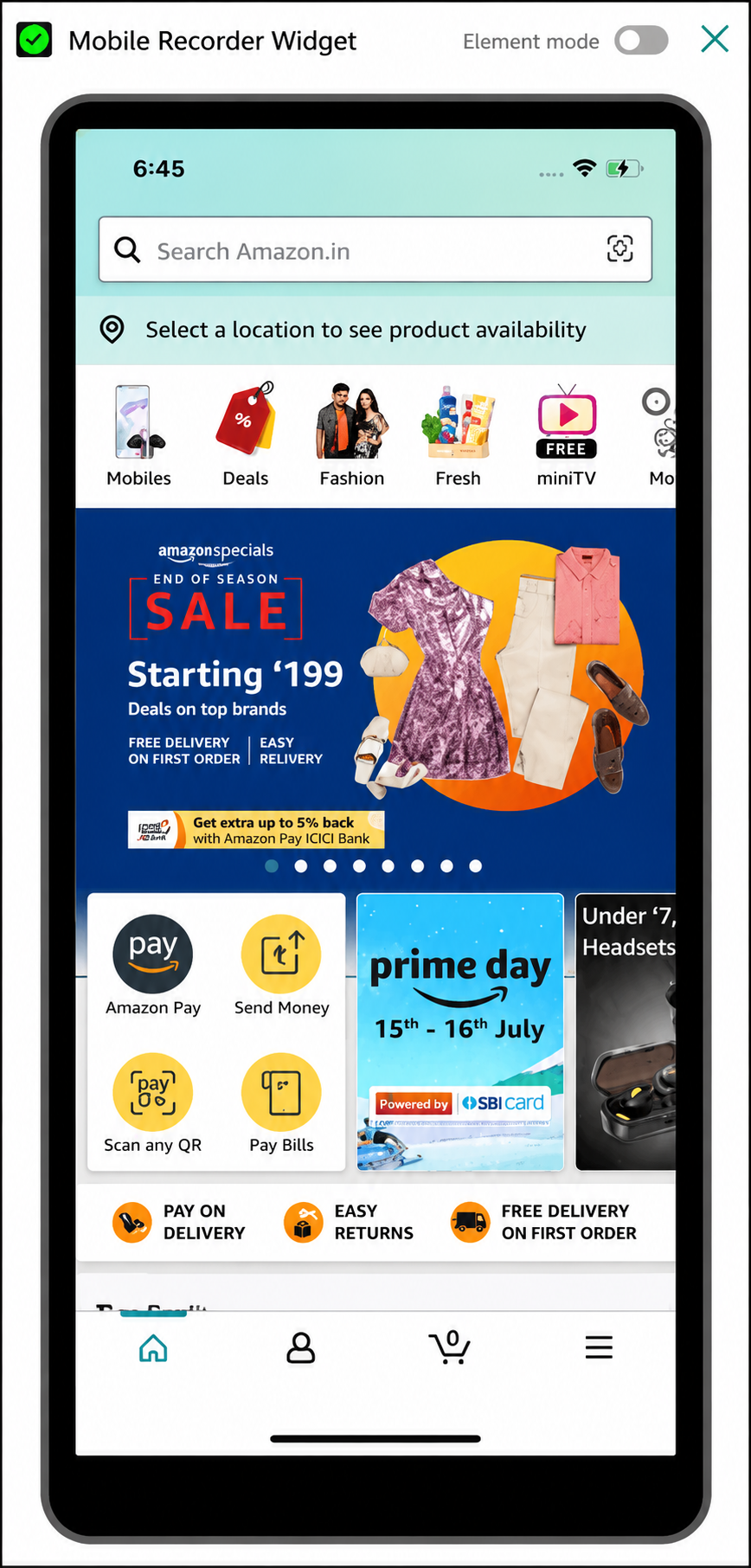
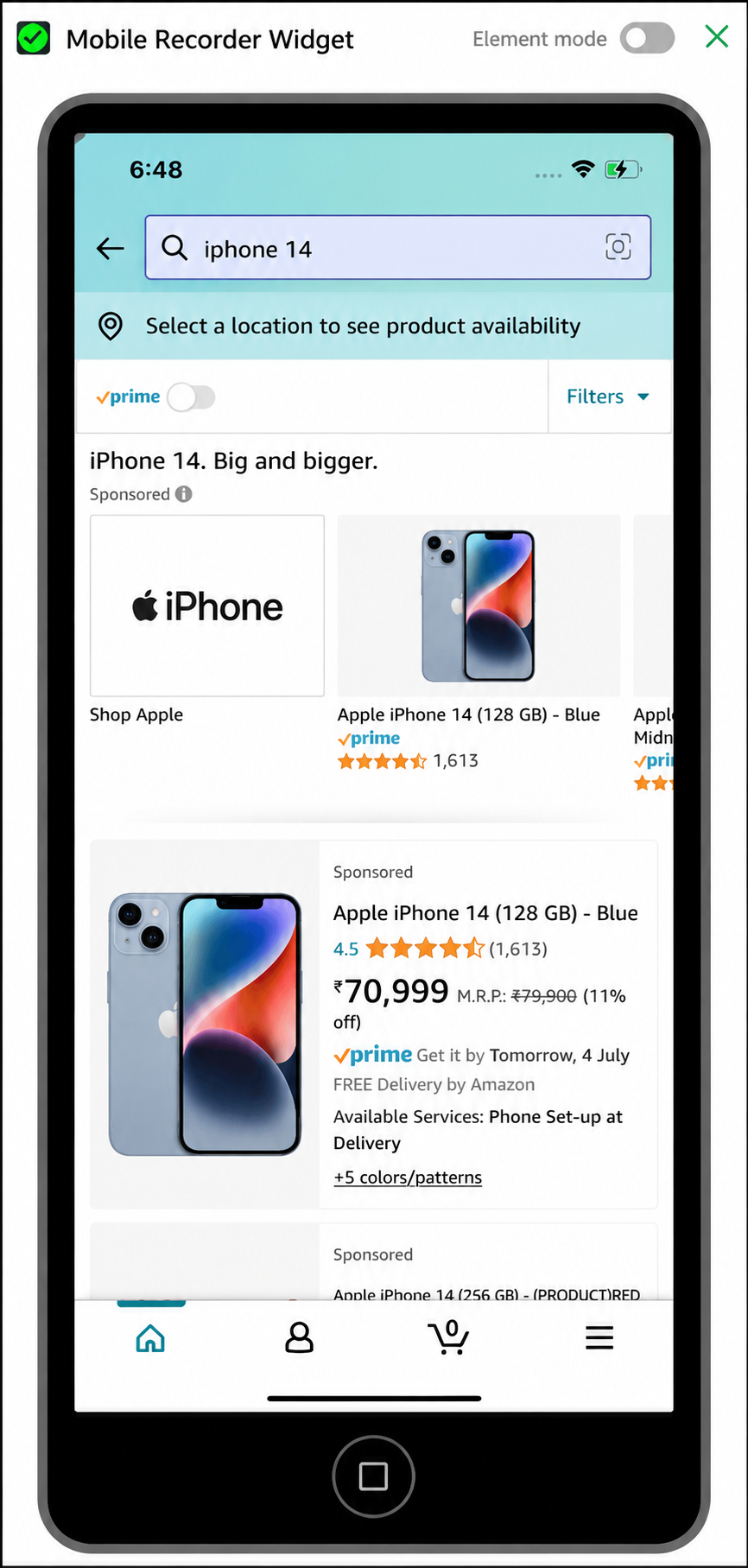
In the above example, let’s search Iphone14. To add an action to this element:
-
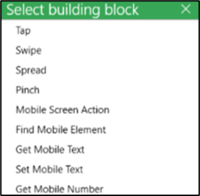
Left click the mouse, and Leapwork will present an intelligent list of available actions for the selected element.
-
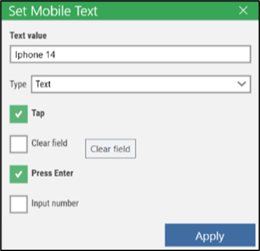
Select an element, and the most relevant actions for that element will be suggested, such as Tap, Set Mobile Text, or Get Mobile Text.
-
Select the Set Mobile Text option, the new dialogue box appears to configure the selected action:
-
Click Apply and the two actions appear:
1. The action and the configuration are added to the recording.
2. The Smart Mobile Recorder performs the action in the application and prepares the recording for the next action. Set Mobile text will type the value as configured and accordingly display the results:
Commit the recording
When you’re done adding actions,
-
Hover over the Smart Mobile Recorder.
-
Click the check mark to save the recording.

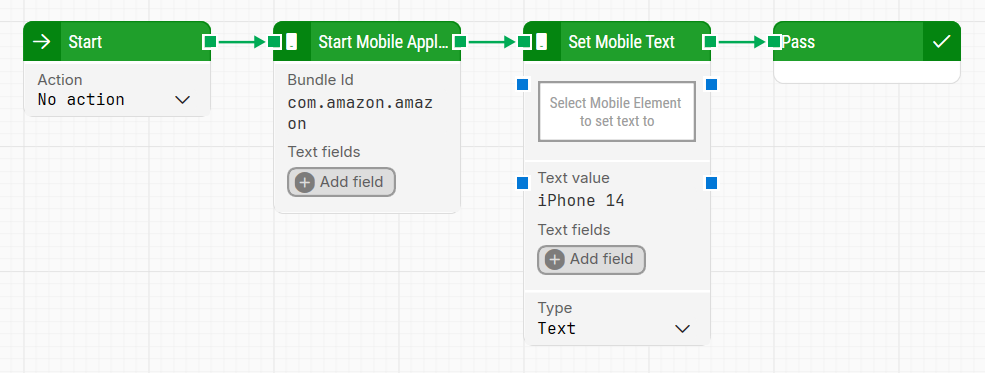
Recording completed. The actions have been added to the flow in Leapwork.
Pause the recording
In some cases, it is necessary to manipulate the application under automation or find relevant data to add to a flow while the recording is ongoing. To do it, you can simply use Pause button in the Smart Mobile Recorder widget to pause the recording.
To resume the recording, click the Play button in the Smart Mobile Recorder widget.
Both the pause and resume recording can be done using keyboard short cuts:
|
Action |
Keyboard short cut |
|
Pause |
ESC |
|
Resume recording |
Ctrl + F1 |
Clear the recording
To clear an ongoing recording to either restart the Smart Mobile Recording or simply skip it, hover the Smart Mobile Recorder widget and click on the cross.
This will clear the recording, close the Smart Mobile Recorder and move focus back into Leapwork.