
Enterprise teams work best when they can collaborate and share resources. Being able to reuse flows, sub-flows, and test data helps teams work faster and more efficiently.
The Teams functionality lets you divide a server into multiple teams, so they can collaborate openly or work in isolation with private assets, all from the same server. This makes it easier to start new automation projects, control who sees what, and manage automation without needing multiple servers.
Adding a Team
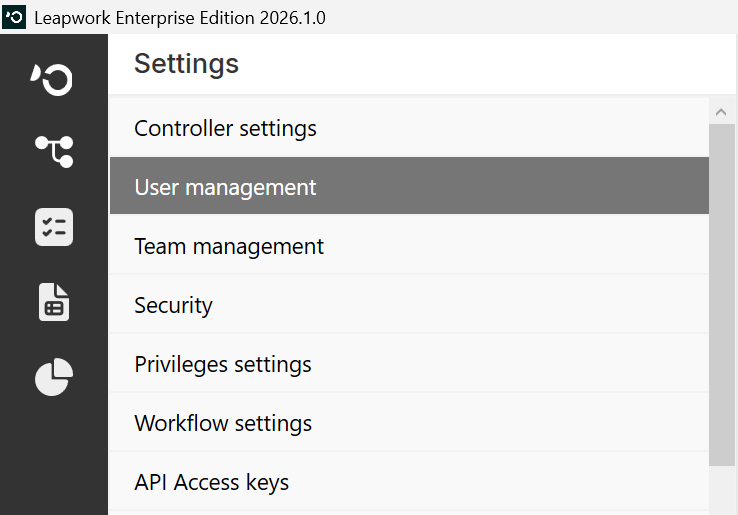
To add a team to a controller, go to the Teams Management section in Settings. From there, you can add or update teams and manage the users in each team.
Working on Teams
If you have access to two or more teams, you will see the team names in a drop-down list. By clicking one of the team options, you will be able to switch team. The following image shows how it looks:
.png?cb=65e59b43c697b62a6c8cac3bddbf01d7)
Note: The screenshots on this page use the Elegance Design, introduced in 2025.3. If you are using an earlier version, your layout may look different.
Once you select a team, you will be able to access the flows based on the role you had in the team. If you only have access to one team, you won’t see the team selection option.
The image below shows how it looks when you are part of a single team:
The Teams feature enables several teams to work on the same server, whilst ensuring that assets can be protected where necessary.
This means new teams can be on-boarded quickly, with the possibility to migrate flows to a new controller when projects evolve and grow in size.