
The Team Management section in Leapwork's settings, can be used to create and manage teams. Team Management is available only in Leapwork's Enterprise Edition.
Deleting the team will also permanently remove the associated flows, and you cannot retrieve them.
Note: Team management settings are available only to logged-in administrators.
Adding a Team in Leapwork
To add a team:
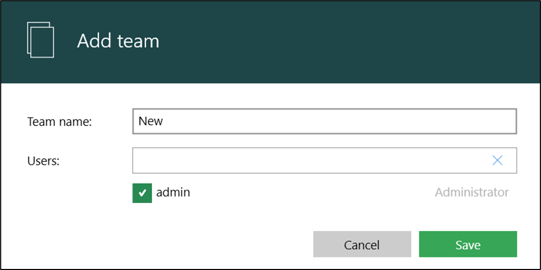
1. Click on the Add team button. The following pop-up will appear:
-
Enter the team's name.
-
Select the users from the list then press save. This will create the team with the required team members/users.
The teams section uses users added in the User Management section. All users on the controller will appear in the users list for selection.
Editing a Team in Leapwork
To edit a team:
-
Select the team to edit.
-
Click on the Edit team button or double click on the team. The following pop-up will then appear:
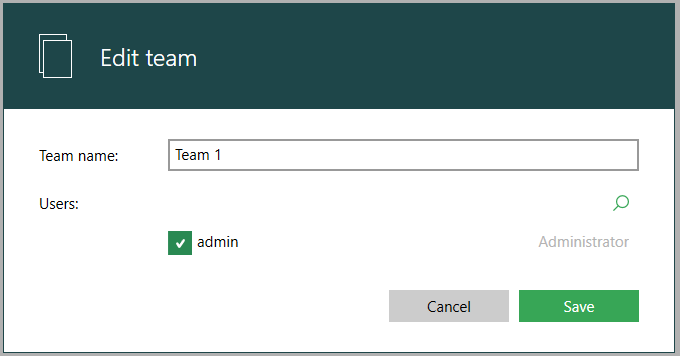
Here you can add or remove users and update the team's name.
Delete a Team in LEAPWORK
To delete a team:
-
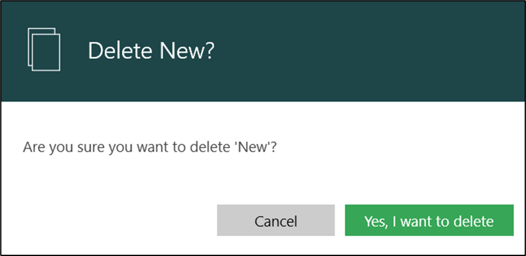
Select the team you want to remove then click on the Delete button. The following pop-up will appear:
-
Clicking Yes, I want to delete will remove the team from Leapwork.