
Leapwork can send e-mails in several ways. For example, when configuring a schedule, you can add an e-mail action to forward the schedule results to recipients. Another method is using the Send e-mail building block as part of a flow.
Leapwork supports two ways to connect to an email server:
-
Simple Mail Transfer Protocol (SMTP) Server
-
Open Authentication (OAuth)
Notes:
-
SMTP is default approach for sending an e-mail.
-
E-mail settings would be available if you are logged in as an administrator.
SMTP Server
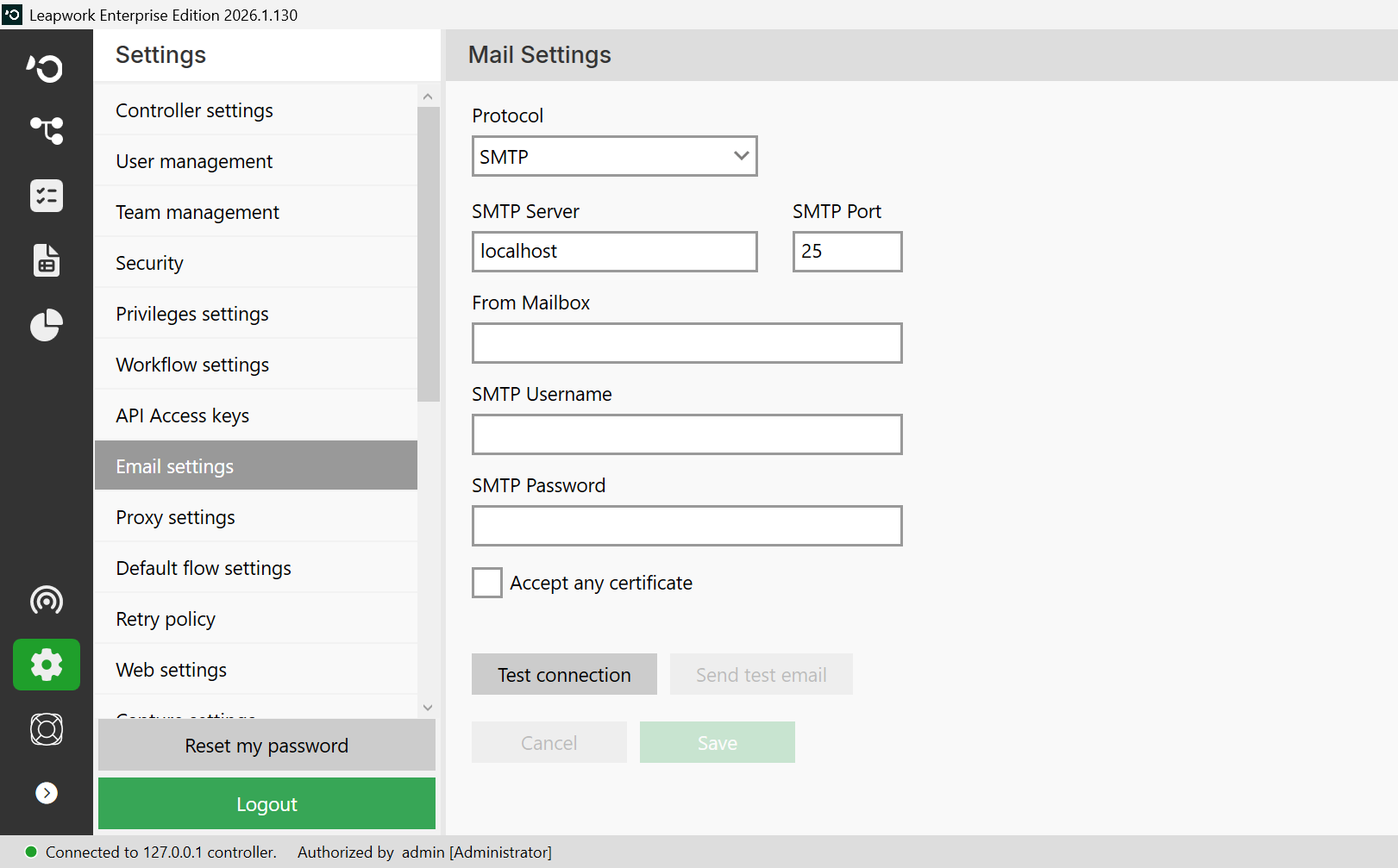
SMTP is a basic authentication protocol for sending emails through servers from one machine to another. To send emails, Leapwork requires access to an SMTP server configured in the Email settings. Make sure to coordinate with your mail and network administrators to ensure the SMTP server is accessible and that you have the required credentials to send emails.
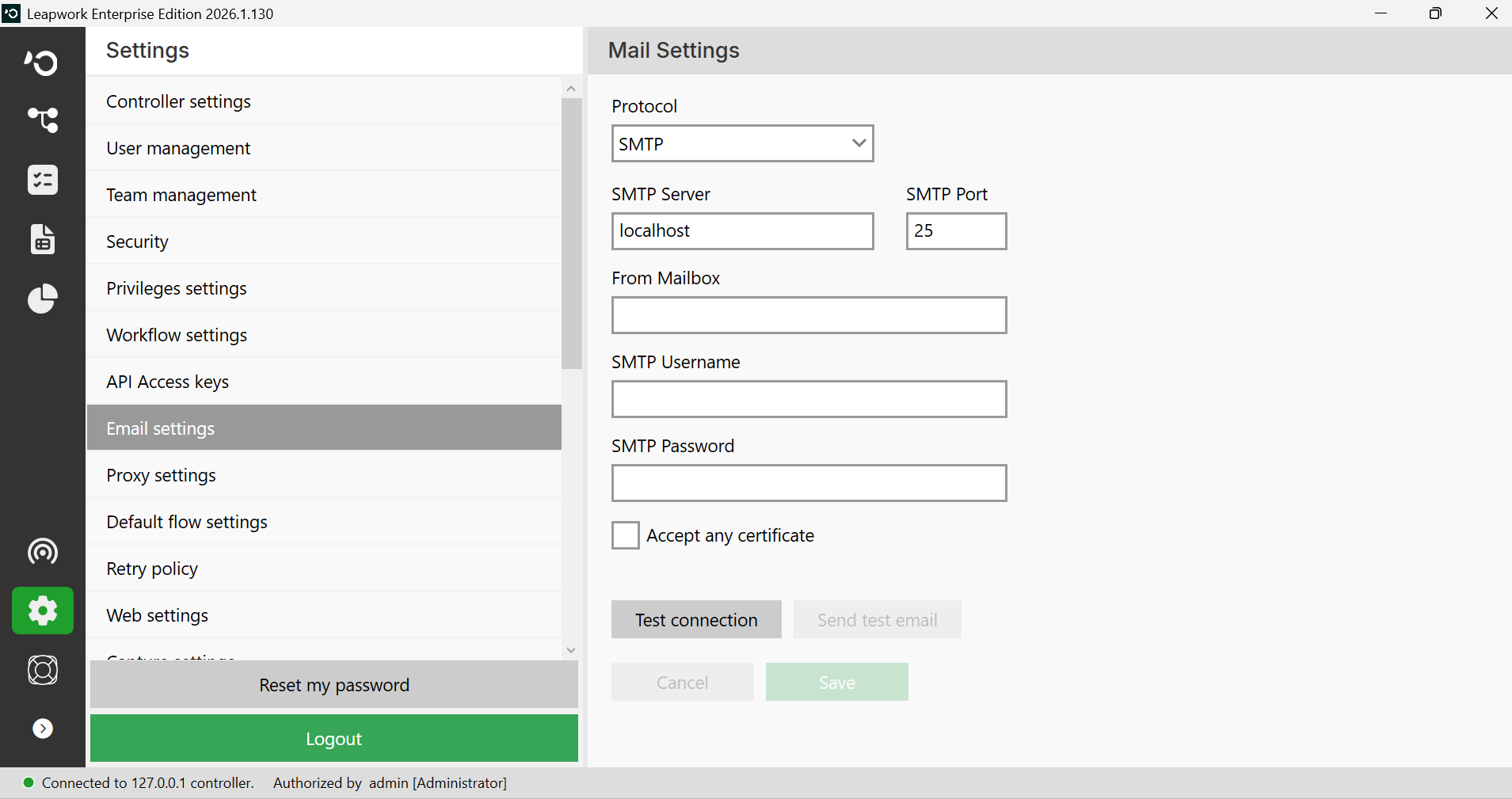
Note: The screenshots on this page use the Elegance Design, introduced in 2025.3. If you are using an earlier version, your layout may look different.
On the Mail Settings window:
-
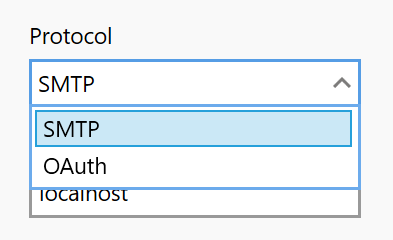
Select the Protocol from the drop down:
-
Select the SMTP.
-
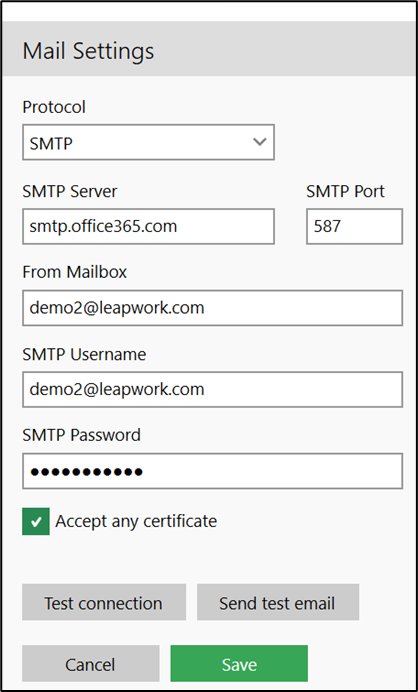
Enter SMTP Server details in the given field. (Hostname or IP address of the SMTP server)
-
Enter SMTP Port details in the given field.
-
Enter From Mailbox details in the given field.
-
Enter SMTP Username details in the given field. (The username for logging into the SMTP server)
-
Enter SMTP Password details in the given field. (The password for the SMTP Username account)
-
Check the Accept any certificate checkbox. This configuration instructs Leapwork to ignore any invalid SSL certificates in the communication with the SMTP server.
-
Click Test connection button to test that the configuration is working correctly. This will do a login to the SMTP server to verify the SMTP Server, SMTP Username, and SMTP Password.
SMTP Server and SMTP Port are the default fields. The values of these are auto filled and you can change these values based on your requirement.
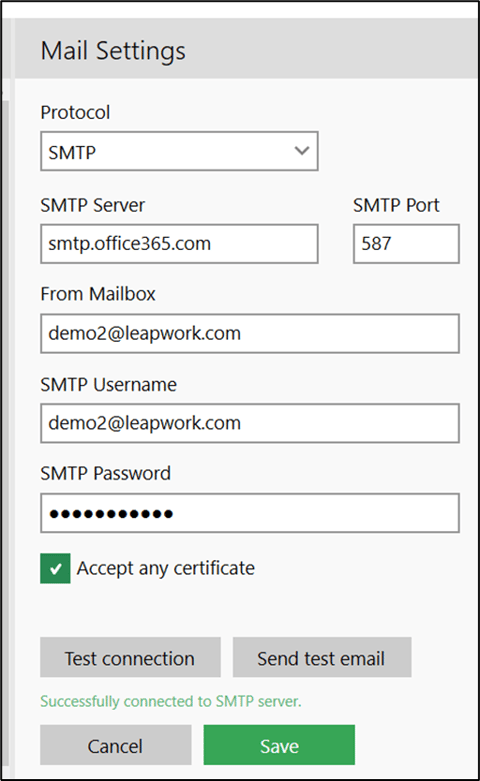
The success message appears to let you know that the SMTP server is connected successfully.
-
Click Send test email button to use the configuration to send a test e-mail to the e-mail address specified in the From Mailbox field.
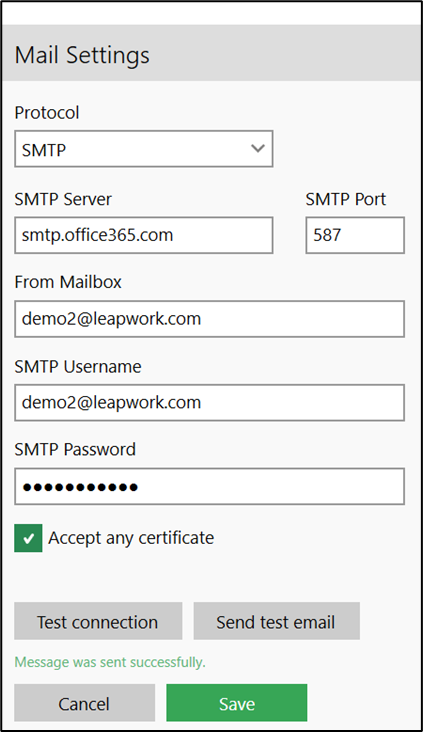
The success message appears to let you know that the email is sent successfully.
-
Click Save button to save the details.
-
Click Cancel button to cancel the details.
OAuth:
OAuth is an open-standard authorization protocol or framework that provides applications the ability for secure designated access.
To send an e-mail, Leapwork requires access to an OAuth 2.0 configuration, a secure open-standard authorization protocol that protects your data by granting access without revealing identity or credentials.
This configuration is set in the E-mail settings section of Leapwork’s settings.
Note: Contact your mail and network administrators to ensure Leapwork can access the OAuth configuration and that you have permission to send e-mails.
To register the daemon application:
-
Go to https://learn.microsoft.com/en-us/azure/healthcare-apis/register-application
-
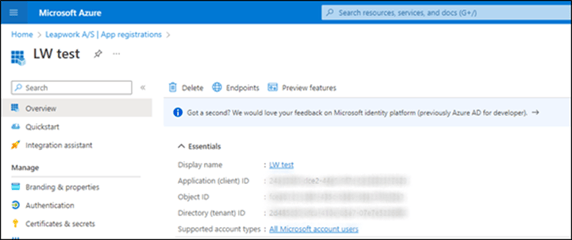
Then, go to https://portal.azure.com/ to register your daemon application. If registered, find the Client ID, Tenant ID, and Object ID under Overview.
-
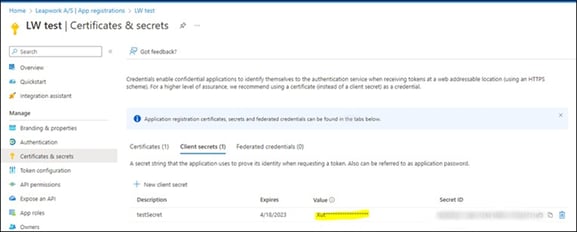
You can find client secret under Certificates & secrets:
-
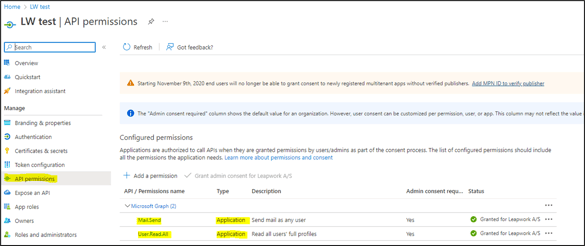
Applications can call APIs once Admin grants permission during consent:
-
Go to Leapwork Flow and select Settings:
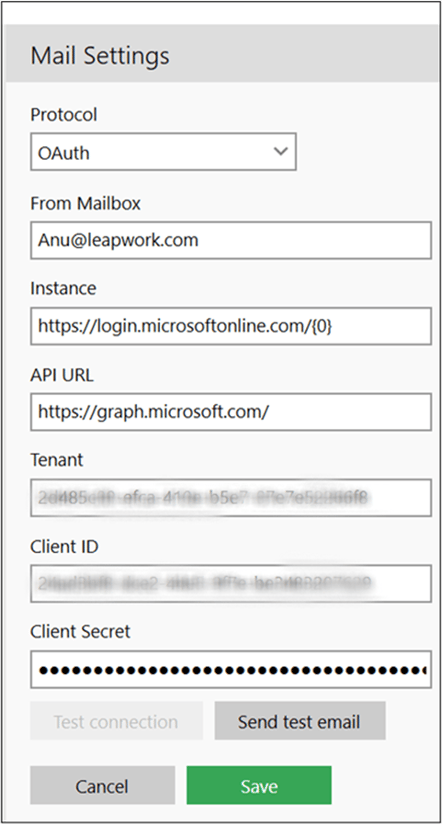
On the Mail Settings window:
-
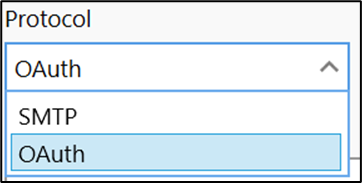
Select the Protocol from the drop-down:
-
Select the OAuth.
-
Enter From Mailbox details in the given field.
-
Enter Instance details in the given field.
-
Enter API URL details in the given field.
-
Enter Tenant details in the given field.
-
Enter Client ID details in the given field.
-
Enter Client Secret details in the given field.
Notes:
-
Instance and API URL are the default fields. The values of these are auto filled and you can change these values based on your requirement.
-
The Test connection button is disabled in OAuth.
-
Click Send test email to send a test email using the configuration to the address in the From Mailbox field.
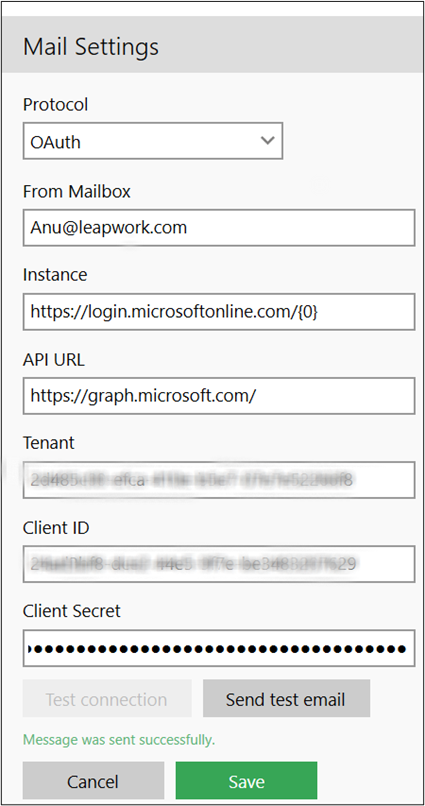
The success message appears to let you know that the email is sent successfully.
-
Click Save button to save the details.
-
Click Cancel button to cancel the details.