
Active Directory (AD) settings in Leapwork allow administrators to integrate users and groups from domains, subdomains, and trusted forests into the platform. This enables centralized user management aligned with enterprise authentication policies.
Note: You can access this settings tab only if you have administrator rights.
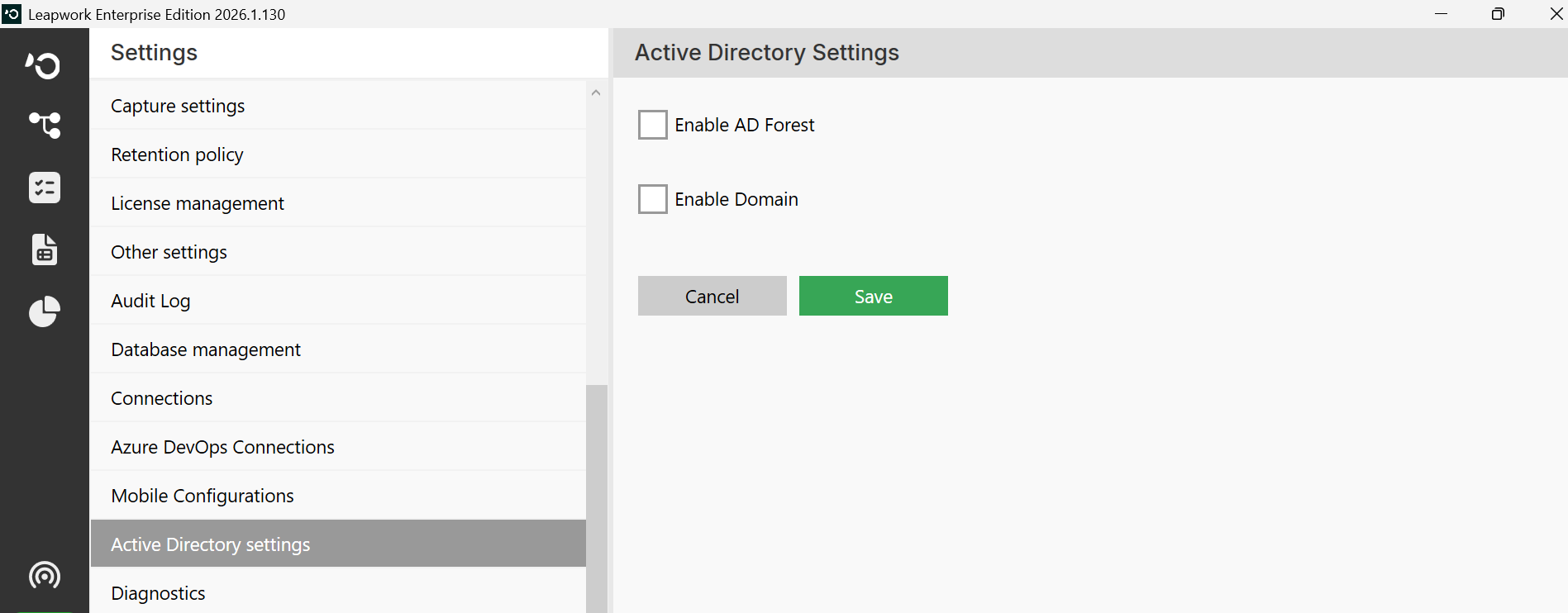
Note: The images on this page use the Elegance Design, introduced in 2025.3. If you are using an earlier version, your layout may look different.
Enabling AD Integration
Leapwork supports two flexible methods for enabling AD integration, depending on your environment:
Enable AD Forest
This option allows Leapwork to automatically discover and connect with all domains within trusted forests.
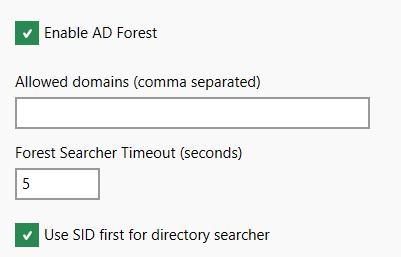
Once the checkbox Enable AD Forest is selected, the following settings become available:
-
Allowed Domains: Enter a comma-separated list of domains to restrict discovery. If left blank, all domains in trusted forests will be included.
Recommended for performance and security: restrict to relevant domains. -
Forest Searcher Timeout: Default is 5 seconds; can be increased up to 30 seconds in slow or complex network environments.
-
Use SID first for directory searcher: Enabled by default. Disabling this may improve login performance in some cases.
-
Click Save to apply changes.
For more information about AD Forest, refer the link: https://learn.microsoft.com/en-us/azure/active-directory-domain-services/concepts-resource-forest
Enable Domains
This option allows administrators to manually configure access to a specific AD domain using explicit credentials.
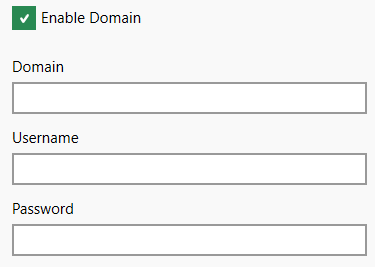
Once the Enable Domains toggle is activated, the three fields are shown:
-
Domain
-
Username
-
Password
Enter valid AD credentials and click Save. Leapwork will:
-
Validate connectivity and authentication.
-
Store the configuration securely.
-
Provide one of the following system messages:
-
"Domain successfully enabled."
-
"Domain configuration updated successfully."
-
"Invalid credentials. Please check the username and password."
-
"Unable to connect to the domain. Please verify the domain name and network settings."
-
"This domain is already configured. Saving will overwrite existing settings. Continue?"
-
This approach suits restricted or segmented environments where automatic discovery is disallowed or inadequate.
Disabling AD Forest:
Unchecking the Enable AD Forest checkbox triggers a confirmation warning:
"Disabling AD Forest feature may delete some users and AD groups."
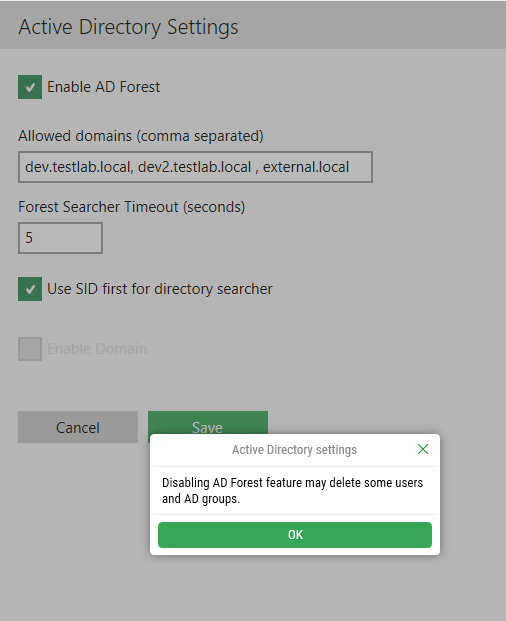
Effects:
-
All users and groups from other domains/forests will be deleted.
-
Any logged-in user from those domains will be logged out immediately.
-
Any flow or team mapping assigned to a removed user will be reset.
User impact after disabling:
-
Affected users will see a popup on login.
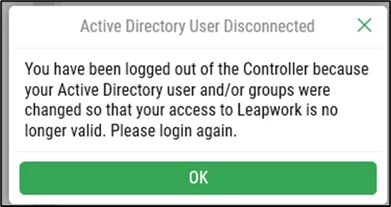
-
Administrators will need to re-add users and remap teams where necessary.
Note: If an AD user was directly part of User Management and linked to a flow, that flow will lose its assignee.
Disabling Domain Configuration
Unchecking the Enable Domains checkbox will deactivate the current domain configuration.
Effects:
-
The system will stop using the configured domain for authentication.
-
Users authenticated through that domain may no longer log in, depending on fallback login settings.
-
Any user or group mappings relying on that domain may stop working until it is re-enabled.
To re-enable:
-
Re-enter valid domain credentials.
-
Click Save.
Best Practice: Always notify affected users when updating domain credentials.